
Spreadsheet → Word → PDF Workflow for Training Completion Packs
Training coordinators often receive a list of participants in Excel and need to produce a finished certificate for each person. Doing this manually means repetitive copy‑pasting, constant naming, and a high chance of errors. This article walks through a repeatable local workflow that turns each row into a Word document and PDF in minutes.
From data to document
Excel rows become Word files and PDFs automatically
Quick answer
Create a dedicated Word template with bookmarks for each field, store photos or signatures in a folder, then run a short VBA macro from Excel that opens the template, fills the bookmarks, inserts the matching image, and saves both a DOCX and a PDF. The macro also creates output subfolders if they are missing, so every run produces a clean, organized set of completion packs.
The macro reads each record, substitutes placeholder text, adds the trainee's photo when a matching file exists, and writes the finished files to separate WORD and PDF folders. Because everything runs locally, there is no upload of personal data and you keep full control of the final layout.
Why this matters
Training programs routinely produce dozens to hundreds of completion certificates for each cohort. Crafting each document by hand means copying names, dates, and course titles into a Word file, formatting the layout, inserting signatures or photos, and then exporting to PDF—steps that are both tedious and prone to typographical errors. Even a small slip can invalidate a certificate, requiring rework and eroding learner confidence. Automated generation eliminates repetitive typing, guarantees that every certificate follows the same branding guidelines, and dramatically reduces turnaround time from hours to minutes. In addition, a scripted process creates a reproducible audit trail: each file is saved with a predictable naming convention and stored in organized folders, making it easy for compliance officers to verify who received which document. By keeping all data processing on the local machine, personal information never leaves the secure corporate network, addressing privacy concerns that arise with cloud‑based alternatives.
Consistency and compliance
When each certificate is built from the same template, fonts, logos, and signatures stay identical. The macro also ensures that every file follows the same naming convention, which helps auditors trace who received which document without hunting through chaotic folders.
Time savings and scalability
A macro that runs through the entire spreadsheet can generate hundreds of certificates in the time it would take a person to complete a single one manually. Because the routine is identical for each row, scaling up to larger classes or multi‑session programs requires no extra effort—just run the macro again. The speed improvement frees staff to focus on higher‑value activities such as learner support, assessment design, or program evaluation.
What goes wrong
Without a structured automation, coordinators often fall into a loop of manual copy‑pastes, mismatched filenames, and missing images. Small mistakes compound when the batch size grows, leading to re‑work and frustrated learners.
Before automation
Each row is opened in Excel, copied into Word, placeholders are edited by hand, images are dragged in, and the file is saved under an ad‑hoc name. Missing photos go unnoticed until the final review, and the PDF export step is repeated for every document, wasting time.
After automation
The VBA macro loops through all rows, writes data to the template, checks for a matching image file, and saves both DOCX and PDF automatically. Output folders are created ahead of time, so the result is a tidy tree of files ready for distribution.
Automation eliminates the repetitive manual steps, reduces human error, and creates a reproducible process that scales with the size of the training cohort.
What the workflow looks like
The workflow consists of three logical layers – data preparation, template configuration, and macro execution – each of which can be set up once and then reused for any training session.
Prepare the Excel source sheet
Create a table where each row represents one trainee. Required columns typically include Name, Course, CompletionDate, CertID (a unique identifier) and any additional fields you want to merge. Keep the sheet free of merged cells and hidden rows so the macro can iterate reliably.
Build a Word template with bookmarks
Open a new document, lay out the certificate design, and insert bookmarks named exactly as the columns (for example, Name, Course, Date, CertID). Add three extra bookmarks named Photo, Logo and Signature if you plan to insert images. Save the file as Template.docx in the same folder as the Excel workbook.
Collect image assets
Create a Photos subfolder next to the workbook. For each CertID place a JPEG (or PNG for high‑resolution stamps) named CertID.jpg. The macro will look for a matching filename; if it does not exist, the image placeholder is simply left blank, preventing errors.
Run the VBA macro
From the Excel ribbon, open the Visual Basic editor, paste the provided macro, and run GenerateCompletionPacks. The code checks that the output folders (Output/DOCX and Output/PDF) exist, opens the Word template for each row, fills bookmarks, inserts the image, saves a DOCX, exports a PDF, and closes the document. When the loop finishes, a message box confirms how many packs were created.
A visual example
Simple visual illustration.
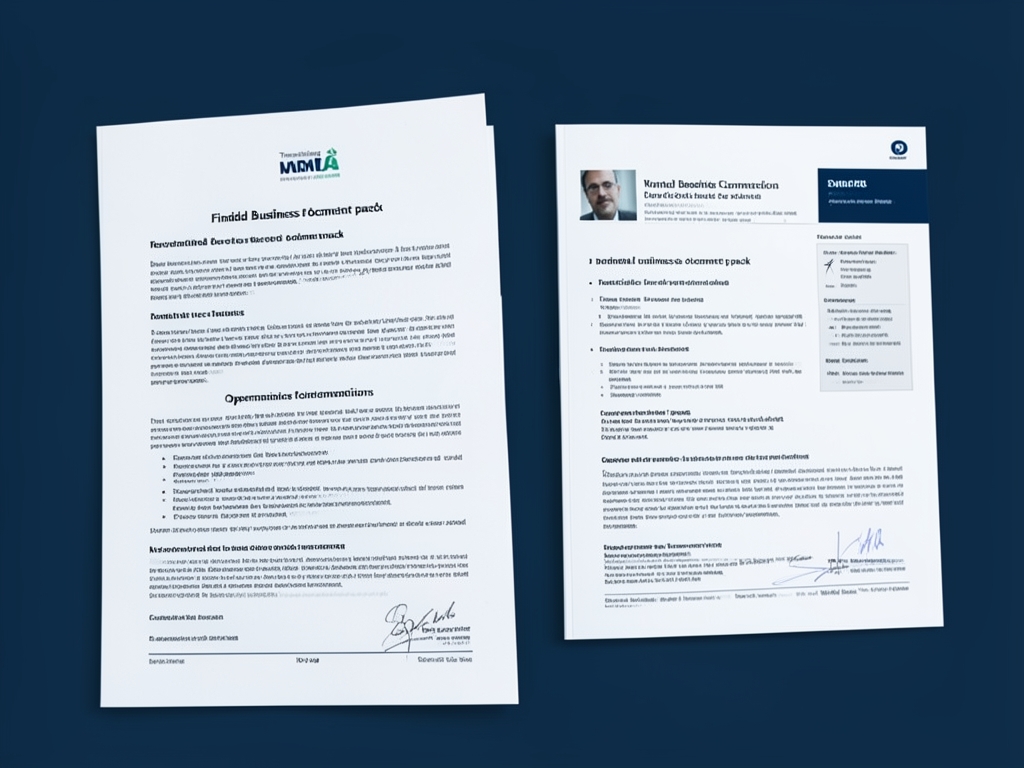
AI-generated illustration for article.
A grounded VBA example
Below is a ready‑to‑use macro that ties the three layers together. It validates folders, handles missing images gracefully, and produces both Word and PDF versions in one pass.
The macro opens the template once per record, writes each field into its bookmark, attempts to add a photo named after the CertID, saves the result as a DOCX, then uses ExportAsFixedFormat to write a PDF. Helper subroutines keep the main loop tidy.
Sub GenerateCompletionPacks()
    Dim xl As Worksheet
    Dim lastRow As Long, r As Long
    Dim wdApp As Object
    Dim wdDoc As Object
    Dim tmplPath As String, outDocPath As String, outPdfPath As String
    Dim imgFolder As String, imgPath As String

    Set xl = ThisWorkbook.Sheets("Data")
    lastRow = xl.Cells(xl.Rows.Count, "A").End(xl.Up).Row

    tmplPath = ThisWorkbook.Path & "\Template.docx"
    imgFolder = ThisWorkbook.Path & "\Photos"

    Set wdApp = CreateObject("Word.Application")
    wdApp.Visible = False

    For r = 2 To lastRow
        Dim traineeName As String, course As String, dateCompleted As String, certId As String
        traineeName = xl.Cells(r, "A").Value
        course = xl.Cells(r, "B").Value
        dateCompleted = xl.Cells(r, "C").Text
        certId = xl.Cells(r, "D").Value

        Set wdDoc = wdApp.Documents.Open(tmplPath, ReadOnly:=True)

        With wdDoc
            .Bookmarks("Name").Range.Text = traineeName
            .Bookmarks("Course").Range.Text = course
            .Bookmarks("Date").Range.Text = dateCompleted
            .Bookmarks("CertID").Range.Text = certId

            imgPath = imgFolder & "\" & certId & ".jpg"
            If Dir(imgPath) <> "" Then
                .Bookmarks("Photo").Range.InlineShapes.AddPicture Filename:=imgPath, LinkToFile:=False, SaveWithDocument:=True
            End If

            outDocPath = ThisWorkbook.Path & "\Output\DOCX\" & certId & ".docx"
            outPdfPath = ThisWorkbook.Path & "\Output\PDF\" & certId & ".pdf"

            Call EnsureFolderExists(ThisWorkbook.Path & "\Output\DOCX")
            Call EnsureFolderExists(ThisWorkbook.Path & "\Output\PDF")

            .SaveAs2 Filename:=outDocPath, FileFormat:=wdFormatXMLDocument
            .ExportAsFixedFormat OutputFileName:=outPdfPath, ExportFormat:=17 'wdExportFormatPDF
            .Close SaveChanges:=False
        End With
    Next r

    wdApp.Quit
    MsgBox "Generation complete for " & lastRow - 1 & " records.", vbInformation
End Sub

Sub EnsureFolderExists(ByVal fPath As String)
    If Dir(fPath, vbDirectory) = "" Then MkDir fPath
End Sub
Copy the code into a standard module in your Excel workbook, adjust the column letters if needed, and run the GenerateCompletionPacks procedure.
Where VBA starts to strain
While VBA is a powerful tool for automating document‑generation tasks within the Office suite, it does have practical limits that become evident as the volume of records, the size of assets, or the complexity of the template increase. Running a separate instance of Word for each row can become a bottleneck when dealing with thousands of participants; the repeated opening and closing of documents consumes CPU cycles and can cause Word to hang if large images are inserted. Large picture files inflate memory usage, and if the macro does not explicitly release objects, you may encounter “out of memory” errors on longer runs. VBA executes on a single thread, so it cannot take advantage of multi‑core processors, limiting throughput. Moreover, many organizations enforce macro‑security policies that block unsigned code, requiring the script to be signed or the security level lowered, which adds administrative overhead. As the workflow evolves—new fields, different layouts, or additional branding elements—maintaining the macro can become cumbersome, especially for users without programming experience. For very high‑volume or highly regulated environments, a dedicated document‑automation platform provides better performance, auditability, and support for advanced features like parallel processing and digital signatures.
Performance and stability
The macro runs in a single thread and opens and closes Word for each record, which can become slow with thousands of rows. Large image files also increase memory usage; keeping photos under 300 KB helps avoid Word hanging. Network drives can add latency, so keep all files on a local drive whenever possible.
Maintenance and security
Because VBA runs inside Office, it is subject to the host application's macro‑security settings. Unsigned macros may be blocked by default, and any change to the code requires a trusted location or a digital signature. Updating the macro to accommodate new columns or bookmark names also demands VBA expertise, which can increase the risk of accidental breaking changes. For teams that need strict change‑control or want full traceability of document generation, a purpose‑built solution can provide versioned templates, role‑based access, and built‑in logging without exposing the environment to macro‑execution policies.
A calmer way to standardize the workflow
DocxForge Pro offers a purpose‑built interface that automates the same steps without writing code, while still running entirely on the user’s PC.
For repeatable business documents such as reports contracts certificates letters and packs DocxForge Pro can act as the local layer between spreadsheet data Word templates and final output. It can produce Word output PDF output or both depending on how the workflow is configured.
This fits teams that produce repeatable reports contracts certificates forms letters or document packs from structured data. This is helpful when teams need editable DOCX files and final PDFs from the same template workflow. The article’s VBA example shows the spreadsheet-side automation while DocxForge Pro fits as the document-generation layer outside the code example itself.
Start Free 7-Day TrialBatch generation without macros
Load your Excel sheet, point to a Word template, define the image folder, and let DocxForge handle the looping, field insertion and PDF export. The tool also provides progress reporting and error logs, so you can quickly spot missing photos or data mismatches.
Frequently asked questions
Common questions from training coordinators about this workflow.
Can this workflow stay inside Microsoft Office tools?
Yes, for many workflows the data-prep and document-output steps can stay inside the existing toolset, but the fragile part is usually the repeatability of the final document stage.
Where does VBA help the most?
VBA is usually most useful for prep, normalization, field updates, file naming, or small batch helpers rather than for building a full document workflow from scratch.
When does the workflow become brittle?
The workflow usually becomes brittle when templates, images, output folders, or PDF export steps have to be repeated across many records without a stable generation layer.
Topics and Tags
Browse related topic clusters and workflow tags connected to this article.
Continue Reading
Explore more articles related to this workflow, problem, or document automation topic.
Excel → Word → PDF Workflow for Membership Certificates
Generate membership certificates from Excel to Word and PDF
Read articleHow to Build Offline Insurance Claim Document Packs
A step‑by‑step guide for insurance operations teams to build offline claim document packs using Excel, Word, and a safe VBA macro.
Read articleHow to Generate Training Attendance Sheets and Completion Letters
A step‑by‑step guide for training administrators to turn Excel rosters into polished attendance sheets and completion letters, using VBA in Microsoft Word and optional DocxForge Pro batching.
Read articleHow to Generate Supplier Forms and Procurement Packs
Generate supplier forms and procurement packs
Read article