
Spreadsheet → Word → PDF Workflow for NGO Grant Documentation
NGO grant teams often spend hours copying spreadsheet rows into Word letters and then exporting each file as a PDF. By linking Excel data directly to a Word template you can produce a polished grant report for every project with a single click. The result is a consistent set of PDFs ready for submission, while the source data stays in one place.
Automated PDF grant packet
From one spreadsheet row to a finished PDF
Quick answer
The most reliable way to turn a list of grant applications into individual Word letters and PDFs is to keep the data in Excel, use a Word template with bookmarks, and let a short VBA macro drive the process. The macro reads each row, fills the bookmarks, optionally inserts a logo or signature image, and exports the document as PDF, saving everything into organized folders.
The macro loops over the spreadsheet, writes values into the template, adds any required images, and saves a PDF for each record.
Why this matters
Grant administrators must submit accurate, consistently formatted documents to funders, often under tight deadlines. Manual assembly is error‑prone, wastes staff time, and makes it hard to verify that every required field is present. By automating the data transfer from a master spreadsheet to a single Word template, NGOs can guarantee uniformity across all submissions, retain a single source of truth for the data, and free staff to focus on narrative quality rather than repetitive formatting tasks.
Consistency and compliance
When every row feeds the same set of bookmarks, the resulting letters follow the exact layout required by donors. This reduces the risk of missing signatures, misplaced logos, or incorrect funding amounts that can cause a proposal to be rejected. Auditors also appreciate that the same spreadsheet drives every document, making it easy to trace back any figure to its source.
Time savings that scale
A single macro can produce dozens or hundreds of PDFs in the time it would take one person to finish a handful manually. The more projects an NGO handles, the larger the time‑cost benefit, allowing staff to allocate hours to program delivery instead of paperwork.
What goes wrong
Many NGOs start by copying data from Excel into a Word mail‑merge or by manually duplicating a template for each grant. That approach quickly breaks when the number of records grows, when a field changes, or when an image such as a new logo needs to be updated across all files. The result is inconsistent formatting, missing data, and a lot of re‑work.
Manual copy‑paste
Team members open the template, type values from the spreadsheet, insert images one by one, and then use Word’s Save As PDF. Every step is repeated for each row, leading to typos, forgotten fields, and mismatched branding across documents.
Automated VBA workflow
A macro reads each spreadsheet row, populates bookmarks, inserts the correct image files, and exports a PDF automatically. All files are saved to a predefined folder structure, guaranteeing that every document follows the same style and contains the same required elements.
Automation eliminates the human‑error loop and makes the process repeatable for any number of grant applications.
What the workflow looks like
The end‑to‑end workflow consists of three technology layers—Excel for data, Word for the template, and a small VBA macro that ties them together. Once the files are set up, generating a new batch of grant letters is a single click.
Prepare the Excel source sheet
Create a worksheet where each row represents one grant application. Include columns for the project name, recipient, amount, and the exact filename of any logo or signature image that should appear in the final document. Keep the header row stable, because the macro will reference column letters by name.
Build a Word template with bookmarks
Insert placeholders where data will go—ProjectName, Recipient, Amount, etc.—and add bookmarks with the same names. For images, place an empty bookmark where the logo or signature will be inserted (e.g., photo_logo). Save the template in the same folder as the Excel file.
Store images in a dedicated folder
Create a sub‑folder (e.g., "Photos") next to the workbook. Name each image file exactly as it appears in the Excel column so the macro can resolve the path without extra logic. Use PNG for logos and signatures to preserve transparency.
Run the VBA macro
The macro opens the Word template for each spreadsheet row, writes the cell values into the corresponding bookmarks, inserts the image if the file exists, and then calls ExportAsFixedFormat to create a PDF. Each PDF is saved with a filename derived from a unique column (such as the grant ID).
Review the output folders
After the macro finishes, two folders appear: one containing the generated Word files (if you kept them) and another with the PDFs ready for submission. A quick spot‑check confirms that every document follows the same layout and includes the correct logo or signature.
A visual example
Simple visual illustration.
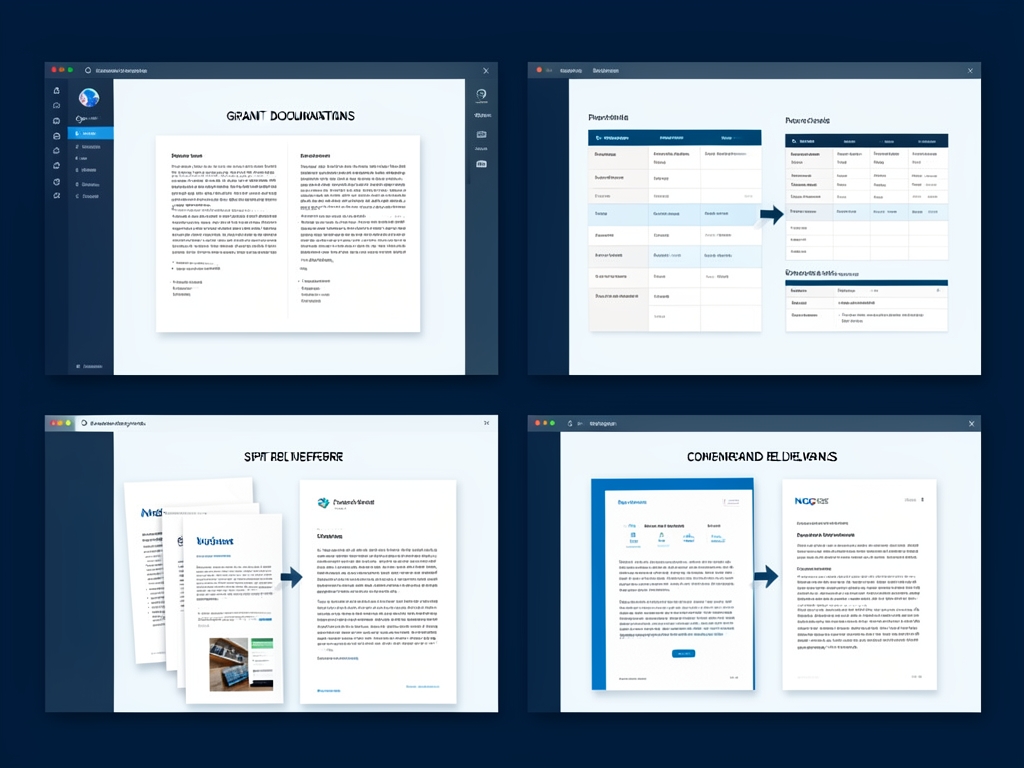
AI-generated illustration for article.
A grounded VBA example
Below is a compact VBA macro that implements the workflow described above. It runs from Excel, drives Word, fills bookmarks, adds optional images, and produces PDFs in a batch.
The code opens the Word template, loops through each data row, writes values to bookmarks, inserts a picture when a matching file is found, and saves the result as a PDF.
Sub GenerateGrantDocs()
    Dim wb As Workbook, ws As Worksheet
    Dim wdApp As Object, wdDoc As Object
    Dim lastRow As Long, i As Long
    Dim outPath As String, imgFolder As String
    Dim tmplPath As String, picPath As String

    Set wb = ThisWorkbook
    Set ws = wb.Sheets("Data")
    tmplPath = wb.Path & "\GrantTemplate.docx"
    imgFolder = wb.Path & "\Photos"
    outPath = wb.Path & "\Output"

    If Dir(outPath, vbDirectory) = "" Then MkDir outPath

    Set wdApp = CreateObject("Word.Application")
    wdApp.Visible = False

    lastRow = ws.Cells(ws.Rows.Count, "A").End(xlUp).Row

    For i = 2 To lastRow
        Set wdDoc = wdApp.Documents.Open(tmplPath, ReadOnly:=False)

        wdDoc.Bookmarks("ProjectName").Range.Text = ws.Cells(i, "B").Value
        wdDoc.Bookmarks("Recipient").Range.Text = ws.Cells(i, "C").Value
        wdDoc.Bookmarks("Amount").Range.Text = ws.Cells(i, "D").Value

        picPath = imgFolder & "\" & ws.Cells(i, "E").Value
        If Dir(picPath) <> "" Then
            wdDoc.Bookmarks("photo_logo").Range.InlineShapes.AddPicture FileName:=picPath, LinkToFile:=False, SaveWithDocument:=True
        End If

        Dim pdfName As String
        pdfName = outPath & "\" & ws.Cells(i, "A").Value & ".pdf"
        wdDoc.ExportAsFixedFormat OutputFileName:=pdfName, ExportFormat:=17   '17 = wdExportFormatPDF

        wdDoc.Close SaveChanges:=False
    Next i

    wdApp.Quit
    Set wdDoc = Nothing
    Set wdApp = Nothing
    MsgBox "Grant documents generated: " & (lastRow - 1) & " PDFs."
End Sub
Adjust bookmark names, folder paths, and column references to match your own template and data layout before running.
Where VBA starts to strain
While VBA handles the core steps reliably, there are scenarios where the approach reaches its limits. Understanding those helps you decide when to augment the process or move to a more specialized tool.
Large image sets and Word performance
Inserting many high‑resolution pictures can slow Word down and increase the size of the generated PDFs. VBA does not include built‑in image‑optimisation, so you may need to pre‑scale images to the recommended 150 DPI for standard pictures and 300 DPI for logos or signatures before the run. Very large batches (hundreds of documents) may also cause Word to consume significant memory, leading to occasional crashes.
Macro security and error handling
Because the macro runs unattended, users must enable trusted access to the VBA project and allow programmatic control of Word. If security settings block it, the script stops. Adding simple "On Error Resume Next" checks around document opening and image insertion prevents the whole batch from aborting when a single file is missing or a bookmark is mis‑named.
A calmer way to standardize the workflow
DocxForge Pro provides a purpose‑built environment for the same spreadsheet‑to‑document pipeline, handling image optimisation, folder management, and batch processing without writing code.
For repeatable business documents such as reports contracts certificates letters and packs DocxForge Pro can act as the local layer between spreadsheet data Word templates and final output. It can produce Word output PDF output or both depending on how the workflow is configured.
This fits teams that produce repeatable reports contracts certificates forms letters or document packs from structured data. This is helpful when teams need editable DOCX files and final PDFs from the same template workflow. The article’s VBA example shows the spreadsheet-side automation while DocxForge Pro fits as the document-generation layer outside the code example itself.
Start Free 7-Day TrialZero‑code batch generation
Upload your Excel file and Word template, map columns to bookmarks in a guided UI, and let the engine produce PDFs for every row. No VBA needed, so you avoid macro security hurdles.
Built‑in image handling
The product automatically stages images, applies the correct DPI settings for logos, signatures, and regular photos, and caches them to keep PDF sizes low.
Frequently asked questions
Common questions about the spreadsheet‑to‑PDF workflow for grant documentation.
Can this workflow stay inside Microsoft Office tools?
Yes, for many workflows the data-prep and document-output steps can stay inside the existing toolset, but the fragile part is usually the repeatability of the final document stage.
Where does VBA help the most?
VBA is usually most useful for prep, normalization, field updates, file naming, or small batch helpers rather than for building a full document workflow from scratch.
When does the workflow become brittle?
The workflow usually becomes brittle when templates, images, output folders, or PDF export steps have to be repeated across many records without a stable generation layer.
Topics and Tags
Browse related topic clusters and workflow tags connected to this article.
Continue Reading
Explore more articles related to this workflow, problem, or document automation topic.
How to Build Offline Insurance Claim Document Packs
A step‑by‑step guide for insurance operations teams to build offline claim document packs using Excel, Word, and a safe VBA macro.
Read articleHow to Generate Supplier Forms and Procurement Packs
Generate supplier forms and procurement packs
Read articleHow to Create Equipment Checklists with Photos and PDF Output
Guide for operations teams to automate equipment inspection checklists that embed field photos and produce PDF files using local Excel and Word automation.
Read articleHow to Create Photo-Based Property Condition Reports
Create photo-based property condition reports
Read article