
How to Create Batch Certificates from Excel and Word Templates
Training, HR, and certification teams often need to turn a list of trainees into individual certificates. Doing this manually in Word for each row is error‑prone and consumes valuable time. By pairing a structured Excel sheet with a Word template, you can automate the entire process and produce both DOCX and PDF files in one go.
Instant certificates
From data row to polished document
Quick answer
You can automate certificate creation by using a VBA macro that reads each record from an Excel worksheet, opens a pre‑designed Word template, fills text bookmarks, inserts logo or signature images, and then saves the result as both a DOCX and a PDF. The macro also builds a sensible filename from the participant’s name and course, places the files into separate WORD and PDF output folders, and repeats until every row is processed.
Loop through the Excel rows → open the Word template → write the name, course, and date into bookmarks → add images for logo and signature if they exist → save as .docx → export as .pdf → close and move to the next row.
Why this matters
HR and training teams issue hundreds of certificates each quarter. A manual copy‑paste approach leads to inconsistent branding, typos, and wasted hours. Automating the merge guarantees that every certificate follows the same layout, uses the correct logo resolution, and includes a signature that matches corporate standards. The result is a professional document set that can be archived or emailed directly, freeing staff to focus on higher‑value learning activities.
Consistency across the board
Because the macro pulls data from a single source of truth – the Excel sheet – every certificate contains the exact same fonts, colors, and image placements. Changing the template once updates all outputs, eliminating the need for per‑document adjustments.
Scalable time savings
Generating 200 certificates manually can take several days. The same batch runs in minutes with VBA, cutting labor costs and reducing the risk of missed or duplicated records. The workflow also creates PDFs automatically, ready for electronic distribution.
What goes wrong
When teams rely on manual steps, a handful of small mistakes quickly snowball. Common issues include mismatched filenames, missing images, broken bookmark references, and PDF export errors that require reopening the document to fix.
Manual copy‑paste
An assistant opens the template for each trainee, types the name, selects the course from a drop‑down, pastes the logo, saves the file, then repeats the whole process. Any typo or forgotten image means the certificate must be redone, and the final PDFs are often inconsistently named.
Automated VBA
A single macro reads the Excel row, writes all fields, checks that the logo and signature files exist, inserts them, and saves the DOCX and PDF with a predictable filename. Errors are captured in a message box, and the process can be rerun without touching the template.
By moving from a manual chain of actions to a repeatable script, you eliminate the majority of human error and free up staff to handle exceptions only.
What the workflow looks like
The end‑to‑end batch certificate workflow consists of a few well‑defined steps that can be prepared once and reused for every training cycle.
Prepare the Excel source
Create a worksheet (e.g., ‘Certificates’) where each row represents one participant. Include columns for Name, Course, Date, and optional image filenames for logo and signature. Keep the header row intact – the macro will start at row 2.
Design the Word template
In Word, build the certificate layout and insert bookmarks named exactly as the macro expects (Name, Course, Date, photo_logo, photo_signature). Use placeholder text or images so the layout stays stable during merges.
Collect images in a single folder
Place all logos, signatures, or stamps in an ‘Images’ folder next to the workbook. Name the files exactly as listed in the Excel column, or leave the cell blank if a particular certificate does not need that image.
Run the VBA macro
Open the Excel workbook, press ALT + F11, insert the provided macro, and execute it. The script will open Word invisibly, fill the bookmarks, insert images when found, save a DOCX into an ‘Output\WORD’ subfolder, export a PDF into ‘Output\PDF’, and repeat for each row.
Validate and distribute
After the run, open a few samples from both folders to confirm layout, image quality, and filename conventions. The PDFs are ready for email attachment or bulk upload to a learning‑management system.
A visual example
Simple visual illustration.
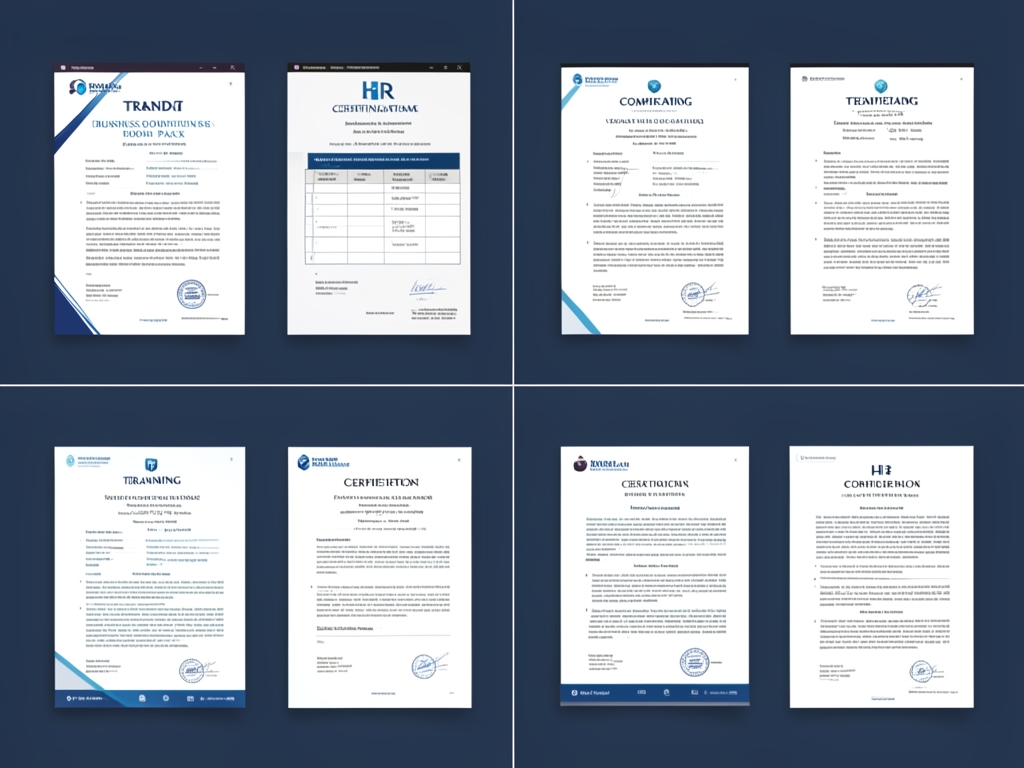
AI-generated illustration for article.
A grounded VBA example
The macro below demonstrates a practical, end‑to‑end solution that works entirely on the user’s PC. It avoids risky picture‑compression calls and relies only on Word’s built‑in bookmark and ExportAsFixedFormat features.
The code opens the template, writes text into bookmarks, conditionally adds images, saves the completed document, and creates a matching PDF. It also builds separate output folders for Word and PDF files, making post‑processing straightforward.
Option Explicit

Sub GenerateCertificates()
    Dim wb As Workbook, ws As Worksheet
    Dim wdApp As Object, wdDoc As Object
    Dim tmplPath As String, outDocFolder As String, outPdfFolder As String
    Dim imgFolder As String
    Dim lastRow As Long, i As Long
    Dim certName As String, outDocPath As String, outPdfPath As String

    Set wb = ThisWorkbook
    Set ws = wb.Sheets("Certificates") ' sheet with data

    tmplPath = wb.Path & "\CertificateTemplate.docx"
    imgFolder = wb.Path & "\Images"
    outDocFolder = wb.Path & "\Output\WORD"
    outPdfFolder = wb.Path & "\Output\PDF"

    ' Ensure output folders exist
    If Dir(outDocFolder, vbDirectory) = "" Then MkDir outDocFolder
    If Dir(outPdfFolder, vbDirectory) = "" Then MkDir outPdfFolder

    Set wdApp = CreateObject("Word.Application")
    wdApp.Visible = False

    lastRow = ws.Cells(ws.Rows.Count, "A").End(xlUp).Row

    For i = 2 To lastRow ' assume headers in row 1
        Set wdDoc = wdApp.Documents.Open(tmplPath, ReadOnly:=False)

        '--- Fill simple text bookmarks with safety checks ---
        If wdDoc.Bookmarks.Exists("Name") Then wdDoc.Bookmarks("Name").Range.Text = ws.Cells(i, "A").Value
        If wdDoc.Bookmarks.Exists("Course") Then wdDoc.Bookmarks("Course").Range.Text = ws.Cells(i, "B").Value
        If wdDoc.Bookmarks.Exists("Date") Then wdDoc.Bookmarks("Date").Range.Text = ws.Cells(i, "C").Value

        '--- Insert images if files exist and bookmarks are present ---
        InsertImageIfFileExists wdDoc, "photo_logo", imgFolder, ws.Cells(i, "D").Value
        InsertImageIfFileExists wdDoc, "photo_signature", imgFolder, ws.Cells(i, "E").Value

        '--- Build filename and save outputs ---
        certName = ws.Cells(i, "A").Value & "_" & ws.Cells(i, "B").Value
        outDocPath = outDocFolder & "\" & certName & ".docx"
        outPdfPath = outPdfFolder & "\" & certName & ".pdf"

        wdDoc.SaveAs2 outDocPath, 16 ' wdFormatXMLDocument
        wdDoc.ExportAsFixedFormat OutputFileName:=outPdfPath, ExportFormat:=17 ' wdExportFormatPDF

        wdDoc.Close SaveChanges:=False
    Next i

    wdApp.Quit
    MsgBox "Certificates generated: " & (lastRow - 1), vbInformation
End Sub

Sub InsertImageIfFileExists(doc As Object, tag As String, folder As String, fileName As String)
    Dim imgPath As String
    If Len(Trim(fileName)) = 0 Then Exit Sub
    imgPath = folder & "\" & fileName
    If Dir(imgPath) <> "" Then
        If doc.Bookmarks.Exists(tag) Then
            With doc.Bookmarks(tag).Range
                .InlineShapes.AddPicture FileName:=imgPath, LinkToFile:=False, SaveWithDocument:=True
            End With
        End If
    End If
End Sub
If you need to support additional placeholders, add corresponding bookmarks in the Word file and extend the VBA routine with extra wdDoc.Bookmarks calls. For large batches, consider adding simple progress reporting or error logging to a worksheet.
Where VBA starts to strain
While VBA can automate most batch scenarios, it does have practical limits that become apparent as the volume or complexity grows.
Performance ceiling
Processing thousands of rows can slow down because Word is launched for each record and each image insert incurs a small delay. The macro is single‑threaded, so very large runs may take noticeably longer than a purpose‑built engine. In addition, repeated opening and closing of Word documents adds overhead that scales linearly with row count. For most HR needs—hundreds rather than thousands of certificates—VBA remains acceptable, but you should monitor execution time and consider batching in smaller chunks if performance degrades.
Maintenance overhead
Any change to bookmark names, image‑folder structure, or the Excel schema requires a code update. Keeping the macro in sync with evolving templates can become a bottleneck for teams without dedicated VBA expertise. Adding defensive checks (e.g., verifying bookmark existence and ensuring output directories exist) mitigates sudden failures, but the underlying code still needs periodic review whenever the certificate design is altered.
Error‑handling reality
The macro currently aborts on a missing image or an unexpected bookmark, which forces users to re‑run the whole batch after fixing the data. Incorporating simple existence checks and folder‑creation logic transforms a brittle script into a more resilient tool, reducing the need for constant supervision while still staying within the VBA environment.
A calmer way to standardize the workflow
DocxForge Pro provides a dedicated, low‑code engine that handles the same Excel‑to‑Word‑to‑PDF batch flow while eliminating the manual VBA maintenance.
For repeatable business documents such as reports contracts certificates letters and packs DocxForge Pro can act as the local layer between spreadsheet data Word templates and final output. The layout stays in the Word template while the data comes from the spreadsheet workflow.
This fits teams that produce repeatable reports contracts certificates forms letters or document packs from structured data. This is useful when teams already rely on Word templates and do not want to redesign the output format from scratch. The article’s VBA example shows the spreadsheet-side automation while DocxForge Pro fits as the document-generation layer outside the code example itself.
Start Free 7-Day TrialLocal batch engine
Runs on Windows, uses the installed Word and Excel applications, and creates Word and PDF files in separate output folders without writing any data to the cloud.
Built‑in image handling
Recognises special tags such as photo_logo, photo_signature, and photo_stamp, automatically resolves paths, optimises images to the correct DPI, and inserts them reliably, removing the need for custom VBA image code.
Frequently asked questions
Common questions about the batch‑certificate workflow.
Is this workflow suitable for generating batch certificates from Excel and Word templates?
Yes. The approach is built around a single Excel sheet that supplies all variable data and a Word template that defines the visual layout. As long as the template uses bookmarks that match the column headers, the macro can produce a certificate for each row without manual intervention.
What source data has to stay consistent before generation starts?
The Excel file must keep a stable column order and header names that the macro references (e.g., Name, Course, Date, LogoFile, SignatureFile). Image filenames should match the actual files in the Images folder, and any optional columns can be left blank. Consistency ensures the macro can map each cell to the correct bookmark.
How do I adapt the template without breaking the workflow?
When you modify the Word design, keep the bookmark names unchanged. If you add new placeholders, create matching bookmarks and extend the VBA code with additional wdDoc.Bookmarks assignments. Updating the macro in parallel with template changes preserves the automated link.
Can this process scale across many records and templates?
For modest volumes (a few hundred certificates) VBA works well. As the batch size grows into the thousands, performance may degrade and maintenance effort rises. In those cases, a purpose‑built tool like DocxForge Pro handles larger datasets more efficiently while still using the same Excel and Word assets.
Topics and Tags
Browse related topic clusters and workflow tags connected to this article.
Continue Reading
Explore more articles related to this workflow, problem, or document automation topic.
How to Create Employee Document Packs from Excel and Word
A step‑by‑step guide for HR operations teams to generate employee document packs—offers, contracts, onboarding forms—by linking Excel data with Word templates, inserting photos, and exporting PDFs in batch.
Read articleHow to Generate Offer Letters from Excel and Word Templates
Generate offer letters from Excel and Word templates
Read articleExcel → Word → PDF Workflow for Membership Certificates
Generate membership certificates from Excel to Word and PDF
Read articleHow to Generate Training Attendance Sheets and Completion Letters
A step‑by‑step guide for training administrators to turn Excel rosters into polished attendance sheets and completion letters, using VBA in Microsoft Word and optional DocxForge Pro batching.
Read article