
How to Automate School Certificates and Student Letters
Schools often need to produce dozens of certificates and personalized letters every term. By linking a single Excel roster to a Word template, you can generate a ready‑to‑print document for each student in minutes instead of hours. The approach keeps each record consistent, inserts logos or signatures automatically, and produces both DOCX and PDF files locally.
Batch‑ready
One spreadsheet row = one finished document
Quick answer
A practical way to eliminate repetitive copy‑and‑paste is to store every student’s data, including name, course, date, and image filenames, in a structured Excel sheet. Then a short VBA macro opens a Word certificate template, fills bookmark fields, inserts the appropriate logo or signature image, saves the Word file, and exports a PDF. Running the macro once processes the entire class roster, delivering a complete set of certificates and letters without manual formatting.
The macro reads each Excel row, writes the values into the corresponding Word bookmarks, adds any required images, and saves both DOCX and PDF files to separate folders. All work happens on the local PC, so no files leave the school’s network.
Why this matters
Generating certificates and letters manually is error‑prone and consumes valuable staff time during busy enrollment periods. A repeatable, data‑driven workflow guarantees that every document contains the same layout, correct spelling of names, and up‑to‑date branding. Moreover, local processing respects privacy policies that restrict student data from leaving the institution’s premises.
Consistency across hundreds of records
When each document is built from the same template and same data source, you avoid mismatched fonts, missing logos, or incorrect dates. The result is a professional‑looking packet that meets accreditation standards.
Time savings for administrative staff
Instead of spending hours typing individual letters, a batch run finishes in minutes. Staff can redirect that time to teaching, counseling, or other student‑focused activities.
What goes wrong
A manual approach often leads to three common problems: data drift between Excel and Word, missing or mis‑named image files, and inconsistent file naming that makes later retrieval difficult. These issues compound as the number of students grows, creating an administrative bottleneck just before report‑card deadlines.
Before automation
Staff copy each student’s name, course, and date into a Word file, manually insert a logo, then save the document with a hand‑typed filename. Missing a photo or mistyping a name means the certificate must be re‑opened, edited, and re‑saved, often multiple times per student.
After automation
A single macro pulls the exact values from the spreadsheet, inserts the correct images based on filename, and writes a systematic filename such as "Doe_John_Certificate.pdf". Errors are limited to data entry in the spreadsheet, which can be validated once before the batch runs.
By moving the repetitive steps into code, you eliminate the manual slip‑ups that waste staff time and risk compliance issues.
What the workflow looks like
The end‑to‑end workflow consists of preparing clean source data, configuring a Word template with bookmarks, and running a VBA macro that ties the two together. Each step can be audited and repeated without touching the documents themselves.
1. Build a clean Excel roster
Create a worksheet where each row represents one student. Required columns include StudentName, CourseTitle, DateIssued, LogoFileName, SignatureFileName, and any custom merge fields. Validate that all image filenames exist in a dedicated "Photos" folder.
2. Design a Word certificate template
Insert placeholders (bookmarks) where dynamic text should appear – for example, {{StudentName}} becomes a bookmark named "StudentName". Add empty bookmark areas for "Logo" and "Signature" where images will be placed.
3. Store images in a predictable location
Place school logos, staff signatures, and stamps in a folder referenced by the macro. Use consistent naming such as "school_logo.png" or "signature_jane.png" so the code can locate them without ambiguity.
4. Run the VBA macro
The macro opens the Excel file, loops through each data row, opens the Word template, fills bookmarks, inserts images via InlineShapes.AddPicture, saves the personalized DOCX, and calls ExportAsFixedFormat to produce a PDF. Output folders for Word and PDF files are created automatically if missing.
5. Review and distribute
After the batch finishes, verify a sample of the generated PDFs for correct spelling and image placement. Files are already named for easy lookup, ready to be emailed, printed, or uploaded to the school’s learning‑management system.
A visual example
Simple visual illustration.
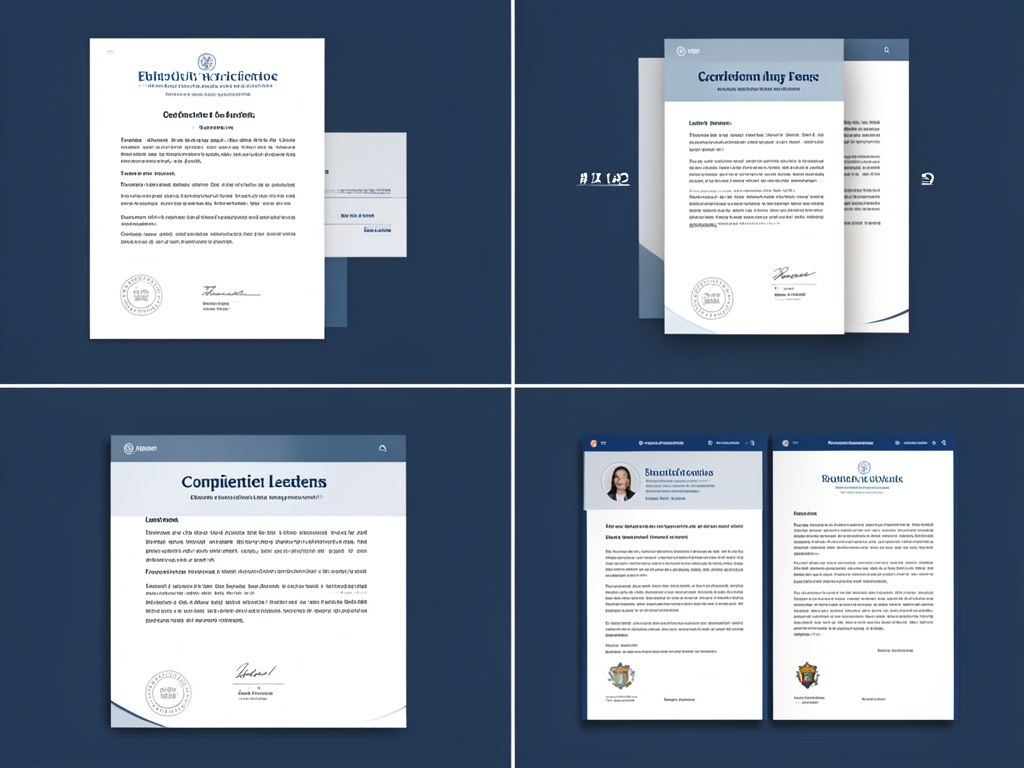
AI-generated illustration for article.
A grounded VBA example
Below is a self‑contained VBA macro that implements the workflow described above. It runs from an Excel workbook, opens the Word template, fills bookmarks, adds logo and signature images, saves DOCX files, and exports PDFs to separate folders.
The code demonstrates how to loop through Excel rows, reference Word bookmarks, insert images safely, and generate both document formats without relying on undocumented Word APIs.
Sub GenerateCertificates()
    Dim xlApp As Object
    Dim xlWb As Object
    Dim ws As Object
    Dim lastRow As Long
    Dim i As Long
    Dim wdApp As Object
    Dim wdDoc As Object
    Dim templatePath As String
    Dim outputWordFolder As String
    Dim outputPdfFolder As String
    Dim imgFolder As String
    Dim logoPath As String
    Dim sigPath As String

    ' Initialise Excel
    Set xlApp = CreateObject("Excel.Application")
    Set xlWb = xlApp.Workbooks.Open(ThisWorkbook.Path & "\StudentData.xlsx")
    Set ws = xlWb.Sheets(1)
    lastRow = ws.Cells(ws.Rows.Count, "A").End(-4162).Row ' xlUp

    ' Initialise Word (late binding)
    Set wdApp = CreateObject("Word.Application")
    wdApp.Visible = False

    templatePath = ThisWorkbook.Path & "\CertificateTemplate.docx"
    outputWordFolder = ThisWorkbook.Path & "\Certificates\Word\"
    outputPdfFolder = ThisWorkbook.Path & "\Certificates\PDF\"
    imgFolder = ThisWorkbook.Path & "\Photos\"

    If Dir(outputWordFolder, vbDirectory) = "" Then MkDir outputWordFolder
    If Dir(outputPdfFolder, vbDirectory) = "" Then MkDir outputPdfFolder

    Const wdFormatXMLDocument = 12
    Const wdExportFormatPDF = 17

    For i = 2 To lastRow
        Set wdDoc = wdApp.Documents.Open(templatePath)

        wdDoc.Bookmarks("StudentName").Range.Text = ws.Cells(i, "B").Value
        wdDoc.Bookmarks("CourseTitle").Range.Text = ws.Cells(i, "C").Value
        wdDoc.Bookmarks("DateIssued").Range.Text = ws.Cells(i, "D").Value

        logoPath = imgFolder & ws.Cells(i, "E").Value
        If Dir(logoPath) <> "" Then
            wdDoc.Bookmarks("Logo").Range.InlineShapes.AddPicture FileName:=logoPath, LinkToFile:=False, SaveWithDocument:=True
        End If

        sigPath = imgFolder & ws.Cells(i, "F").Value
        If Dir(sigPath) <> "" Then
            wdDoc.Bookmarks("Signature").Range.InlineShapes.AddPicture FileName:=sigPath, LinkToFile:=False, SaveWithDocument:=True
        End If

        Dim outWordPath As String
        outWordPath = outputWordFolder & ws.Cells(i, "B").Value & " - Certificate.docx"
        wdDoc.SaveAs2 outWordPath, FileFormat:=wdFormatXMLDocument

        Dim outPdfPath As String
        outPdfPath = outputPdfFolder & ws.Cells(i, "B").Value & " - Certificate.pdf"
        wdDoc.ExportAsFixedFormat OutputFileName:=outPdfPath, ExportFormat:=wdExportFormatPDF

        wdDoc.Close SaveChanges:=False
    Next i

    xlWb.Close SaveChanges:=False
    xlApp.Quit
    wdApp.Quit

    Set ws = Nothing
    Set xlWb = Nothing
    Set xlApp = Nothing
    Set wdDoc = Nothing
    Set wdApp = Nothing

    MsgBox "Certificate batch completed.", vbInformation
End Sub
Adjust the file‑path constants to match your school’s folder structure, then run the macro to produce a complete batch of certificates.
Where VBA starts to strain
While VBA handles most batch scenarios well, it can start to strain when you push beyond its native limits. Very large student rosters, complex conditional content, or frequent template revisions may expose these constraints.
Performance and memory
Each iteration opens and closes a Word document. When processing thousands of records, the repeated open‑close cycle can become slow and may exhaust system memory if documents are not closed promptly.
Complex conditional logic
VBA is not ideal for deep branching or multi‑template selection based on many data flags. Managing many IF…ELSE blocks quickly becomes hard to maintain, increasing the risk of errors.
A calmer way to standardize the workflow
DocxForge Pro provides a purpose‑built environment for the same task, eliminating many of VBA’s manual steps while keeping everything local and secure.
For repeatable business documents such as reports contracts certificates letters and packs DocxForge Pro can act as the local layer between spreadsheet data Word templates and final output.
This fits teams that produce repeatable reports contracts certificates forms letters or document packs from structured data. The article’s VBA example shows the spreadsheet-side automation while DocxForge Pro fits as the document-generation layer outside the code example itself.
Start Free 7-Day TrialBatch‑oriented interface
Upload your Excel roster, select a Word template, and let DocxForge handle the merge, image insertion, and PDF export without writing code.
Built‑in validation
The tool checks image paths, ensures required columns exist, and creates output folders automatically, reducing the chance of missing files.
Frequently asked questions
Common questions about automating certificates and letters are answered below.
Is this workflow suitable for generating both certificates and personalized letters?
Yes. The same Excel‑to‑Word merge works for any document that uses bookmarks. Create separate Word templates—one for certificates, another for letters—and run the macro twice or point DocxForge to each template in turn.
What source data has to stay consistent before generation starts?
The spreadsheet must contain a stable set of column headers that match the bookmarks in the Word template (e.g., StudentName, CourseTitle). Image filenames should exactly match the files in the designated photo folder, and any required columns must be present for every row.
How do I adapt the template without breaking the workflow?
Add or rename bookmarks only after updating the VBA code (or DocxForge mapping) to reference the new names. Removing a bookmark that the macro expects will cause a runtime error, so keep the mapping in sync before each run.
Topics and Tags
Browse related topic clusters and workflow tags connected to this article.
Continue Reading
Explore more articles related to this workflow, problem, or document automation topic.
How to Generate Training Attendance Sheets and Completion Letters
A step‑by‑step guide for training administrators to turn Excel rosters into polished attendance sheets and completion letters, using VBA in Microsoft Word and optional DocxForge Pro batching.
Read articleHow to Automate Tenant Notice Letters from Excel
Learn how to automate tenant notice letters by linking Excel data to a Word template using VBA, with optional DocxForge Pro enhancements for batch processing and image handling.
Read articleHow to Generate Patient Summary Letters from Spreadsheet Data
A step‑by‑step guide for healthcare administration teams to turn rows of patient data in Excel into polished summary letters using Word, with optional PDF export and image insertion.
Read articleHow to Automate Service Certificates and Completion Forms
A step‑by‑step guide for field service teams to automate the creation of service certificates and completion forms using a local Excel‑Word workflow, optional VBA helpers, and DocxForge Pro for repeatable batch processing.
Read article