
How to Create Photo-Based Property Condition Reports
Property managers can turn a spreadsheet of unit data into a polished inspection report that includes every relevant photo. Keep your images in a single folder, link them by filename, and let a simple macro handle insertion and PDF export. The result is a consistent, searchable record that requires no manual copy‑paste.
Fast, repeatable reports
Turn spreadsheet rows into PDF inspections with embedded images
Quick answer
Creating a photo‑rich condition report can be done without manual copy‑pasting. By storing property data in a structured Excel sheet and keeping a folder of inspection photos, a macro can loop each row, pull the corresponding images, place them into a Word template, and export a PDF in one pass. This removes the error‑prone step of opening each file individually.
The macro reads the address, looks for matching photos in the designated folder, inserts them at bookmarked spots, and saves both Word and PDF files automatically.
Why this matters
Inspection teams need consistent documentation to protect assets, resolve disputes, and meet regulatory requirements. When photos are embedded directly into condition reports, reviewers can verify the state of a unit without juggling separate image files. Automating this process ensures every report follows the same layout, keeps records searchable, and speeds up turnover between inspections.
Accuracy and defensibility
Embedding the exact photos taken during the walk‑through eliminates guesswork. If a question arises later, the report shows the timestamped image alongside the written notes, providing a clear audit trail that stands up in legal or tenant‑dispute situations.
Operational efficiency
Technicians no longer waste time opening Word, dragging files, and resizing pictures. The macro handles path verification, insertion, and sizing uniformly, freeing staff to focus on the inspection itself and allowing managers to generate dozens of reports in the time it used to take for one.
What goes wrong
A manual approach quickly becomes a bottleneck and a source of inconsistency. When every inspector must open a template, locate image files, and paste them, small variations in placement or resolution creep in, and missing pictures are hard to spot until the final review.
Manual approach
Inspectors open Word, copy each photo from Explorer, paste it, resize manually, and then save the document. Steps are repeated for every unit, leading to skipped images, mismatched captions, and a high risk of saving the file in the wrong folder. The final PDF often requires a second pass to correct layout errors.
Automated VBA approach
A VBA macro reads the Excel row, verifies that the expected photo file exists, inserts the image at a predefined bookmark, applies a uniform width, and saves the Word file and PDF to dedicated output folders. Missing files are logged, and the whole batch completes without human intervention, guaranteeing identical formatting across all reports.
Automation eliminates the repetitive mistakes that arise from manual copy‑paste, delivering reliable, standards‑compliant reports every time.
What the workflow looks like
The end‑to‑end workflow consists of three data sources—an Excel spreadsheet, a folder of photos, and a Word template—plus a small VBA script that ties them together.
Prepare the Excel source
Create a table where each row represents a property unit. Include columns for the unit identifier, address, and the exact filename (or base name) of the inspection photo. Keep the sheet free of merged cells so the macro can read values reliably.
Organize the image folder
Place every inspection image in a single folder. Name the files to match the "PhotoFile" column in Excel (e.g., 101_Kitchen.jpg). The macro will build the full path by combining the folder path with the filename from the worksheet.
Set up the Word template
Insert bookmarks where photos belong (e.g., "Photo1", "Photo2"). Add static placeholder text for the unit address and any other fields you plan to replace from Excel. Save the template in a known location.
Run the VBA macro
The macro opens the workbook, loops through each data row, opens the Word template, replaces text bookmarks with Excel values, checks that the image file exists, inserts it at the photo bookmark, and then saves both a DOCX and a PDF into separate output folders.
Review and archive
After the batch run, verify the log file for any missing images. The generated documents are already organized into "WORD" and "PDF" subfolders, ready for distribution or archival.
A visual example
Simple visual illustration.
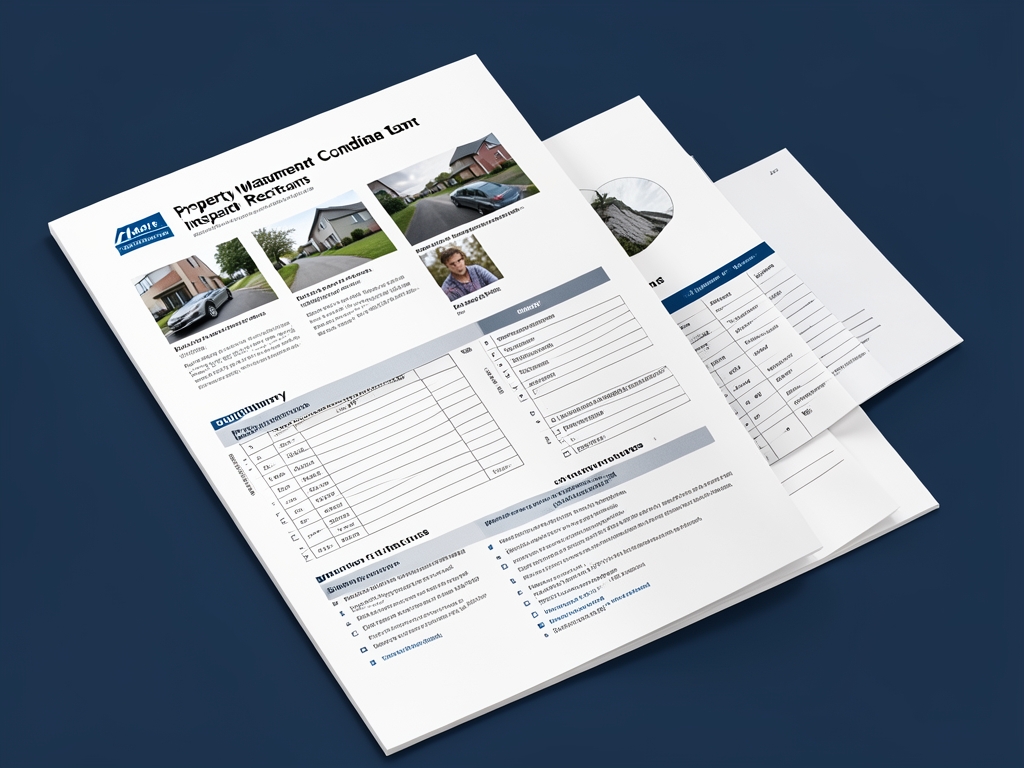
AI-generated illustration for article.
A grounded VBA example
Below is a practical VBA macro that implements the workflow described above. It works from Excel, drives Word, validates image paths, and produces both DOCX and PDF files in a repeatable way.
The code reads each spreadsheet row, opens the Word template, substitutes plain‑text placeholders, inserts the matching photo, and exports the finished report. Errors such as missing images are captured in a simple log.
Sub GeneratePropertyConditionReports()
    Dim xlApp As Application
    Dim xlWb As Workbook
    Dim xlWs As Worksheet
    Dim lastRow As Long
    Dim i As Long
    Dim photoPath As String
    Dim imgFullName As String
    Dim wordApp As Object ' Word.Application
    Dim doc As Object ' Word.Document
    Dim outputFolder As String
    Dim docFolder As String
    Dim pdfFolder As String
    Dim logFile As String
    Dim logHandle As Integer

    '--- Settings ------------------------------------------------------------
    Const TEMPLATE_PATH As String = "C:\Templates\ConditionReportTemplate.docx"
    Const PHOTO_FOLDER As String = "C:\InspectionPhotos"
    Const OUTPUT_ROOT As String = "C:\GeneratedReports"
    Const LOG_PATH As String = OUTPUT_ROOT & "\generation_log.txt"

    '--- Ensure output folders exist ------------------------------------------
    docFolder = OUTPUT_ROOT & "\WORD"
    pdfFolder = OUTPUT_ROOT & "\PDF"
    If Dir(OUTPUT_ROOT, vbDirectory) = "" Then MkDir OUTPUT_ROOT
    If Dir(docFolder, vbDirectory) = "" Then MkDir docFolder
    If Dir(pdfFolder, vbDirectory) = "" Then MkDir pdfFolder

    '--- Open log -----------------------------------------------------------
    logHandle = FreeFile
    Open LOG_PATH For Append As #logHandle
    Print #logHandle, "--- Generation started " & Now & " ---"

    '--- Reference the active workbook ---------------------------------------
    Set xlApp = Application
    Set xlWb = xlApp.ActiveWorkbook
    Set xlWs = xlWb.Sheets(1) ' assume first sheet holds data
    lastRow = xlWs.Cells(xlWs.Rows.Count, "A").End(xlUp).Row

    '--- Create a single Word application instance to reuse -----------------
    Set wordApp = CreateObject("Word.Application")
    wordApp.Visible = False

    '--- Loop through each record -------------------------------------------
    For i = 2 To lastRow ' skip header row
        Dim unitID As String
        Dim address As String
        Dim photoFile As String
        unitID = CStr(xlWs.Cells(i, "A").Value)
        address = CStr(xlWs.Cells(i, "B").Value)
        photoFile = CStr(xlWs.Cells(i, "C").Value) ' exact filename or base name
        imgFullName = PHOTO_FOLDER & "\" & photoFile

        ' Verify photo exists
        If Dir(imgFullName) = "" Then
            Print #logHandle, "Row " & i & ": Missing image " & imgFullName
        End If

        ' Open the template for this record
        Set doc = wordApp.Documents.Open(TEMPLATE_PATH, ReadOnly:=False)

        ' Replace text placeholders safely
        If doc.Bookmarks.Exists("UnitID") Then
            doc.Bookmarks("UnitID").Range.Text = unitID
        End If
        If doc.Bookmarks.Exists("Address") Then
            doc.Bookmarks("Address").Range.Text = address
        End If

        ' Insert photo if it exists
        If Dir(imgFullName) <> "" Then
            If doc.Bookmarks.Exists("Photo1") Then
                Dim picShape As Object
                Set picShape = doc.InlineShapes.AddPicture(FileName:=imgFullName, LinkToFile:=False, SaveWithDocument:=True)
                picShape.LockAspectRatio = True
                picShape.Width = wordApp.InchesToPoints(4) ' uniform width of 4 inches
            End If
        End If

        ' Save DOCX
        Dim docPath As String
        docPath = docFolder & "\Report_" & unitID & ".docx"
        doc.SaveAs2 docPath, FileFormat:=12 ' wdFormatXMLDocument

        ' Export PDF
        Dim pdfPath As String
        pdfPath = pdfFolder & "\Report_" & unitID & ".pdf"
        doc.ExportAsFixedFormat OutputFileName:=pdfPath, ExportFormat:=17 ' wdExportFormatPDF

        ' Close the document for this record
        doc.Close False
        Set doc = Nothing
    Next i

    ' Clean up Word application
    wordApp.Quit
    Set wordApp = Nothing

    Print #logHandle, "--- Generation completed " & Now & " ---"
    Close #logHandle
    MsgBox "Report generation finished. Check the log at " & LOG_PATH, vbInformation
End Sub
Adjust the bookmark names and column indexes to match your own template and data layout before running the macro.
Where VBA starts to strain
While VBA handles the core of this workflow well, there are practical limits you should be aware of before scaling to very large batches.
Memory consumption
Each Word instance remains in memory until the macro closes it. Generating thousands of reports in one run can exhaust system RAM. Break large jobs into smaller batches or restart the macro periodically.
Image size handling
Very high‑resolution photos increase file size and slow down insertion. Pre‑scale images to a reasonable resolution (e.g., 150 DPI) before placing them, or let the macro resize them to a fixed width after insertion.
Error reporting
The macro logs missing files but does not attempt automatic recovery. If a photo is absent, the report will still be created with a placeholder note, so you must review the log afterwards.
A calmer way to standardize the workflow
DocxForge Pro provides a purpose‑built interface that abstracts the same steps without writing code, while still giving you full control over image placement and batch sizing.
For repeatable business documents such as reports contracts certificates letters and packs DocxForge Pro can act as the local layer between spreadsheet data Word templates and final output. It can produce Word output PDF output or both depending on how the workflow is configured.
This fits teams that produce repeatable reports contracts certificates forms letters or document packs from structured data. This is helpful when teams need editable DOCX files and final PDFs from the same template workflow. The article’s VBA example shows the spreadsheet-side automation while DocxForge Pro fits as the document-generation layer outside the code example itself.
Start Free 7-Day TrialNo‑code configuration
Define your Excel source, image folder, and Word template through a guided UI. The tool automatically maps columns to placeholders and handles missing‑image warnings.
Built‑in optimization
DocxForge stages images, applies the recommended DPI, and generates tidy DOCX and PDF outputs in separate folders—exactly the same result the macro achieves, but with a visual check‑list and batch‑size selector.
Frequently asked questions
Common questions about creating photo‑based condition reports are answered below.
Is this workflow suitable for creating photo‑based property condition reports?
Yes. The approach is built around an Excel table of unit data, a folder of inspection photos, and a Word template with image bookmarks, which matches the typical data model used by property‑management teams.
What source data has to stay consistent before generation starts?
Each Excel row must contain a unique identifier and a column that exactly matches the photo filename (or base name). The image folder must not contain duplicate filenames, and the Word template must retain the same bookmark names that the macro expects.
How do I adapt the template without breaking the workflow?
Add or rename bookmarks in the Word template, then update the corresponding constants in the VBA code (or the DocxForge mapping UI). As long as the bookmark names and column indexes stay synchronized, the rest of the process remains unchanged.
Can this process scale across many records and templates?
The VBA macro can handle batches of several hundred rows reliably, especially when you split very large jobs into smaller chunks. DocxForge Pro adds a batch‑size selector and background processing, making it easier to run thousands of reports without hitting memory limits.
Topics and Tags
Browse related topic clusters and workflow tags connected to this article.
Continue Reading
Explore more articles related to this workflow, problem, or document automation topic.
How to Automate Home Inspection Reports with Excel, Word, and PDF
Learn how to streamline home inspection report creation by linking Excel data, Word templates, and PDF output with a practical VBA‑driven workflow.
Read articleExcel → Word → PDF Workflow for Home Inspection Reports
A step‑by‑step guide for home‑inspection teams to turn Excel data into Word reports and PDF files, with a practical VBA macro and tips for scaling the process.
Read articleHow to Build Offline Insurance Claim Document Packs
A step‑by‑step guide for insurance operations teams to build offline claim document packs using Excel, Word, and a safe VBA macro.
Read articleHow to Create Equipment Checklists with Photos and PDF Output
Guide for operations teams to automate equipment inspection checklists that embed field photos and produce PDF files using local Excel and Word automation.
Read article