
How to Automate Home Inspection Reports with Excel, Word, and PDF
Home inspection firms often juggle spreadsheets of property data, a Word template that formats findings, and the need to deliver polished PDFs to clients. By connecting Excel, Word, and PDF export in a single, repeatable process, you eliminate manual copy‑pasting, reduce errors, and free up time for field work. This guide shows a reliable, locally run solution that keeps all files on your PC.
Local, no‑cloud processing
Runs entirely on Windows with Word Desktop
Quick answer
A solid automation starts with a structured Excel worksheet where each row represents one inspection. A VBA macro reads the row, opens a pre‑designed Word template, fills bookmarks with the spreadsheet values, inserts any required photos, and finally exports the document as a PDF. The macro repeats for every row, placing each output in organized WORD and PDF folders, so you end up with a complete set of reports without manual copying.
Read each record → fill template placeholders → add images → save DOCX and PDF in batch.
Why this matters
Home inspection businesses rely on accurate, professional documentation to protect both the inspector and the homeowner. Manual report assembly is error‑prone, time‑consuming, and scales poorly as the number of inspections grows. By automating the data transfer from Excel to Word and the final PDF conversion, you create a repeatable standard that preserves data integrity, ensures branding consistency (logos, signatures, stamps), and lets your team focus on the inspection itself rather than paperwork. Beyond appearance, automated reports also embed metadata such as inspection dates, inspector IDs, and GPS coordinates, which simplifies compliance audits and satisfies industry regulations like ISO‑9001 or local licensing requirements. Centralizing the source data in Excel means edits are instantly reflected across all generated documents, eliminating version‑control headaches. Moreover, because the process runs locally, sensitive client information never leaves the office network, supporting data‑privacy policies. In short, automation turns a tedious paperwork bottleneck into a predictable, auditable production line.
Consistency & Branding
When every report pulls data from the same spreadsheet and uses the same template, font choices, logo placement, and signature images stay uniform. This professional look builds client confidence and reduces the risk of missing required disclosures or legal language.
What goes wrong
If you try to stitch together Excel, Word, and PDF manually, several problems quickly appear: missing data, misplaced images, inconsistent file naming, and wasted hours re‑formatting each document.
Manual approach
Inspectors copy cell values one by one into a Word file, hunt for the correct logo file, resize images manually, and then use the Save As dialog to create a PDF. Any typo or forgotten step produces a report that must be re‑worked, and the process cannot keep up with a busy schedule.
Automated VBA workflow
A macro reads the spreadsheet, fills all bookmarks automatically, inserts images only if the file exists, and runs ExportAsFixedFormat to produce a PDF. Errors are caught early (missing image files raise a clear message), and every output follows the same naming convention.
Automation removes the hand‑off gaps that cause rework, improves accuracy, and makes scaling to dozens of inspections per day feasible.
What the workflow looks like
Below is a step‑by‑step outline of the end‑to‑end process you can implement with a simple VBA macro. The flow keeps all files on the local machine, respects folder structure, and gives you control over each stage.
1 Prepare the Excel source
Create a table where each row contains all fields required for the report: client name, address, inspection date, findings, inspector name, and the base filenames of any photos (e.g., photo_front, photo_roof). Use column headers that match the bookmark names in the Word template for easy mapping.
2 Design the Word template
Insert bookmarks for every dynamic piece of text (e.g., ClientName, InspectionDate). Reserve picture placeholders with bookmarks named photo_logo, photo_signature, photo_stamp, or custom photo_* names that correspond to the Excel columns. Save the template in a dedicated ‘Templates’ folder.
3 Set up image folder
Collect all property photos in a single directory. Name each file to match the base name used in the spreadsheet (e.g., front.jpg for photo_front). Ensure the folder path is accessible to the macro and that file extensions are consistent.
4 Run the VBA macro
The macro loops through each used row, opens the Word template, writes each bookmark value, adds pictures with InlineShapes.AddPicture (checking file existence first), then calls ExportAsFixedFormat to create a PDF. It saves the Word file and PDF into separate output folders named by inspection date or client name for easy retrieval.
5 Verify and archive
After the batch run, open a few random PDFs to confirm that data and images appear correctly. The macro also logs any rows where an image was missing, allowing you to correct the source data before the next run.
A visual example
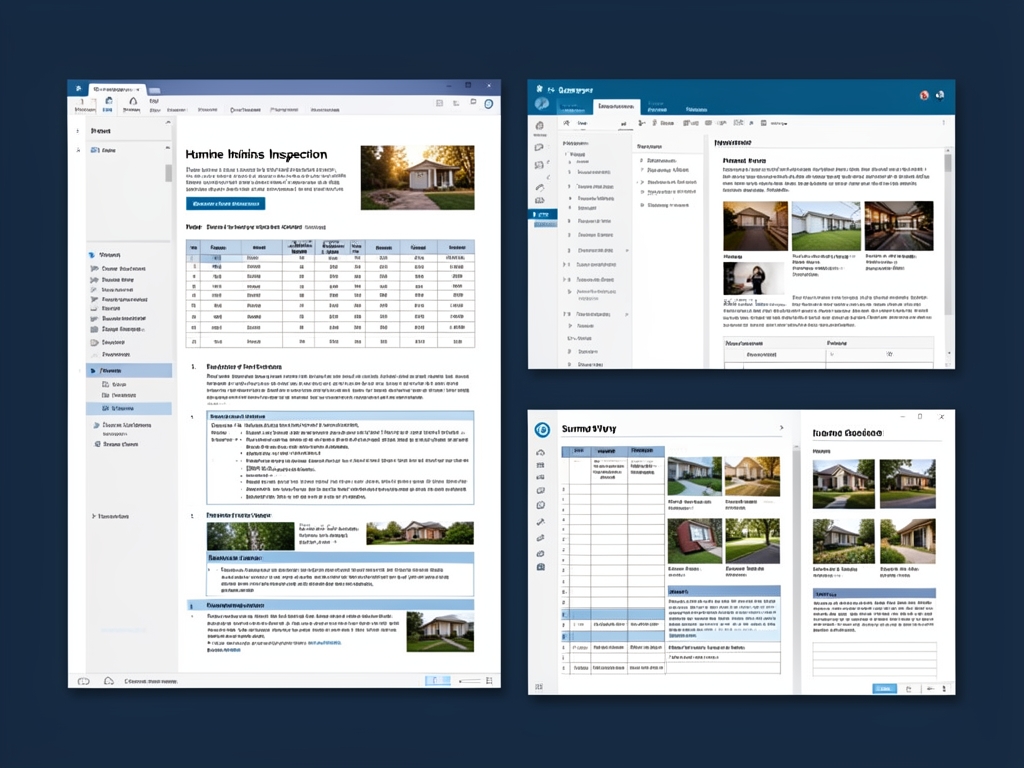
Simple visual illustration.
AI-generated illustration for article.
A grounded VBA example
The following VBA macro demonstrates a grounded implementation of the workflow described above. It works from Excel, controls Word via late binding, and handles image insertion, folder creation, and PDF export without relying on risky picture‑compression calls.
Copy this into a standard module in your Excel workbook, adjust the paths, and run the GenerateReports sub.
Sub GenerateInspectionReports()
    Dim xlWs As Worksheet
    Dim lastRow As Long, i As Long
    Dim wdApp As Object ' Word.Application
    Dim wdDoc As Object ' Word.Document
    Dim templatePath As String, outputWordPath As String, outputPdfPath As String
    Dim imgFolder As String, imgPath As String
    Dim bookmarkName As String

    Set xlWs = ThisWorkbook.Sheets("Inspections")
    lastRow = xlWs.Cells(xlWs.Rows.Count, "A").End(xlUp).Row
    templatePath = "C:\Templates\InspectionTemplate.docx"
    imgFolder = "C:\InspectionPhotos\"

    On Error Resume Next
    Set wdApp = CreateObject("Word.Application")
    wdApp.Visible = False
    On Error GoTo 0

    For i = 2 To lastRow 'Assume header row
        'Create output folders if needed
        outputWordPath = "C:\Reports\Word\" & xlWs.Cells(i, "B").Value & "_" & i & ".docx"
        outputPdfPath = "C:\Reports\PDF\" & xlWs.Cells(i, "B").Value & "_" & i & ".pdf"

        If Dir("C:\Reports\Word", vbDirectory) = "" Then MkDir "C:\Reports\Word"
        If Dir("C:\Reports\PDF", vbDirectory) = "" Then MkDir "C:\Reports\PDF"

        Set wdDoc = wdApp.Documents.Open(templatePath, ReadOnly:=True)

        '--- Fill text bookmarks ---
        For Each bookmarkName In Array("ClientName", "InspectionDate", "Address", "InspectorName", "Findings")
            If wdDoc.Bookmarks.Exists(bookmarkName) Then
                wdDoc.Bookmarks(bookmarkName).Range.Text = xlWs.Cells(i, GetColumnIndex(bookmarkName)).Value
            End If
        Next bookmarkName

        '--- Insert photos if they exist ---
        For Each bookmarkName In Array("photo_front", "photo_roof", "photo_signature")
            If wdDoc.Bookmarks.Exists(bookmarkName) Then
                imgPath = imgFolder & xlWs.Cells(i, GetColumnIndex(bookmarkName)).Value
                If Dir(imgPath) <> "" Then
                    wdDoc.Bookmarks(bookmarkName).Range.InlineShapes.AddPicture FileName:=imgPath, LinkToFile:=False, SaveWithDocument:=True
                Else
                    Debug.Print "Missing image for row " & i & ": " & imgPath
                End If
            End If
        Next bookmarkName

        '--- Save DOCX and PDF ---
        wdDoc.SaveAs2 FileName:=outputWordPath, FileFormat:=16 'wdFormatXMLDocument
        wdDoc.ExportAsFixedFormat OutputFileName:=outputPdfPath, ExportFormat:=17 'wdExportFormatPDF
        wdDoc.Close SaveChanges:=False
    Next i

    wdApp.Quit
    Set wdDoc = Nothing
    Set wdApp = Nothing
    MsgBox "Report generation complete.", vbInformation
End Sub

Function GetColumnIndex(colName As String) As Long
    Dim hdrRow As Range, c As Range
    Set hdrRow = ThisWorkbook.Sheets("Inspections").Rows(1)
    For Each c In hdrRow.Cells
        If Trim(c.Value) = colName Then
            GetColumnIndex = c.Column
            Exit Function
        End If
    Next c
    GetColumnIndex = 0 'Not found
End Function
The macro reports missing images in the Immediate window and skips them, ensuring the rest of the report is still generated.
Where VBA starts to strain
While VBA handles most small‑ to medium‑scale batches reliably, there are practical limits you should be aware of:
Performance and memory
Processing hundreds of high‑resolution images in a single Word instance can consume significant RAM, leading to slowdowns or occasional crashes. Splitting very large jobs into smaller batches (e.g., 50 rows at a time) keeps memory usage manageable.
Error handling granularity
VBA’s built‑in error handling is linear; a failure in one row can stop the entire macro unless you explicitly trap errors and continue. Adding robust On Error Resume Next blocks around image insertion and export steps mitigates this risk.
Complex layout requirements
If your template needs conditional sections (e.g., only show a roof photo when a problem is noted), VBA alone becomes cumbersome. In those cases a dedicated document‑generation engine can apply more sophisticated logic without deeply nested code.
A calmer way to standardize the workflow
DocxForge Pro builds on this VBA foundation while removing its manual maintenance overhead. It provides a graphical batch runner, automatic folder creation, and built‑in image‑resolution handling, so you get the same reliable output with far less code to manage.
For repeatable business documents such as reports contracts certificates letters and packs DocxForge Pro can act as the local layer between spreadsheet data Word templates and final output. It can produce Word output PDF output or both depending on how the workflow is configured.
This fits teams that produce repeatable reports contracts certificates forms letters or document packs from structured data. This is helpful when teams need editable DOCX files and final PDFs from the same template workflow. The article’s VBA example shows the spreadsheet-side automation while DocxForge Pro fits as the document-generation layer outside the code example itself.
Start Free 7-Day TrialBatch runner with progress UI
Run thousands of inspections in one click, watch a progress bar, and let the tool handle pagination, error logging, and retries automatically.
Smart image handling
The engine stages images, applies the 150 DPI rule for standard pictures and 300 DPI for logos, signatures, and stamps, guaranteeing consistent quality without extra VBA.
Separate WORD and PDF folders
Outputs are organized into dedicated folders out‑of‑the‑box, matching the structure described in the manual workflow.
Frequently asked questions
Common questions about automating inspection reports.
Is this workflow suitable for automating home inspection reports with Excel, Word, and PDF?
Yes. The process is designed for any business that stores inspection data in a spreadsheet, uses a single Word template for formatting, and needs PDFs for client delivery. It works entirely on a Windows PC with Microsoft Office installed.
What source data has to stay consistent before generation starts?
Each spreadsheet row must contain all fields that map to Word bookmarks, and any photo columns should match the exact base filenames of the image files. Consistent column headers and a stable image folder path prevent missing‑data errors.
How do I adapt the template without breaking the workflow?
Add or rename bookmarks in the Word file, then update the corresponding column header in Excel. The VBA macro reads bookmark names dynamically, so as long as the names match, the macro continues to work without code changes.
Topics and Tags
Browse related topic clusters and workflow tags connected to this article.
Continue Reading
Explore more articles related to this workflow, problem, or document automation topic.
Excel → Word → PDF Workflow for Home Inspection Reports
A step‑by‑step guide for home‑inspection teams to turn Excel data into Word reports and PDF files, with a practical VBA macro and tips for scaling the process.
Read articleHow to Create Photo-Based Property Condition Reports
Create photo-based property condition reports
Read articleExcel → Word → PDF Workflow for Compliance Evidence Packs
Build a compliance evidence pack workflow using Excel, Word, and PDF
Read articleHow to Create Inspection Reports from Excel, Word, and Photos
Create inspection reports using Excel, Word, and photos
Read article