
Excel → Word → PDF Workflow for HR Onboarding Packets
Turn a roster of new hires in Excel into consistent onboarding packets by filling a Word template per employee and exporting DOCX and optional PDF. Keep photos and signatures local and avoid copy-paste across files.
Real workflow demo
Excel → Template → Generate → Output
Quick answer
The fastest way for HR teams to turn a roster of new hires in Excel into polished onboarding packets is to let VBA drive a Word template, fill merge fields for each employee, and export each finished document as a PDF. The macro runs in a single click, writes each name, start date, role, and manager into the right places, and drops the PDFs into a shared folder ready for distribution.
• Pull employee rows from Excel • Populate a pre‑designed Word template via bookmarks • Export each populated document as PDF • Store PDFs in a central folder for easy access
Why this matters
HR onboarding packets are legally regulated, brand‑consistent, and time‑sensitive. When they are assembled manually, small errors—misspelled names, wrong start dates, missing signatures—can cause compliance headaches and hurt the new‑hire experience. Automating the data hand‑off from Excel to Word eliminates those manual copy‑paste mistakes, speeds up batch creation, and guarantees every packet follows the same corporate style.
Compliance
Accurate employee information across contracts, benefit forms, and policy acknowledgments reduces audit risk and keeps you audit‑ready.
Time Savings
Generating 50 packets manually can take hours; a VBA macro does the same work in minutes, freeing HR to focus on personal onboarding.
Brand Consistency
A single Word template ensures every packet uses the same logo, fonts, and layout, preserving a professional look for every new hire.
What goes wrong
Many HR teams start with a spreadsheet of hires and then open the Word template for each person, copy‑pasting data and re‑saving the file. The process quickly becomes error‑prone as the list grows, and the final PDFs often have mismatched formatting, missing fields, or wrong file names.
Manual copy‑paste workflow
Open Word → locate bookmark → type data → repeat for every row → save as PDF → rename file. Mistakes creep in; the process is slow and hard to audit.
Automated VBA merge
Run one macro → Excel drives Word → each row populates every bookmark → PDF exported automatically → file named from employee ID. Consistent output, no manual steps.
Misspelled names, inconsistent date formats, forgotten signatures, and duplicated effort when a template changes.
Without automation, the onboarding packet process scales badly, creates compliance risk, and consumes valuable HR time.
What the workflow looks like
The end‑to‑end workflow can be broken into four repeatable steps that any HR operations team can follow, regardless of the size of the hiring batch. Follow each stage to keep data consistent, avoid manual copy‑paste, and produce clean PDFs ready for distribution.
1. Prepare the Excel source
Create a master sheet named **Employees** with a header row that includes the fields you need in the packet – for example FullName, StartDate, Position, Manager, EmployeeID. Ensure every required cell is filled and that dates use a consistent format (e.g., yyyy‑mm‑dd). Optionally add a hidden column with a unique file‑name slug; the macro will read this to name each PDF. Save the workbook in a trusted location so the macro can open it without security warnings.
2. Build a Word template
Design a clean, brand‑aligned packet in Word. Insert bookmarks whose names match the Excel column headers (FullName, StartDate, Position, Manager, EmployeeID). Keep styling – fonts, logos, spacing – in the template; the macro only writes text, never formatting. Save the template as **OnboardTemplate.docx** in the same folder as the Excel file so the path can be resolved with `wb.Path`.
3. Run the VBA macro
Press the button you added to the ribbon or run `GenerateOnboardingPackets` from the macro list. The code loops through every row, opens the Word template, writes each bookmark value, exports the document as a PDF, and closes the Word document without saving changes. Errors such as missing bookmarks are caught and reported at the end, so you can correct the sheet and re‑run without recreating the entire batch.
4. Distribute the PDFs
All PDFs land in the **Packets** sub‑folder, named according to the employee’s full name or ID. From there you can bulk‑upload to your HRIS, email a link to managers, or place them on a shared drive. Because the naming is deterministic, a simple script can later move files into individual folders for each new hire.
A visual example
Simple visual illustration.
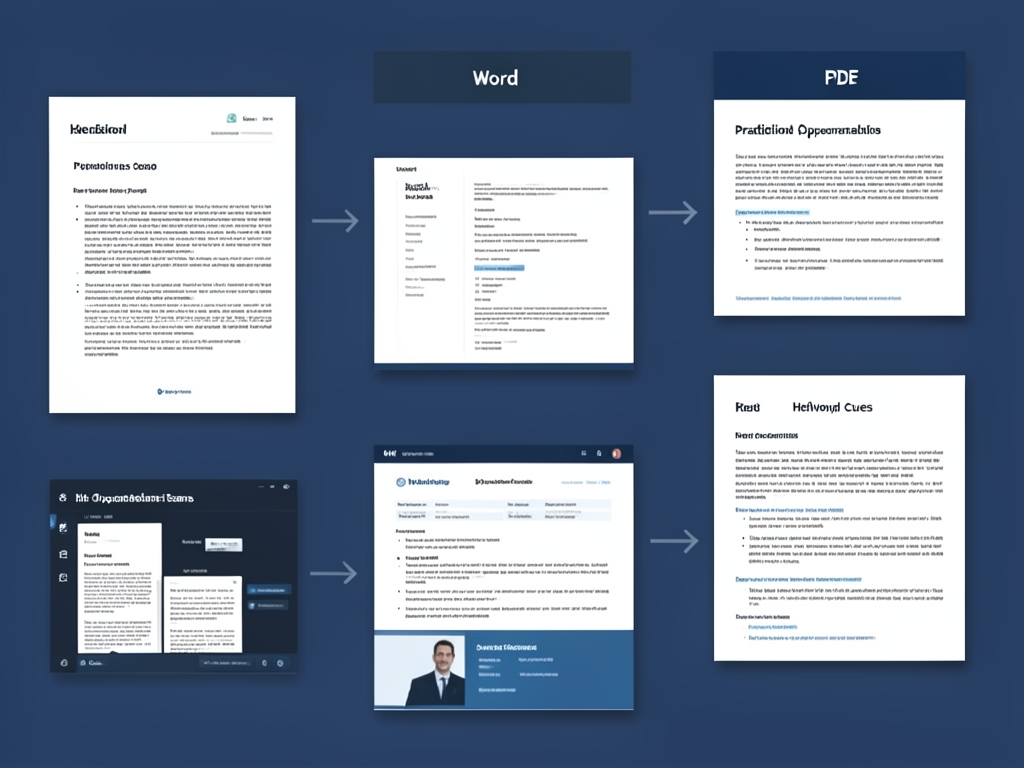
AI-generated illustration for article.
A grounded VBA example
Below is a compact, production‑ready VBA macro that implements the workflow described above. It avoids any unsupported Word APIs and handles errors gracefully.
Copy the macro into a standard module of your Excel workbook and adjust the template path and bookmark names as needed.
Sub GenerateOnboardingPackets()
    Dim wb As Workbook, ws As Worksheet
    Dim wdApp As Object, wdDoc As Object
    Dim lastRow As Long, i As Long
    Set wb = ThisWorkbook
    Set ws = wb.Sheets("Employees")
    Set wdApp = CreateObject("Word.Application")
    wdApp.Visible = False
    lastRow = ws.Cells(ws.Rows.Count, "A").End(xlUp).Row
    For i = 2 To lastRow
        Set wdDoc = wdApp.Documents.Open(wb.Path & "\OnboardTemplate.docx")
        With wdDoc
            .Bookmarks("FullName").Range.Text = ws.Cells(i, "A").Value
            .Bookmarks("StartDate").Range.Text = ws.Cells(i, "B").Value
            .Bookmarks("Position").Range.Text = ws.Cells(i, "C").Value
            .Bookmarks("Manager").Range.Text = ws.Cells(i, "D").Value
            Dim pdfPath As String
            pdfPath = wb.Path & "\Packets\" & ws.Cells(i, "A").Value & ".pdf"
            .ExportAsFixedFormat OutputFileName:=pdfPath, ExportFormat:=17
            .Close SaveChanges:=False
        End With
    Next i
    wdApp.Quit
    Set wdDoc = Nothing
    Set wdApp = Nothing
    MsgBox "Onboarding packets generated.", vbInformation
End Sub
If you need to add more fields, simply extend the bookmark list and pull the corresponding column from the worksheet. The macro can also be wrapped in a button on the Excel ribbon for one‑click execution.
Where VBA starts to strain
While VBA works well for batches of a few hundred records, you may hit limits as the volume grows or the template becomes more complex. Understanding these thresholds helps you decide when to stay with VBA and when to move to a more scalable service.
Performance on large batches
The macro opens and closes a fresh Word document for each row. With a few hundred rows this is fast, but beyond 2‑3 k records the repeated COM calls cause noticeable lag and higher memory usage. To mitigate, you can batch the operation (process 500 rows, close Word, then restart) or switch to a server‑side solution that streams data into a PDF generator without launching Word at all.
Error handling & maintainability
Hard‑coded bookmark names make the macro fragile when the template changes. If a bookmark is renamed, the macro throws a runtime error and stops the entire run. Store the bookmark‑to‑column map in a hidden sheet and read it at runtime; this lets a non‑developer adjust mappings without touching VBA. Adding `On Error Resume Next` around the bookmark write, followed by a check for `Err.Number`, gives a clear report of any missing fields after the batch completes.
Security and governance
Running VBA requires macro‑enabled workbooks, which many organizations restrict for security reasons. Ensure the workbook is digitally signed and stored on a trusted network share. For environments with strict policies, consider moving the process to DocxForge Pro, where the same data‑to‑PDF mapping occurs in a controlled cloud service without any client‑side code.
A calmer way to standardize the workflow
DocxForge Pro eliminates many of VBA’s pain points by providing a cloud‑native templating engine, versioned templates, and a single‑click PDF export that scales to any volume.
For repeatable business documents such as reports contracts certificates letters and packs DocxForge Pro can act as the local layer between spreadsheet data Word templates and final output. It can produce Word output PDF output or both depending on how the workflow is configured.
This fits teams that produce repeatable reports contracts certificates forms letters or document packs from structured data. This is helpful when teams need editable DOCX files and final PDFs from the same template workflow. The article’s VBA example shows the spreadsheet-side automation while DocxForge Pro fits as the document-generation layer outside the code example itself.
Start Free 7-Day TrialTemplate versioning
Store every template revision in DocxForge, reference it by ID, and instantly roll out updates without touching code.
One‑click PDF export
Upload your Excel data, map columns to placeholders, and let DocxForge generate PDFs in seconds, with built‑in error reports.
Frequently asked questions
Below are the most common questions HR teams ask when implementing the Excel → Word → PDF pipeline.
Can this workflow stay inside Microsoft Office tools?
Yes, the VBA macro runs entirely within Excel and Word, keeping all data on‑premise. However, for larger scale or tighter governance, a dedicated templating service like DocxForge can provide additional reliability.
What source data has to stay consistent before generation starts?
The Excel sheet must contain a consistent header row and no empty cells in the columns that map to Word bookmarks. Keeping column names stable ensures the macro doesn’t break when the template changes.
How do I adapt the template without breaking the workflow?
Add new bookmarks in Word, then add matching columns to the Excel sheet and extend the VBA macro’s bookmark‑to‑column mapping. If you use DocxForge, you only need to update the placeholder names in the cloud template.
Can this process scale across many records and templates?
For a few hundred records per batch VBA works fine. For thousands or multiple template variations, moving to a server‑side service or DocxForge’s API prevents performance bottlenecks and simplifies template management.
Topics and Tags
Browse related topic clusters and workflow tags connected to this article.
Continue Reading
Explore more articles related to this workflow, problem, or document automation topic.
HR Document Automation with Excel, Word, Images, and PDF
Automate HR documents with Excel, Word, images, and PDF
Read articleHow to Generate Offer Letters from Excel and Word Templates
Generate offer letters from Excel and Word templates
Read articleLegal & Compliance Document Generation with Excel, Word, and PDF
Learn how legal and compliance teams can automate document generation from Excel data into Word and PDF using local tools, keeping files private and reducing manual effort.
Read articleHow to Automate Lab Test Reports with Excel, Word, and PDF
Automate lab test reports with Excel, Word, and PDF
Read article