
How to Automate Service Certificates and Completion Forms
Field technicians often finish a job and must hand over a signed service certificate. Manually copying data from spreadsheets into Word templates is time‑consuming and error‑prone. This article shows a repeatable, offline workflow that turns each Excel row into a finished certificate and PDF, ready for the customer.
From row to PDF
One structured record produces two files automatically.
Quick answer
Deploy a single‑click VBA macro that reads the active service‑log row, inserts the values into a pre‑formatted Word certificate, embeds any required logo or signature images, and instantly saves the result as a PDF. The same routine can optionally launch Outlook to email the PDF to the client, write a concise entry to a log worksheet, and open the folder for quick validation. Because everything runs inside the technician’s Excel workbook, no external servers, SharePoint sites, or third‑party add‑ins are required – the solution works offline on any Windows PC with Office installed.
All you need is the Excel workbook, the Word template, and the macro below. One button press pulls data, builds a correctly styled certificate, creates a PDF, and (if you wish) emails it, all without leaving the local machine.
Why this matters
Automation of service certificates delivers tangible business value across three core dimensions, and a fourth that reflects the end‑customer experience:
Speed
Certificates are generated in seconds instead of minutes or hours, collapsing the hand‑off time between field crew and back‑office. Faster turnaround means technicians can move on to the next job sooner, boosting overall fleet productivity.
Accuracy
Data flows directly from the service log into the Word template, eliminating manual re‑typing. This removes transcription errors, mismatched part numbers, and incorrect dates that often trigger compliance callbacks.
Compliance
A standardized layout with required fields guarantees every certificate meets contractual, regulatory, and client‑specific formatting rules, reducing audit findings and protecting your organization from liability.
Customer satisfaction
Clients receive a polished, error‑free certificate immediately after a service visit, reinforcing professionalism and trust, which translates into higher repeat‑business rates.
What goes wrong
Before automation, the certificate creation process is a cascade of manual steps that creates hidden costs and risk. Technicians fill paper or digital forms, office staff re‑enter every line, signatures get lost, and the final document often requires re‑work because of formatting mismatches. These delays can jeopardize service‑level agreements, increase billing cycles, and erode customer confidence.
Before Automation
Technician fills paper form → office staff re‑type data into Word → transcription errors appear → missing logo or signature images → certificate takes hours to produce → client receives delayed or incorrect paperwork.
After Automation
Technician clicks ‘Generate Certificate’ → VBA pulls row data → Word template fills instantly, images insert automatically → PDF saved and optionally emailed within seconds → client receives correct, branded document on the same day.
By eliminating repetitive data entry, ensuring all required assets are present, and delivering the final document immediately, automation removes bottlenecks, reduces error‑related rework, and frees staff to focus on higher‑value activities such as proactive maintenance and customer outreach.
What the workflow looks like
Problem‑solving workflow for automating certificates:
Prepare the data source
Create an Excel workbook where each row represents one service job. Columns should include ClientName, ServiceDate, Description, CertificateNumber, LogoFile, SignatureFile, and any custom fields required by the Word template.
Design the Word template
Insert bookmarks or content controls that match the column headings. Add placeholder pictures for the logo and signature and name them exactly as the column headers (e.g., photo_logo, photo_signature) so the macro can replace them.
Set up output folders
Create two folders beside the workbook – “WORD” for the generated .docx files and “PDF” for the final PDFs. The VBA code will verify that these folders exist and create them if needed.
Run the VBA macro
The macro opens the workbook, loops through each used row, opens the Word template, writes the values into the matching bookmarks, inserts the images if the file paths are valid, saves the document as a DOCX in the WORD folder, and calls ExportAsFixedFormat to produce a PDF in the PDF folder.
Validate and distribute
After the run, scan the folders to ensure every row produced a pair of files. Any errors are listed in a simple log window, allowing a quick fix of missing images or data issues before the certificates are sent to customers.
A visual example
Simple visual illustration.
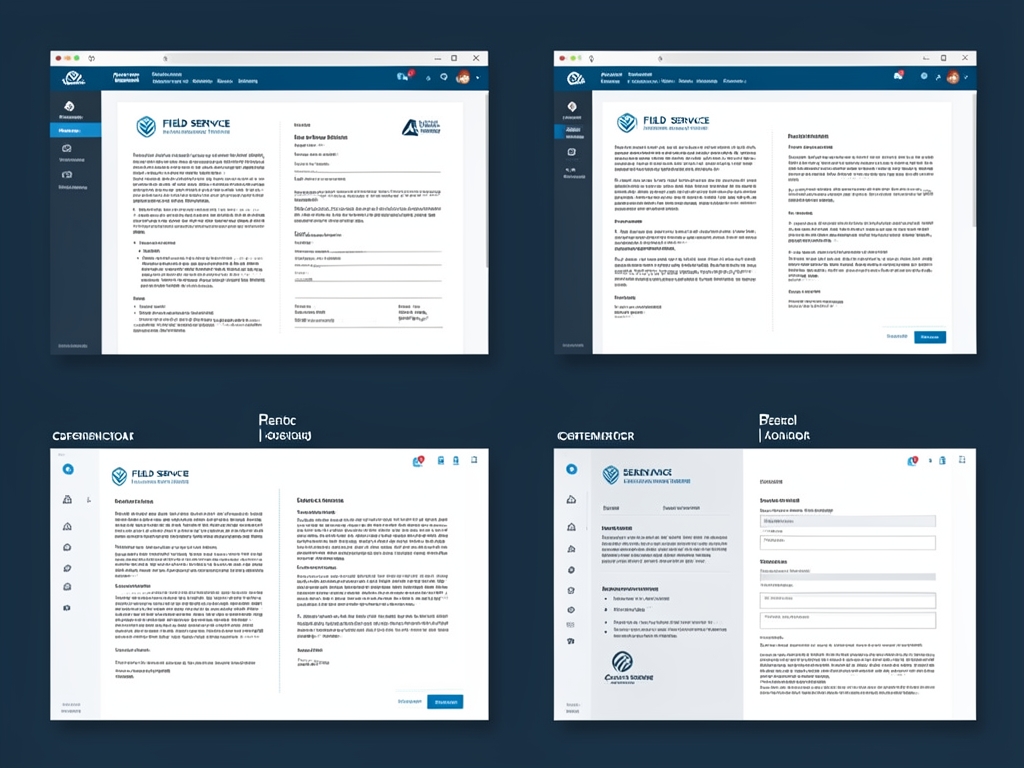
AI-generated illustration for article.
A grounded VBA example
VBA implementation – the engine that makes it happen:
The macro reads the active row, fills a certificate template, and creates a PDF.
Sub GenerateCertificate()
    Dim wsData As Worksheet, wsCert As Worksheet
    Dim rng As Range, certPath As String
    Set wsData = ThisWorkbook.Sheets("ServiceLog")
    Set wsCert = ThisWorkbook.Sheets("CertificateTemplate")
    ' Assume active row is the record to process
    Set rng = ActiveCell.EntireRow
    ' Populate certificate fields
    wsCert.Range("B2").Value = rng.Columns("A").Value   ' Service ID
    wsCert.Range("B3").Value = rng.Columns("B").Value   ' Customer Name
    wsCert.Range("B4").Value = rng.Columns("C").Value   ' Date Completed
    wsCert.Range("B5").Value = rng.Columns("D").Value   ' Technician
    wsCert.Range("B6").Value = rng.Columns("E").Value   ' Summary
    ' Export as PDF
    certPath = ThisWorkbook.Path & "\Certificates\Certificate_" & wsCert.Range("B2").Value & ".pdf"
    wsCert.ExportAsFixedFormat Type:=xlTypePDF, Filename:=certPath, Quality:=xlQualityStandard, IncludeDocProperties:=True, IgnorePrintAreas:=False, OpenAfterPublish:=False
    MsgBox "Certificate created: " & certPath, vbInformation
End Sub
You can customize the template layout and the folder path to match your organization’s naming conventions.
Where VBA starts to strain
While VBA is a powerful tool for on‑premise automation, it does have practical constraints that you should plan for before rolling it out to an entire field crew:
Excel‑Only runtime
The macro runs exclusively in the desktop version of Excel. Users accessing the workbook through Excel Online, mobile clients, or a Mac without VBA support will not be able to execute the automation.
Macro security settings
Each workstation must enable macros, either by setting the workbook as a trusted document or by applying a digital signature. Organizations with strict IT policies may need to adjust group‑policy settings to allow the code to run.
PDF export variability
ExportAsFixedFormat depends on the installed version of Office. Minor differences in PDF rendering (fonts, image compression) can appear between Office 2016, 2019, and Microsoft 365 builds, so you should test the output on the versions used in the field.
Performance on large data sets
Processing thousands of rows in a single run can cause Excel to become sluggish or hit memory limits. Consider batching the operation (e.g., 100 rows at a time) or adding progress‑bar feedback to keep users informed.
A calmer way to standardize the workflow
Looking ahead – a more scalable approach:
For repeatable business documents such as reports contracts certificates letters and packs DocxForge Pro can act as the local layer between spreadsheet data Word templates and final output.
This fits teams that produce repeatable reports contracts certificates forms letters or document packs from structured data. The article’s VBA example shows the spreadsheet-side automation while DocxForge Pro fits as the document-generation layer outside the code example itself.
Start Free 7-Day TrialPower Automate
When you’re ready, move the logic to Power Automate for cloud‑based processing and integration with SharePoint or Teams.
Dedicated Document Generator
Consider a specialized service (e.g., DocuSign, PDFMonkey) for richer templates and e‑signatures.
Frequently asked questions
Frequently Asked Questions
Do I need any add‑ins?
No; the macro uses native Excel VBA functions.
Can the PDF be emailed automatically?
Yes – add Outlook automation code to the macro’s final step.
What if my team uses Excel Online?
The current solution requires the desktop client; you can later migrate to a cloud‑based workflow.
Topics and Tags
Browse related topic clusters and workflow tags connected to this article.
Continue Reading
Explore more articles related to this workflow, problem, or document automation topic.
How to Generate Training Attendance Sheets and Completion Letters
A step‑by‑step guide for training administrators to turn Excel rosters into polished attendance sheets and completion letters, using VBA in Microsoft Word and optional DocxForge Pro batching.
Read articleHow to Create Equipment Checklists with Photos and PDF Output
Guide for operations teams to automate equipment inspection checklists that embed field photos and produce PDF files using local Excel and Word automation.
Read articleHow to Automate School Certificates and Student Letters
Automate school certificates and student letters
Read articleSpreadsheet → Word → PDF Workflow for Training Completion Packs
A step‑by‑step guide for training coordinators to turn a spreadsheet of trainee records into personalized Word certificates and PDF completion packs, using a reliable local VBA macro.
Read article