
Word Mail Merge vs Document Automation Software: Which Is Better for Business?
Businesses often start with Word's built‑in mail merge because it feels familiar. As volume grows, maintaining complex fields, images, and PDF output becomes fragile. This article walks through the trade‑offs, shows a realistic VBA helper, and explains why a purpose‑built automation product can make the process steadier and easier to hand off.
Local batch generation
Run on a Windows PC without cloud services.
Quick answer
Word mail merge works well for occasional letters or low‑volume lists, but it quickly runs into limits when you need to insert variable images, produce PDFs, or manage hundreds of documents. A dedicated automation tool runs the same data‑to‑document process locally, adds reliable image handling, creates both DOCX and PDF outputs in one pass, and stores results in organized folders. The automation approach scales with your data size and reduces manual steps, while still using the familiar Excel‑Word stack.
If you regularly turn rows of Excel data into fully formatted Word files with logos, signatures, and PDFs, moving to a specialized automation workflow saves time, improves consistency, and keeps everything on your machine.
Why this matters
Document generation sits at the heart of many business processes—contracts, certificates, invoices, and personalized marketing. When the process is manual or relies on fragile mail‑merge tricks, errors slip in, staff spend extra time fixing files, and scaling becomes risky. Understanding the limits of Word's native features helps you decide when to invest in a purpose‑built solution that automates the repetitive bits while still letting power users extend it with VBA if needed.
Consistency across large batches
A dedicated automation engine ensures every document follows the same layout rules, image DPI handling, and naming convention. This removes the variability that comes from manual field edits or ad‑hoc image placement in mail merge.
Better handling of images and PDFs
Automation tools can stage images from a folder, apply the correct resolution for logos or signatures, and export PDFs in one step. Mail merge requires work‑arounds like separate image fields and manual PDF conversion, which increase the chance of mismatched assets.
What goes wrong
When teams push Word mail merge beyond its intended scope—adding custom image tags, generating PDFs for each record, or trying to enforce strict folder structures—the process becomes error‑prone. Common symptoms include missing images, mismatched filenames, and a surge in manual cleanup after each run.
Typical mail‑merge pitfalls
Users manually rename files, copy‑paste images, and run a separate macro to export PDFs. Any missing image path or a typo breaks the whole batch, and the result is an uneven set of documents that need post‑processing.
Automation‑first workflow
A single configuration defines the Excel source, the Word template, image folder, and output locations. The engine validates paths, inserts images based on tags, and writes both DOCX and PDF files automatically, leaving a clean folder hierarchy ready for distribution.
The more you stretch mail merge, the more you increase maintenance overhead. A purpose‑built automation layer abstracts those complexities and reduces the need for fragile manual steps.
What the workflow looks like
Below is a step‑by‑step view of a reliable local automation workflow that replaces a sprawling mail‑merge macro. Each step can be documented, tested, and handed off to a new team member without deep VBA knowledge.
Prepare structured Excel data
Create a table where each row represents one final document. Include columns for text placeholders (e.g., Name, Address) and for image filenames that match files in a dedicated images folder.
Design a clean Word template
Insert merge fields like <
Set up the automation configuration
Point the tool to the Excel workbook, the Word template, and the images folder. Choose separate output directories for Word files and PDFs; the engine will create them if they do not exist.
Run the batch generation
The automation engine reads each Excel row, copies the template, replaces text fields, inserts the matching images, saves the DOCX, and immediately exports a PDF using Word’s ExportAsFixedFormat method.
Verify and archive
After the run, check the output folders for the expected file count. Because filenames are built from stable row values, you can reliably link each PDF back to its source record without manual renaming.
A visual example
Simple visual illustration.
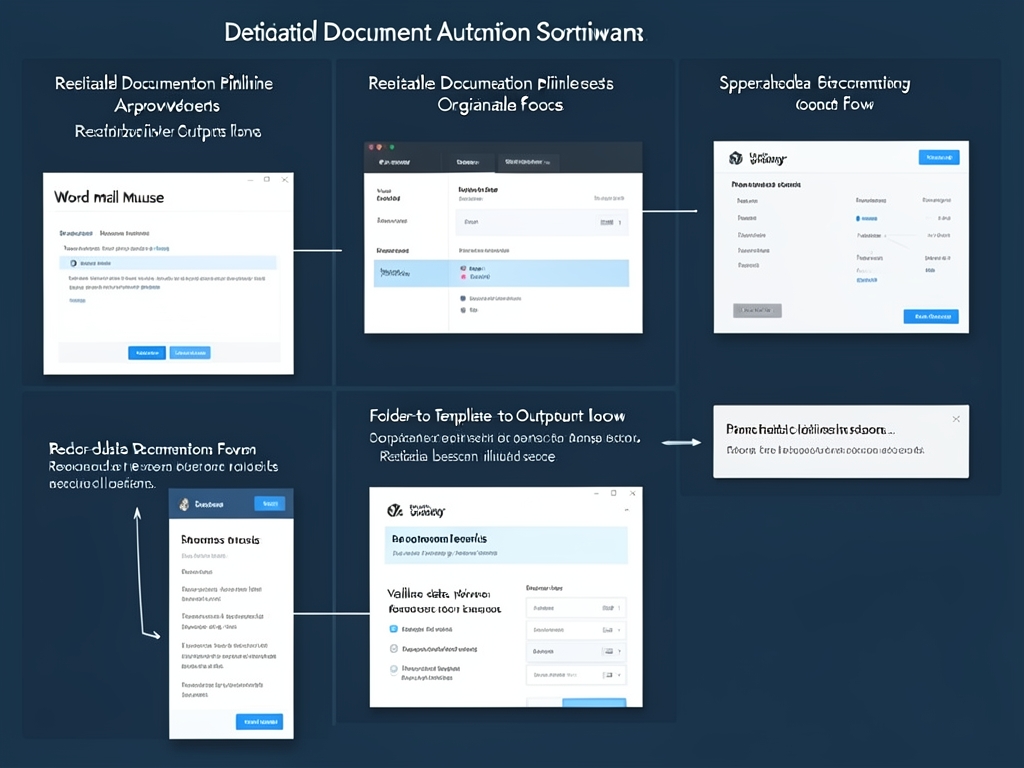
AI-generated illustration for article.
A grounded VBA example
If you need a quick, in‑Office solution before moving to a full automation platform, the VBA macro below demonstrates how to loop through an Excel sheet, insert images via bookmarks, and generate both DOCX and PDF files while ensuring folders exist.
The code is safe for typical business environments: it checks paths, creates missing output folders, and uses ExportAsFixedFormat for PDF creation. Adjust the file locations to match your environment.
Sub GenerateDocsFromExcel()
    Dim xlApp As Object
    Dim wb As Object
    Dim ws As Object
    Dim lastRow As Long, i As Long
    Dim doc As Document
    Dim outFolder As String, pdfFolder As String
    Dim imgPath As String

    '--- Settings -------------------------------------------------
    Set xlApp = CreateObject("Excel.Application")
    Set wb = xlApp.Workbooks.Open("C:\Data\Source.xlsx")
    Set ws = wb.Sheets(1)
    outFolder = "C:\Output\WORD"
    pdfFolder = "C:\Output\PDF"
    EnsureFolder outFolder
    EnsureFolder pdfFolder
    '--------------------------------------------------------------

    lastRow = ws.Cells(ws.Rows.Count, "A").End(-4162).Row ' xlUp

    For i = 2 To lastRow
        Set doc = Documents.Add("C:\Templates\Letter.docx")
        ' Replace simple placeholders
        With doc.Content.Find
            .ClearFormatting
            .Replacement.ClearFormatting
            .Text = "<<Name>>"
            .Replacement.Text = ws.Cells(i, "B").Value
            .Execute Replace:=2
        End With
        ' Insert logo if file exists
        imgPath = "C:\Images\" & ws.Cells(i, "C").Value
        If Len(Dir(imgPath)) > 0 Then
            doc.Bookmarks("photo_logo").Range.InlineShapes.AddPicture _
                FileName:=imgPath, LinkToFile:=False, SaveWithDocument:=True
        End If
        ' Save Word file
        doc.SaveAs2 FileName:=outFolder & "\Doc_" & i & ".docx"
        ' Export PDF
        doc.ExportAsFixedFormat OutputFileName:=pdfFolder & "\Doc_" & i & ".pdf", _
            ExportFormat:=17 ' wdExportFormatPDF
        doc.Close SaveChanges:=False
    Next i

    wb.Close SaveChanges:=False
    xlApp.Quit
    Set ws = Nothing: Set wb = Nothing: Set xlApp = Nothing
    MsgBox "Batch generation complete.", vbInformation
End Sub

Sub EnsureFolder(ByVal fPath As String)
    If Len(Dir(fPath, 16)) = 0 Then MkDir fPath
End Sub
For larger volumes or more complex image handling, consider a dedicated automation product that stages images and manages batch sizes automatically.
Where VBA starts to strain
VBA shines for simple, low‑volume tasks, but it starts to strain when you need to manage many documents, enforce strict naming conventions, or handle high‑resolution images consistently.
Scalability concerns
A macro processes rows sequentially inside Word, which can become slow for hundreds of records. Memory usage grows as each document is opened, and error handling becomes harder to maintain across many edge cases.
Image resolution and tagging
Managing different DPI rules (150 DPI for regular images, 300 DPI for logos or signatures) requires extra code and careful path validation. Adding new tags often means duplicating logic, increasing the risk of bugs.
A calmer way to standardize the workflow
A purpose‑built automation tool takes the repetitive parts out of the macro, guarantees consistent image handling, and lets you configure batch size, folder structure, and output formats through a simple UI. The result is a repeatable, hand‑off‑ready process that still leverages the familiar Excel‑Word stack.
If the goal is to turn a repeatable manual process into a structured local workflow DocxForge Pro is built for Excel-to-Word-and-PDF document generation. It is useful when the current process has outgrown basic Mail Merge behavior and needs a more controlled template-based workflow.
This is a practical fit for Windows teams that want to keep document generation local while using Microsoft Excel and Word. This matters most when Mail Merge is no longer enough for the real document workflow. The article’s VBA example shows the spreadsheet-side automation while DocxForge Pro fits as the document-generation layer outside the code example itself.
Start Free 7-Day TrialStructured, repeatable workflow
Define source data, template, and image locations once; the engine runs the same steps automatically for every new dataset, without rewriting code.
Frequently asked questions
Common questions about choosing between native mail merge and a dedicated automation approach.
When is VBA enough, and when does it become hard to maintain?
VBA works well for occasional runs under a few dozen documents where the field set is static. Once you need to handle variable images, generate PDFs for each record, or process hundreds of files, the macro grows in size and error handling becomes fragile. At that point a dedicated automation platform offers built‑in validation, batch control, and easier hand‑off.
What changes when the workflow also needs PDF output or images?
Mail merge does not natively export PDFs per record; you must add a separate macro step, which can break if a document fails to open. Image insertion also requires manual bookmark handling. An automation tool inserts images based on tags, applies the correct DPI, and calls Word’s ExportAsFixedFormat in the same transaction, guaranteeing that each DOCX and its PDF counterpart are produced together.
Which option is easier to repeat and hand off?
A configuration‑driven automation solution stores all settings (source file, template path, image folder, output locations) in a single project file. New users only need to point to their data and run the process. With VBA, each new project often requires copying the macro, adjusting hard‑coded paths, and testing edge cases, which adds overhead for every hand‑off.
What is the main trade‑off between the compared approaches?
Mail merge gives you a zero‑cost entry point using tools everyone already has, but it sacrifices scalability, robust image handling, and automated PDF creation. Dedicated automation software requires an upfront investment (license or subscription) yet delivers consistent, high‑volume output, built‑in validation, and a UI that lets non‑developers manage the pipeline without touching code.
Topics and Tags
Browse related topic clusters and workflow tags connected to this article.
Continue Reading
Explore more articles related to this workflow, problem, or document automation topic.
How to Generate Membership Forms and Letters in Batches
A step‑by‑step guide for membership organisations to generate personalised forms and letters in bulk using Excel data and Word templates.
Read articleGoogle Forms → Google Sheets → Word/PDF Workflow for Field Intake
This article walks field‑data teams through a practical pipeline that moves responses from Google Forms into Google Sheets, then pulls those rows into a local Word‑PDF generation macro, highlighting common pitfalls and offering both VBA and Apps Script helpers.
Read articleGoogle Sheets → Google Docs → PDF Workflow for Internal Memos
Learn how to move data from Google Sheets into Google Docs, generate a PDF memo, and keep the process repeatable for internal communications.
Read articleShared Drive Templates vs Managed Output Folders in Batch Generation
A side‑by‑side analysis of using shared‑drive Word templates versus dedicated output folders for reliable batch document generation.
Read article