
Shared Drive Templates vs Managed Output Folders in Batch Generation
Teams that store Word templates on a shared drive often run into naming collisions, permission hiccups, and unclear where generated files end up. A managed output folder structure keeps each batch isolated, makes file‑naming deterministic, and simplifies hand‑off to downstream reviewers.
Clear output locations
Separate folders per run avoid overwrites
Quick answer
When you generate many documents from Excel data, storing the template on a shared drive works for a single user but quickly creates chaos as multiple people edit the same file and output files land in a common folder. Switching to a managed output folder per batch isolates results, lets you enforce naming rules from the spreadsheet, and reduces permissions headaches.
Use a dedicated output folder for each run, let VBA build filenames from stable row values, and keep the template on a read‑only share. This combination gives you the convenience of a shared template while guaranteeing that generated DOCX and PDF files are predictable and safely stored.
Why this matters
When you rely on a single shared‑drive Word template, every batch inherits the same points of failure—naming ambiguity, accidental overwrites, and uncontrolled edits to the master file. By moving the template to a read‑only location and funneling each run into its own timestamped folder, you gain deterministic file names, clearer ownership, and an audit trail that scales with the volume of documents you produce.
Predictable naming
When filenames are derived from spreadsheet columns (e.g., CustomerID‑InvoiceDate), you can locate a document instantly. Managed output folders prevent accidental overwrites that happen when everyone writes to the same shared folder, ensuring each batch remains uniquely identifiable even as volume grows.
Permission safety
A shared‑drive template can be edited by anyone with write access, which may corrupt the master file. By keeping the template read‑only and only writing to a specific batch folder, you protect the source, limit exposure of generated files, and enforce principle‑of‑least‑privilege access.
Audit trail & archiving
Timestamped output folders create a natural audit log: each folder’s name reflects when the batch ran, and its contents can be archived or purged in bulk. This simplifies compliance reporting and gives managers a single point of reference for any future review.
What goes wrong
Both approaches start with the same Excel‑to‑Word idea, but they diverge dramatically once the first batch runs.
Shared‑drive template approach
Users open the same template stored on a network share, run a macro that saves each document back to that share, and then manually rename files. Over time, file names clash, the template accumulates stray tracked changes, and permission changes on the share can break the macro for some users.
Managed output folder approach
Each run creates a timestamped folder under a central "Outputs" root. The macro writes DOCX and optional PDF files directly into that folder using a filename built from row data. The template remains untouched, and the output folder can be archived or cleaned automatically.
The managed folder method eliminates the most common sources of error – naming collisions, template corruption, and permission drift – while still leveraging the same shared template for consistency.
What the workflow looks like
Below is a practical step‑by‑step workflow that teams can adopt without changing any existing Excel data.
1. Prepare the Excel source
Add columns for the output filename (e.g., "FileName"), a flag for PDF export, and any placeholder values that will map to Word bookmarks. Keep the sheet in a shared location that all contributors can read.
2. Store the Word template read‑only
Place the master .docx on a shared drive with read‑only permissions. This ensures every user works from the same layout while preventing accidental edits.
3. Create a batch output folder
When the macro starts, it builds a folder name like "Outputs_2024_09_15_1030" under a predefined root. If the folder already exists, the macro appends a numeric suffix.
4. Run the VBA loop
The macro opens the template, copies it for each row, replaces bookmarks with row values, saves the new document to the batch folder using the "FileName" column, and optionally calls ExportAsFixedFormat to create a PDF.
5. Verify and archive
After the run completes, open the batch folder, confirm that every expected file is present, and move the folder to an archive location or share it with downstream reviewers.
A visual example
Simple visual illustration.
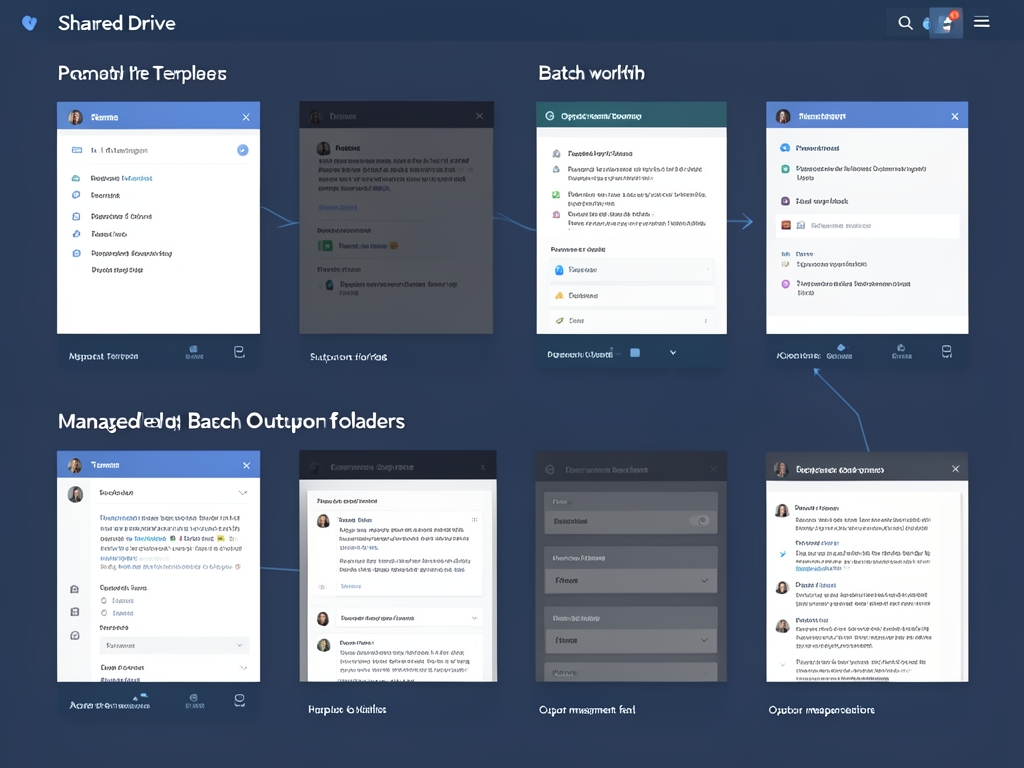
AI-generated illustration for article.
A grounded VBA example
The macro below implements the managed‑folder approach using only native Excel and Word objects. It checks that folders exist, builds filenames from the spreadsheet, and optionally creates PDFs.
The routine demonstrates how to keep the template untouched, write files to a dedicated folder, and handle both DOCX and PDF output in one pass.
Option Explicit

Sub GenerateBatchDocuments()
    Const TEMPLATE_PATH As String = "\\SharedDrive\Templates\MasterTemplate.docx"
    Const OUTPUT_ROOT As String = "C:\BatchOutputs"
    Const PDF_EXPORT As Boolean = True 'Set to False to skip PDF creation

    Dim ws As Worksheet
    Set ws = ThisWorkbook.Sheets("Data")

    Dim lastRow As Long
    lastRow = ws.Cells(ws.Rows.Count, "A").End(xlUp).Row

    Dim batchFolder As String
    batchFolder = CreateBatchFolder(OUTPUT_ROOT)

    Dim i As Long
    For i = 2 To lastRow 'Assume headers in row 1
        Dim fileName As String
        fileName = Trim(ws.Cells(i, "C").Value) 'Column C holds the desired base name
        If fileName = "" Then
            fileName = "Document_" & i
        End If
        Dim docPath As String
        docPath = batchFolder & "\" & fileName & ".docx"

        Dim wdApp As Object
        Set wdApp = CreateObject("Word.Application")
        wdApp.Visible = False

        Dim wdDoc As Object
        Set wdDoc = wdApp.Documents.Open(TEMPLATE_PATH, ReadOnly:=True)

        'Replace bookmarks with row data
        Call ReplaceBookmarks(wdDoc, ws, i)

        wdDoc.SaveAs2 docPath, 16 'wdFormatXMLDocument

        If PDF_EXPORT Then
            Dim pdfPath As String
            pdfPath = batchFolder & "\" & fileName & ".pdf"
            wdDoc.ExportAsFixedFormat OutputFileName:=pdfPath, ExportFormat:=17 'wdExportFormatPDF
        End If

        wdDoc.Close SaveChanges:=False
        wdApp.Quit
        Set wdDoc = Nothing
        Set wdApp = Nothing
    Next i

    MsgBox "Batch generation complete. Files saved to: " & batchFolder, vbInformation
End Sub

Function CreateBatchFolder(rootPath As String) As String
    Dim ts As String
    ts = Format(Now, "yyyy_mm_dd_HHnnss")
    Dim newFolder As String
    newFolder = rootPath & "\Batch_" & ts
    Dim fso As Object
    Set fso = CreateObject("Scripting.FileSystemObject")
    If Not fso.FolderExists(rootPath) Then fso.CreateFolder rootPath
    fso.CreateFolder newFolder
    CreateBatchFolder = newFolder
End Function

Sub ReplaceBookmarks(wdDoc As Object, ws As Worksheet, rowIdx As Long)
    Dim bm As Object
    For Each bm In wdDoc.Bookmarks
        Dim col As Long
        col = BookmarkColumn(bm.Name)
        If col > 0 Then
            Dim val As String
            val = ws.Cells(rowIdx, col).Value
            bm.Range.Text = val
        End If
    Next bm
End Sub

Function BookmarkColumn(bmName As String) As Long
    'Map bookmark names to column numbers – adjust as needed
    Select Case LCase(bmName)
        Case "customername": BookmarkColumn = 2 'Column B
        Case "address": BookmarkColumn = 3 'Column C
        Case "invoicedate": BookmarkColumn = 4 'Column D
        Case Else: BookmarkColumn = 0
    End Select
End Function
Adjust the constants at the top to match your environment, then run the macro from the Excel workbook.
Where VBA starts to strain
VBA is powerful for local automation, but it has practical boundaries that become evident in larger or more complex deployments.
Scalability limits
When the batch size grows into the thousands, the single‑threaded VBA loop can become slow, and memory usage in Word may spike. Chunking the work into smaller batches or using a dedicated batch‑size selector helps, but at some point a more robust ETL tool may be preferable.
Error handling complexity
VBA error handling is manual; unexpected missing images, broken bookmarks, or permission issues must be caught with On Error statements. Maintaining a large macro with many guarded sections can become hard to read and debug.
A calmer way to standardize the workflow
DocxForge Pro offers a purpose‑built solution that abstracts the folder management, naming, and PDF export while still using the same Excel‑to‑Word data model.
If the goal is to turn a repeatable manual process into a structured local workflow DocxForge Pro is built for Excel-to-Word-and-PDF document generation. The layout stays in the Word template while the data comes from the spreadsheet workflow.
This is a practical fit for Windows teams that want to keep document generation local while using Microsoft Excel and Word. This is useful when teams already rely on Word templates and do not want to redesign the output format from scratch. The article’s VBA example shows the spreadsheet-side automation while DocxForge Pro fits as the document-generation layer outside the code example itself.
Start Free 7-Day TrialBuilt‑in batch folder handling
The application automatically creates timestamped output folders, enforces naming rules, and prevents overwrites without writing custom VBA.
One‑click PDF generation
Select the PDF option once and the engine runs ExportAsFixedFormat for every document, handling image DPI and special tags like photo_logo without extra code.
Frequently asked questions
Below you’ll find quick answers to the most common concerns teams raise when choosing between a shared‑drive template and a managed output‑folder workflow.
Can this workflow stay inside Microsoft Office tools?
Yes, for many workflows the data-prep and document-output steps can stay inside the existing toolset, but the fragile part is usually the repeatability of the final document stage.
Where does VBA help the most?
VBA is usually most useful for prep, normalization, field updates, file naming, or small batch helpers rather than for building a full document workflow from scratch.
When does the workflow become brittle?
The workflow usually becomes brittle when templates, images, output folders, or PDF export steps have to be repeated across many records without a stable generation layer.
Topics and Tags
Browse related topic clusters and workflow tags connected to this article.
Continue Reading
Explore more articles related to this workflow, problem, or document automation topic.
How to Organize Output File Names in Batch Document Generation
Learn how to automatically generate consistent, searchable file names for each document produced in a batch Word/Excel workflow, reducing manual renaming and keeping output folders tidy.
Read articleHow to Generate Membership Forms and Letters in Batches
A step‑by‑step guide for membership organisations to generate personalised forms and letters in bulk using Excel data and Word templates.
Read articleManual Copy-Paste vs Template-Based Document Generation
A side‑by‑side comparison of manual copy‑paste document creation and template‑driven generation, discussing pitfalls, a VBA‑based workflow, its limits, and a smoother alternative with DocxForge Pro.
Read articleExcel-to-Word Automation vs Google Docs Templates: What Scales Better?
Compare Excel-to-Word automation against Google Docs template workflows
Read article