
How to Generate Membership Forms and Letters in Batches
Membership groups often need to send welcome forms, renewal letters, and certificates to hundreds of members each cycle. Doing this manually in Word leads to copy‑paste errors, inconsistent branding, and wasted time. A repeatable batch process lets you pull data from a single Excel roster, generate each personalized document, and export PDFs ready for email or mail‑merge distribution—all without leaving your desktop.
Save Hours Every Week
Turn repetitive paperwork into a one‑click operation.
Quick answer
You can batch‑generate membership forms and letters using a short VBA macro that lives inside Word or Excel. By pointing the macro at a single Excel roster, the script opens a pre‑designed Word template, injects each member’s details, and saves the personalized document as a PDF. This approach removes the tedious copy‑paste cycle, guarantees consistent branding, and scales from ten to ten‑thousand records without extra effort. Because the macro runs locally, there’s no need for internet connectivity or third‑party services, making it ideal for organisations that must keep member data on‑premises.
A single macro can pull member data, populate placeholders, insert optional images, and write both a Word file and a PDF in seconds per record. Once set up, you run it once and let Office handle the rest.
Why this matters
Creating each membership form or renewal letter by hand is a hidden productivity drain. Staff spend hours typing names, addresses, and membership tiers, only to discover inconsistent fonts or missed fields after the fact. Errors compound when the same document must be regenerated each cycle, leading to re‑work, frustrated members, and a tarnished brand image. Automation restores control, ensures every communication looks identical, and frees staff to focus on member engagement rather than paperwork.
Consistency
All outputs draw from a single source of truth – the Excel roster and the Word template – so headings, logos, and legal footers appear exactly the same in every packet. No more stray fonts or mis‑aligned tables, which strengthens credibility.
Speed
What once required manual entry for each member now happens in a batch run that finishes in minutes, even for hundreds of records. The time saved can be redirected to outreach, fundraising, or improving member services.
Scalability
The macro does not care whether you have 50 or 5,000 members; it loops through each row automatically. Scaling up therefore costs only a few extra seconds of processing, not additional staff hours.
What goes wrong
Typical problems before automation:
Before Automation
Staff copy‑paste data from spreadsheets into Word, manually adjust margins, replace placeholder text, and individually save each file. Missing a field or mistyping an address is easy, and the process is painfully slow. Adding a logo or updating the footer requires opening every document again. When the membership roster updates, the entire batch must be recreated, leading to duplicated effort and higher risk of inconsistency.
After Automation
A VBA‑driven macro reads the Excel roster in one pass, swaps placeholder tokens for real values, inserts images automatically, and writes both .docx and .pdf versions to designated folders. Errors are caught by a simple log, and the whole batch completes in a single click. Updating the template or the data source instantly propagates to all outputs, guaranteeing uniformity and dramatically cutting processing time.
Automation removes tedious steps and reduces human error.
What the workflow looks like
Follow these five steps to set up batch generation:
Prepare the Excel roster
Create a sheet where each row represents one member. Include columns such as MemberID, Name, Address, MembershipType, and optional image filenames for logo, signature, or stamp. Keep the header row clean and avoid merged cells.
Design the Word template
Insert placeholder tokens like <
Set up output folders
Create two subfolders beside the template: one named WORD for the generated .docx files and another named PDF for the exported PDFs. The VBA script will verify their existence and create them if missing.
Run the VBA macro
Launch the macro from Excel. It opens the Word template, loops through each spreadsheet row, replaces tokens with the row’s values, inserts any referenced images, saves the personalized document to the WORD folder, and then calls ExportAsFixedFormat to produce a matching PDF in the PDF folder.
Review and distribute
After the run finishes, inspect the logs for any missing images or data issues. The WORD and PDF folders now contain a complete, consistently formatted set of letters ready for email attachment, postal mail merge, or archival storage.
A visual example
Simple visual illustration.
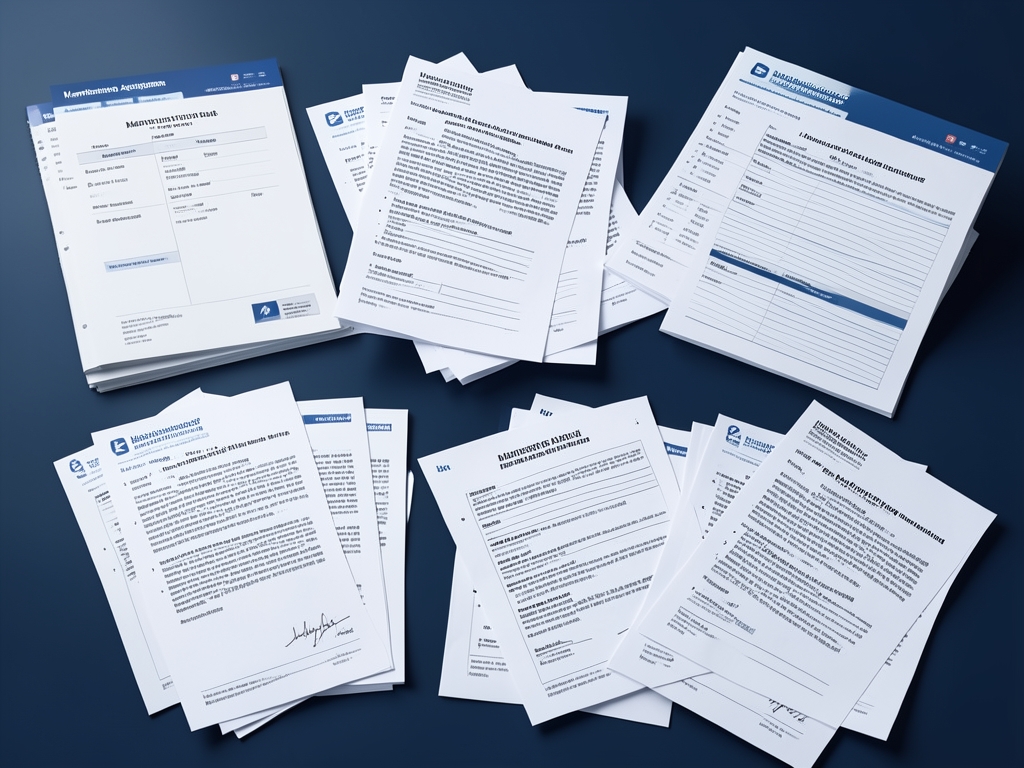
AI-generated illustration for article.
A grounded VBA example
Below is the VBA macro that powers the batch process.
Copy the code into the Word VBA editor (Alt+F11 → Insert → Module).
Sub BatchGenerateMembershipDocs()
    Dim xlApp As Object, wb As Object, ws As Object
    Dim i As Long, lastRow As Long
    Dim tmplPath As String, saveFolder As String
    Dim doc As Document, newDoc As Document

    '--- Settings -------------------------------------------------
    tmplPath = ThisDocument.Path & "\MembershipTemplate.docx"   ' path to your Word template
    saveFolder = ThisDocument.Path & "\Output"                ' folder for PDFs

    '--- Open Excel data -------------------------------------------
    Set xlApp = CreateObject("Excel.Application")
    Set wb = xlApp.Workbooks.Open(ThisDocument.Path & "\MemberData.xlsx")
    Set ws = wb.Sheets(1)
    lastRow = ws.Cells(ws.Rows.Count, "A").End(-4162).Row   ' xlUp = -4162

    '--- Loop through rows -----------------------------------------
    For i = 2 To lastRow   ' assuming row 1 has headers
        Set doc = Documents.Open(tmplPath)
        With doc.Content.Find
            .Text = "{Name}"
            .Replacement.Text = ws.Cells(i, 1).Value
            .Execute Replace:=2
            .Text = "{Address}"
            .Replacement.Text = ws.Cells(i, 2).Value
            .Execute Replace:=2
            .Text = "{MembershipType}"
            .Replacement.Text = ws.Cells(i, 3).Value
            .Execute Replace:=2
        End With

        ' Save as PDF using the member name
        doc.ExportAsFixedFormat OutputFileName:=saveFolder & "\" & ws.Cells(i, 1).Value & ".pdf", ExportFormat:=17
        doc.Close SaveChanges:=False
    Next i

    '--- Clean up -------------------------------------------------
    wb.Close SaveChanges:=False
    xlApp.Quit
    Set ws = Nothing: Set wb = Nothing: Set xlApp = Nothing
    MsgBox "Batch generation complete! PDFs saved to " & saveFolder, vbInformation
End Sub
Adjust the sheet name and column indexes to match your data.
Where VBA starts to strain
VBA works well for most desktop‑based workflows, but keep these limits in mind to avoid frustration when the volume grows or the environment changes.
File Size
Generating PDFs for very large documents (e.g., hundreds of pages with high‑resolution images) can exhaust Word’s memory, causing the macro to stall or crash. Split very large templates into sections or limit image resolution if you approach this limit.
Cross‑Platform
VBA is native to Windows Office; the same macro will not run on macOS Word without modification, and Office Online offers no VBA support. Teams that use mixed operating systems should consider a cloud‑based alternative for true platform independence.
Security
Many corporate environments block macros by default and require digital signatures. Distributing a macro internally may need IT approval, and users must enable macros each session, which can be a barrier for non‑technical staff.
A calmer way to standardize the workflow
If you need a cloud‑based or cross‑platform solution, consider Google Apps Script or a low‑code platform.
If the goal is to turn a repeatable manual process into a structured local workflow DocxForge Pro is built for Excel-to-Word-and-PDF document generation. It is designed for structured batch document generation rather than one-off manual output.
Start Free 7-Day TrialGoogle Apps Script
Runs in the browser, works on any OS, and integrates with Google Drive.
Power Automate
Offers a no‑code UI for similar batch document generation.
Frequently asked questions
Common questions about batch generation:
Can I customize the template for different member types?
Yes – use conditional logic in the VBA macro to load different templates based on a column value.
What if my data is in a CSV file?
Open the CSV in Excel first or modify the macro to read the CSV directly.
How do I protect my macro from being edited?
Lock the VBA project with a password (Tools → VBAProject Properties → Protection).
Topics and Tags
Browse related topic clusters and workflow tags connected to this article.
Continue Reading
Explore more articles related to this workflow, problem, or document automation topic.
How to Generate Customer Letters in Batches from a Spreadsheet
A step‑by‑step guide for admin and customer‑service teams that shows how to turn rows of Excel data into personalized Word letters and PDFs in batch, handling images and folder organization with a reliable VBA macro.
Read articleGoogle Sheets → Google Docs → PDF Workflow for Internal Memos
Learn how to move data from Google Sheets into Google Docs, generate a PDF memo, and keep the process repeatable for internal communications.
Read articleShared Drive Templates vs Managed Output Folders in Batch Generation
A side‑by‑side analysis of using shared‑drive Word templates versus dedicated output folders for reliable batch document generation.
Read articleHow to Organize Output File Names in Batch Document Generation
Learn how to automatically generate consistent, searchable file names for each document produced in a batch Word/Excel workflow, reducing manual renaming and keeping output folders tidy.
Read article