
Excel → Word → PDF Workflow for Compliance Evidence Packs
Compliance teams often start with a spreadsheet of audit findings, then spend hours copying rows into a Word template, inserting logos and signatures, and finally exporting each file as a PDF. By chaining Excel, Word, and PDF generation you keep the process under control, remove manual errors, and retain a traceable audit trail on the local machine.
Current suite demo
Contractor + Factory • local Word/PDF output
Quick answer
The fastest reliable way to produce a compliance evidence pack is to store all required data in a structured Excel sheet, map each column to a tag or placeholder in a Word template, and let a local workflow insert any logo, signature, or stamp images before exporting the document as a PDF. The process can loop over every row, create a uniquely named Word file, place the images, and save both DOCX and PDF in dedicated folders, all without leaving the workstation.
Build a table, use a repeatable local workflow, and let the computer handle the repetitive steps. The result is a set of ready-to-submit evidence packs that match your audit requirements.
Why this matters
Regulatory audits demand consistent, well-formatted evidence. When each evidence pack is assembled manually, small transcription mistakes or missing stamps can cause costly re-work, delays, and even non-compliance findings. An automated Excel → Word → PDF pipeline guarantees that every pack contains the exact data, branding, and signatures required, while preserving a repeatable audit trail that can be reviewed later.
Risk reduction
Automating data insertion eliminates manual copy-paste errors, ensures every required field is present, and guarantees that images such as logos and signatures are attached correctly each time.
Operational efficiency
A repeatable workflow can produce dozens or hundreds of packs in minutes, freeing staff to focus on analysis rather than document assembly, and keeping the audit schedule on track.
What goes wrong
Most teams try to stitch together evidence packs with ad-hoc copy-paste, manual image insertion, and separate PDF export steps. The process quickly becomes fragile: missing images break the layout, inconsistent filenames cause filing headaches, and occasional Word crashes corrupt the batch.
Manual approach
Open each Word template, paste data from Excel, insert images by browsing, adjust sizing, then save as PDF. Small mistakes in naming or image selection are hard to spot until the audit deadline.
Automated workflow
Run a local workflow that reads each Excel row, fills the template, inserts images from a known folder, and saves both DOCX and PDF with predictable filenames. The process can log issues for correction without forcing a full manual rebuild.
By moving from a manual, error-prone process to a structured pipeline, teams gain confidence that every pack meets the same standards, and they can quickly identify any data gaps before final submission.
What the workflow looks like
The end-to-end workflow consists of three clear stages—data preparation, template processing, and final export. Each stage can be validated before moving on, ensuring that the evidence pack set is complete and consistent.
1. Prepare the Excel source
Create a worksheet where every row represents one evidence pack. Include columns for client name, audit date, evidence ID, and any identifier required for signatures. Keep a separate column for the exact filename you want for the final PDF.
2. Build a Word template
Insert tags or placeholders where dynamic text belongs—ClientName, AuditDate, EvidenceID, and so on. Add designated places for logo, signature, and stamp images. Save the template in the same folder as the Excel file.
3. Gather image assets
Place all reusable images in an Images folder next to the workbook. For per-record signatures, use a naming convention so the workflow can locate the correct file automatically.
4. Run the generation workflow
The workflow opens the template for each row, fills text tags with cell values, inserts the logo, signature, and stamp if the files exist, and saves a Word document and a PDF into dedicated Output/Word and Output/PDF folders.
5. Verify output folders
After the run finishes, check the two output folders. Each PDF should be named according to the EvidenceID column, and the corresponding DOCX should be present for any further editing.
6. Archive or submit
Copy the PDF folder to your audit repository, or attach the files directly to your compliance management system. Because the process is repeatable, the same steps can be reused for future audit cycles.
A visual example
Simple visual illustration.
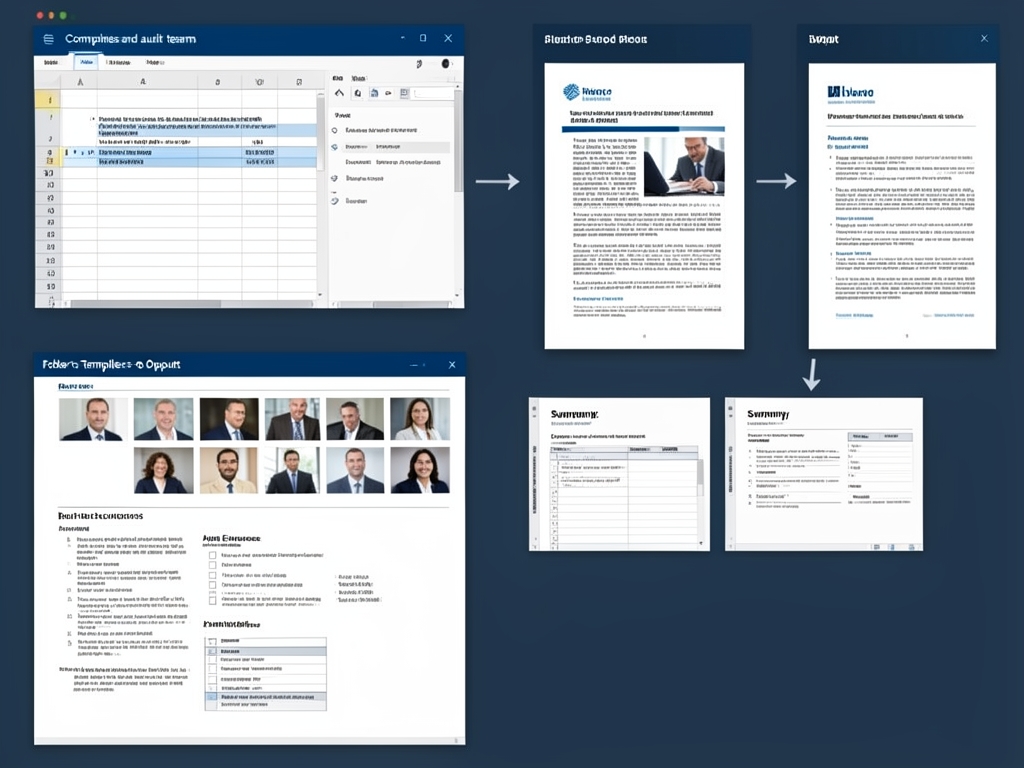
AI-generated illustration for article.
A grounded VBA example
The macro below ties the three stages together. It reads each Excel row, populates a Word template, inserts images from a known folder, and exports both DOCX and PDF files. Errors such as missing images or unwritable folders are reported, allowing you to fix the source data before the next run.
The code opens the template in hidden Word, fills bookmarks with values from the current row, adds pictures at designated bookmarks, saves the completed document, and finally calls ExportAsFixedFormat to produce a PDF. All output paths are built from the workbook location, so the workflow stays portable.
Sub GenerateEvidencePacks()
    Dim xl As Worksheet
    Dim wrdApp As Object
    Dim wrdDoc As Object
    Dim rowIdx As Long, lastRow As Long
    Dim tmplPath As String, outWordFolder As String, outPdfFolder As String
    Dim imgFolder As String, imgPath As String

    Set xl = ThisWorkbook.Sheets("Data")
    tmplPath = ThisWorkbook.Path & "\Template.docx"
    outWordFolder = ThisWorkbook.Path & "\Output\Word"
    outPdfFolder = ThisWorkbook.Path & "\Output\PDF"
    imgFolder = ThisWorkbook.Path & "\Images"

    'ensure output directories exist
    If Dir(outWordFolder, vbDirectory) = "" Then MkDir outWordFolder
    If Dir(outPdfFolder, vbDirectory) = "" Then MkDir outPdfFolder

    Set wrdApp = CreateObject("Word.Application")
    wrdApp.Visible = False

    'corrected row-count expression
    lastRow = xl.Cells(xl.Rows.Count, "A").End(xlUp).Row

    For rowIdx = 2 To lastRow 'assume header row
        Set wrdDoc = wrdApp.Documents.Open(tmplPath, ReadOnly:=True)

        'populate bookmarks with cell values
        Call FillBookmark(wrdDoc, "ClientName", xl.Cells(rowIdx, "B").Value)
        Call FillBookmark(wrdDoc, "AuditDate", xl.Cells(rowIdx, "C").Value)
        Call FillBookmark(wrdDoc, "EvidenceID", xl.Cells(rowIdx, "D").Value)

        'insert logo if file exists
        imgPath = imgFolder & "\photo_logo.png"
        If Dir(imgPath) <> "" Then
            Call InsertPictureAtBookmark(wrdDoc, "Logo", imgPath)
        End If

        'insert signature if file exists for this row
        imgPath = imgFolder & "\signature_" & xl.Cells(rowIdx, "E").Value & ".png"
        If Dir(imgPath) <> "" Then
            Call InsertPictureAtBookmark(wrdDoc, "Signature", imgPath)
        End If

        'save Word file
        Dim wordFile As String
        wordFile = outWordFolder & "\EvidencePack_" & xl.Cells(rowIdx, "D").Value & ".docx"
        wrdDoc.SaveAs2 wordFile, 16 'wdFormatXMLDocument

        'export PDF
        Dim pdfFile As String
        pdfFile = outPdfFolder & "\EvidencePack_" & xl.Cells(rowIdx, "D").Value & ".pdf"
        wrdDoc.ExportAsFixedFormat OutputFileName:=pdfFile, ExportFormat:=17 'wdExportFormatPDF

        wrdDoc.Close False
    Next rowIdx

    wrdApp.Quit
    Set wrdDoc = Nothing
    Set wrdApp = Nothing
    MsgBox "Generation complete: " & (lastRow - 1) & " packs created."
End Sub

Sub FillBookmark(doc As Object, bmName As String, txt As String)
    On Error Resume Next
    doc.Bookmarks(bmName).Range.Text = txt
    On Error GoTo 0
End Sub

Sub InsertPictureAtBookmark(doc As Object, bmName As String, picPath As String)
    Dim bmRange As Object
    On Error Resume Next
    Set bmRange = doc.Bookmarks(bmName).Range
    If Not bmRange Is Nothing Then
        bmRange.InlineShapes.AddPicture FileName:=picPath, LinkToFile:=False, SaveWithDocument:=True
        're-create bookmark after insertion
        doc.Bookmarks.Add bmName, bmRange
    End If
    On Error GoTo 0
End Sub
Customize the bookmark names and column indices to match your own template. You can also expand the script to log each step to a text file for audit traceability.
Where VBA starts to strain
While VBA is powerful for local automation, it has practical limits that become visible in larger or more complex projects.
Scalability
Processing thousands of rows can cause Word to consume significant memory, leading to occasional hangs. Splitting the batch into smaller groups or using batch-size control helps keep the process stable.
Image handling
Very large PNGs or high-resolution signatures increase the generated file size and can slow down local PDF export. Pre-staging images and keeping image handling consistent helps preserve output quality.
Error reporting
The macro stops on missing files but does not automatically retry. Adding a simple log file or using a more structured generation layer makes it easier to correct missing assets without rerunning the entire batch.
A calmer way to standardize the workflow
DocxForge Pro provides a ready-made solution that encapsulates the same Excel-to-Word-to-PDF logic while adding a polished UI, built-in image staging, and batch control. It removes the need to maintain VBA code and gives you out-of-the-box support for logo, signature, and stamp tags.
DocxForge Pro is a local Windows document automation suite for Excel or structured case data, Word templates, text tags, photo tags, and Word or optional PDF output.
Use Contractor for controlled case work from Excel and/or structured case data, or use Factory for Excel batch production and larger output runs. Excel remains valid for both live workflows.
Start Free 7-Day TrialZero-code setup
Import your spreadsheet, point to a Word template, and let DocxForge handle the rest. No macro editing required.
Managed image handling
The workflow keeps image placement consistent and supports special image tags for logo, signature, and stamp handling inside the same local process.
Batch control and logging
Select how many records to process per run, view progress, and keep a clear local record of any issues that need correction.
Frequently asked questions
Common questions about the Excel → Word → PDF evidence-pack workflow
Can this workflow stay inside Microsoft Office tools?
Yes, for many workflows the data-prep and document-output steps can stay inside the existing toolset, but the fragile part is usually the repeatability of the final document stage.
Where does VBA help the most?
VBA is usually most useful for prep, normalization, field updates, file naming, or small batch helpers rather than for building a full document workflow from scratch.
When does the workflow become brittle?
The workflow usually becomes brittle when templates, images, output folders, or PDF export steps have to be repeated across many records without a stable generation layer.
Topics and Tags
Browse related topic clusters and workflow tags connected to this article.
Continue Reading
Explore more articles related to this workflow, problem, or document automation topic.
How to Automate Home Inspection Reports with Excel, Word, and PDF
Learn how to streamline home inspection report creation by linking Excel data, Word templates, and PDF output with a practical VBA‑driven workflow.
Read articleExcel → Word → PDF Workflow for Home Inspection Reports
A step‑by‑step guide for home‑inspection teams to turn Excel data into Word reports and PDF files, with a practical VBA macro and tips for scaling the process.
Read articleHow to Prepare Audit Checklists and Signed PDFs from Excel
Prepare audit checklists and signed PDFs from Excel
Read articleHow to Build Offline Insurance Claim Document Packs
A step‑by‑step guide for insurance operations teams to build offline claim document packs using Excel, Word, and a safe VBA macro.
Read article