
HR Document Automation with Excel, Word, Images, and PDF
HR teams often need to turn employee data into offer letters, onboarding packets, or policy acknowledgments. By linking a structured Excel roster to a Word template and automatically inserting photos, signatures, or logos, the whole process can be run in minutes instead of hours.
Streamlined batch creation
From spreadsheet to signed PDFs
Quick answer
You can generate a complete set of personalized HR documents by combining an Excel roster, a Word template with merge fields, and a folder of employee photos. A simple VBA macro reads each row, plugs the data into the template, inserts the matching image, saves the file as DOCX, and then exports a PDF—all without leaving the desktop.
The macro loops through every employee record, replaces placeholders such as <
Why this matters
HR departments handle repetitive paperwork that must stay consistent across dozens or hundreds of employees. Manual creation invites errors, version drift, and wasted time, especially when each file needs a logo, a signature image, and specific employee details. Automating the process protects data integrity and lets staff focus on higher‑value activities.
Consistency across the board
When the macro drives the document, every generated file uses the same template, same fonts, and the same placement rules for images. A typo in a spreadsheet column is the only variable, which is easy to audit, so the final PDFs look uniform and professional.
Speed and scalability
Generating twenty or two thousand employee packets takes the same few seconds per record. The batch can run unattended overnight, freeing the HR team to concentrate on onboarding conversations instead of typing each letter.
Audit‑ready traceability
Each run produces a concise log that records which employee IDs succeeded, which images were missing, and where manual intervention was required. This log satisfies compliance reviews and provides a clear audit trail.
What goes wrong
Without automation, HR staff typically copy a template, paste data, drag‑and‑drop photos, and manually export each file. This piecemeal approach creates hidden bottlenecks and makes it hard to guarantee that every document includes the required logo, signature, and correct employee information.
Manual, error‑prone workflow
A clerk opens a Word template, types the employee’s name, inserts the photo by browsing folders, adjusts the image size, saves the file, then repeats the steps for the next person. Missing or misplaced images are common, and the final PDFs may have inconsistent formatting.
VBA‑driven batch workflow
A single macro reads the roster, inserts each employee’s data and designated images automatically, saves the completed Word file, and exports a PDF with one command. The process validates that image files exist, creates output folders if needed, and logs any missing assets for review.
By removing the manual hand‑off, the team eliminates copy‑paste mistakes, saves hours of repetitive work, and gains an auditable trail of which records were processed successfully.
What the workflow looks like
The end‑to‑end workflow consists of four coordinated steps that keep everything on the local machine and require only Excel and Word.
Prepare the data source
Create an Excel workbook where each row represents one employee. Include columns for all merge fields—name, start date, position, employee ID—and ensure the employee‑photo filename matches the ID or a known naming convention.
Set up the Word template
Design a Word document with placeholder tags such as <
Run the VBA macro
Launch the Excel macro that opens Word in the background, iterates over the rows, replaces each placeholder with the row’s values, checks the image folder for matching files, inserts them, and saves the personalized document as DOCX. The macro also creates a matching PDF using ExportAsFixedFormat.
Review and archive output
The macro writes the finished files into separate WORD and PDF folders, preserving a clear folder structure. HR can verify the logs for any missing images, re‑run only the failed records, and then archive the PDFs for compliance.
Validate the run log
After the macro finishes, open the generated log file (or the MessageBox summary) to confirm that every employee ID was processed. Any failures can be corrected in the source Excel or image folder and the macro re‑executed for those rows only.
A visual example
Simple visual illustration.
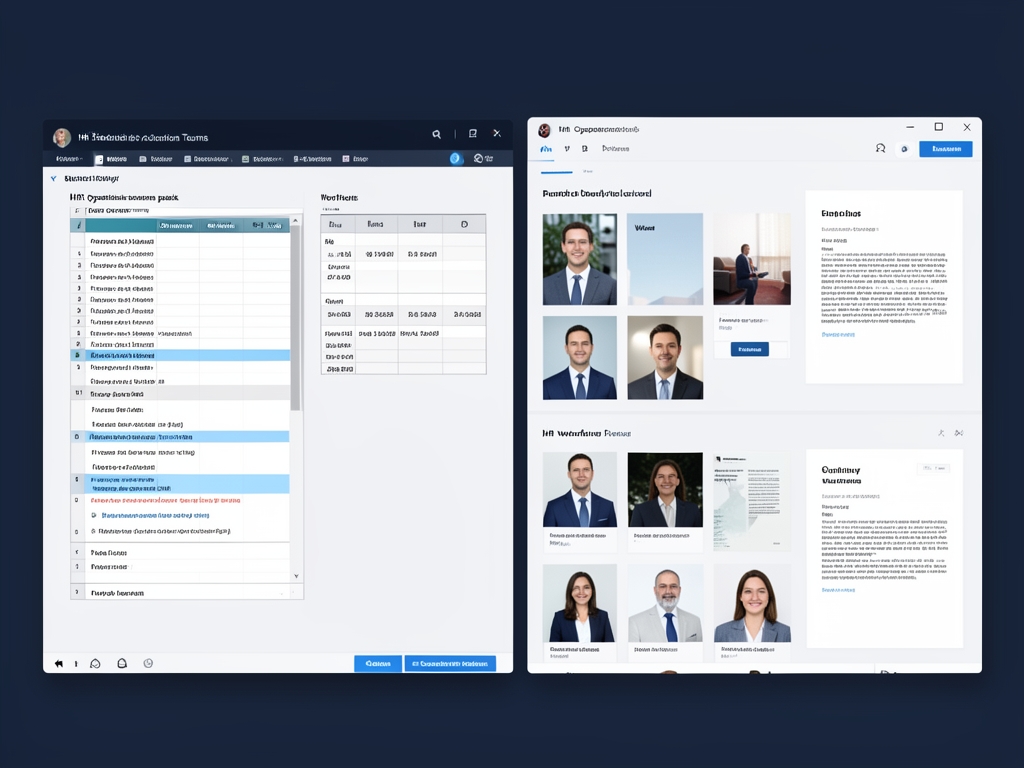
AI-generated illustration for article.
A grounded VBA example
Below is a compact, production‑ready VBA macro that implements the workflow described above. It includes basic error handling, object cleanup, and a simple log file for audit purposes.
The code checks that the image folder exists, validates each image path, replaces placeholder tags, inserts images as inline shapes, saves the Word file, and exports a PDF. Errors are caught, logged, and the macro continues processing the remaining records.
Sub GenerateHRDocs()
    Dim wb As Workbook, ws As Worksheet
    Dim wdApp As Object, wdDoc As Object
    Dim templatePath As String, imgFolder As String
    Dim outWordFolder As String, outPdfFolder As String
    Dim logPath As String, logFile As Integer
    Dim lastRow As Long, i As Long

    Set wb = ThisWorkbook
    Set ws = wb.Sheets("Roster")

    templatePath = "C:\HR\Templates\OfferLetter.docx"
    imgFolder = "C:\HR\Photos\"
    outWordFolder = "C:\HR\Output\WORD\"
    outPdfFolder = "C:\HR\Output\PDF\"
    logPath = outPdfFolder & "GenerationLog.txt"

    ' Ensure output folders exist
    If Dir(outWordFolder, vbDirectory) = "" Then MkDir outWordFolder
    If Dir(outPdfFolder, vbDirectory) = "" Then MkDir outPdfFolder

    ' Open log file
    logFile = FreeFile
    Open logPath For Output As #logFile
    Print #logFile, "HR Document Generation Log - " & Now

    On Error GoTo ErrHandler
    Set wdApp = CreateObject("Word.Application")
    wdApp.Visible = False

    lastRow = ws.Cells(ws.Rows.Count, "A").End(xlUp).Row

    For i = 2 To lastRow
        Dim empName As String, startDate As String, empID As String, position As String
        empName = ws.Cells(i, "A").Value
        startDate = ws.Cells(i, "B").Value
        empID = ws.Cells(i, "C").Value
        position = ws.Cells(i, "D").Value

        Set wdDoc = wdApp.Documents.Open(templatePath, ReadOnly:=False)

        With wdDoc.Content.Find
            .ClearFormatting
            .Replacement.ClearFormatting
            .Text = "<<EmployeeName>>"
            .Replacement.Text = empName
            .Execute Replace:=2
            .Text = "<<StartDate>>"
            .Replacement.Text = startDate
            .Execute Replace:=2
            .Text = "<<Position>>"
            .Replacement.Text = position
            .Execute Replace:=2
        End With

        ' Insert logo (static path)
        InsertImage wdDoc, "<<photo_logo>>", "C:\HR\Images\logo.png"

        ' Insert signature if it exists
        Dim sigPath As String
        sigPath = imgFolder & empID & "_sig.png"
        If Dir(sigPath) <> "" Then
            InsertImage wdDoc, "<<photo_signature>>", sigPath
        Else
            Print #logFile, "Missing signature for ID " & empID & " (row " & i & ")"
        End If

        Dim outWord As String, outPdf As String
        outWord = outWordFolder & empID & "_" & empName & ".docx"
        outPdf = outPdfFolder & empID & "_" & empName & ".pdf"

        wdDoc.SaveAs2 outWord
        wdDoc.ExportAsFixedFormat OutputFileName:=outPdf, ExportFormat:=17 'wdExportFormatPDF
        wdDoc.Close False
        Print #logFile, "Successfully processed ID " & empID & " (row " & i & ")"
    Next i

    wdApp.Quit
    Close #logFile
    MsgBox "HR documents generated: " & (lastRow - 1) & " records. See log at " & logPath, vbInformation
    Exit Sub

ErrHandler:
    Print #logFile, "Error on row " & i & ": " & Err.Description
    Resume Next
End Sub

Sub InsertImage(doc As Object, placeholder As String, imgPath As String)
    Dim rng As Object
    Set rng = doc.Content
    With rng.Find
        .ClearFormatting
        .Text = placeholder
        .Execute
        If .Found Then
            doc.InlineShapes.AddPicture FileName:=imgPath, LinkToFile:=False, SaveWithDocument:=True, Range:=rng
        End If
    End With
End Sub
Adjust the file‑path constants to match your environment, then assign the macro to a button or run it directly from the Excel ribbon.
Where VBA starts to strain
VBA is powerful for local automation but it has practical limits that become apparent as the workflow scales.
Performance and memory
Opening and closing a Word document for each record can consume noticeable CPU and RAM, especially when processing thousands of rows. The macro runs sequentially, so parallel execution isn’t possible without more complex scripting.
Error handling and maintenance
If an image file is missing or a placeholder is mistyped, the macro stops unless you add robust error trapping. Maintaining the code across multiple template versions also requires VBA expertise, which not every HR team possesses.
Platform dependency
The solution only runs on Windows with the full desktop version of Office installed. Organizations moving to Office 365 on the web or to macOS will need a different automation engine.
A calmer way to standardize the workflow
DocxForge Pro provides a ready‑made, no‑code engine that captures the same steps without writing VBA.
For repeatable business documents such as reports contracts certificates letters and packs DocxForge Pro can act as the local layer between spreadsheet data Word templates and final output. It can produce Word output PDF output or both depending on how the workflow is configured.
This fits teams that produce repeatable reports contracts certificates forms letters or document packs from structured data. This is helpful when teams need editable DOCX files and final PDFs from the same template workflow. The article’s VBA example shows the spreadsheet-side automation while DocxForge Pro fits as the document-generation layer outside the code example itself.
Start Free 7-Day TrialTemplate‑driven batch engine
Upload your Excel roster and Word template, define image tag rules, and let the software handle the iteration, placeholder replacement, and image insertion behind a simple UI.
Built‑in PDF export and folder management
The tool automatically creates separate WORD and PDF output folders, validates image paths, and produces audit logs, removing the need for custom code and manual error‑checking.
Cross‑platform and cloud‑ready
DocxForge runs on Windows, macOS, and in the cloud, so you can keep the same automated process even if you move away from desktop‑only Office installations.
Frequently asked questions
Common questions about the HR automation workflow
Is this workflow suitable for HR Document Automation with Excel, Word, Images, and PDF?
Yes. The combination of an Excel data source, a Word mail‑merge‑style template, and VBA (or DocxForge) covers the typical needs of offer letters, onboarding packets, and policy acknowledgments.
What source data has to stay consistent before generation starts?
The Excel sheet must have a stable column order, unique employee IDs that match image filenames, and no merged cells. Consistent naming lets the macro locate the correct photo and signature for each record.
How do I adapt the template without breaking the workflow?
Only edit or add placeholders that follow the <
Can this process scale across many records and templates?
For a few hundred records VBA works fine; for thousands you may notice slower performance and higher memory use. DocxForge Pro handles large batches more efficiently and adds parallel processing options.
Topics and Tags
Browse related topic clusters and workflow tags connected to this article.
Continue Reading
Explore more articles related to this workflow, problem, or document automation topic.
How to Generate Product Catalogs from Excel with Word and PDF
Generate product catalogs from Excel with Word and PDF
Read articleHow to Automate Home Inspection Reports with Excel, Word, and PDF
Learn how to streamline home inspection report creation by linking Excel data, Word templates, and PDF output with a practical VBA‑driven workflow.
Read articleExcel → Word → PDF Workflow for Insurance Claim Packets
Create insurance claim packets from spreadsheet data into Word and PDF
Read articleExcel → Word → PDF Workflow for Compliance Evidence Packs
Build a compliance evidence pack workflow using Excel, Word, and PDF
Read article