
How to Create Employee Document Packs from Excel and Word
HR teams often spend hours preparing individual offer letters, contracts, and welcome packets. By pairing a structured Excel roster with a Word template, you can automate the creation of each employee's complete document set. The process keeps everything on the local PC, respects corporate branding, and produces both DOCX and PDF files ready for distribution.
Automate the grind
Turn rows into finished files
Quick answer
Use a simple VBA macro that reads each row from an employee roster stored in Excel, opens a master Word template, replaces all double‑brace placeholders with the row’s values, inserts the employee’s portrait, company logo and signature image, then saves both a populated DOCX and a PDF to dedicated output folders. The macro also logs any missing images so you can correct data before the batch finishes.
The macro iterates through the spreadsheet, swaps out text placeholders, dynamically locates the correct photo file by name, embeds it at the designated tag, and finally exports two clean files per employee – eliminating the repetitive copy‑paste, manual renaming, and the risk of mismatched branding.
Why this matters
Manual assembly of employee packets is error‑prone, time‑consuming, and hard to scale. A repeatable, data‑driven workflow brings consistency, reduces onboarding delays, and frees HR staff for higher‑value activities while also providing a clear audit trail for compliance teams. When every document originates from a single source of truth, you minimize legal risk and make future updates effortless.
Consistency
Each document is built from the same template and data source, so branding, terminology, and legal language stay identical across every employee pack.
Speed
A batch run that would take hours by hand can be completed in minutes, accelerating the hiring pipeline and improving candidate experience.
Control
All files stay on the local machine, satisfying policies that restrict cloud uploads of personal data while still delivering PDFs ready for secure sharing.
Auditability
Because every field is pulled from a spreadsheet, you can generate a change‑log or export the source data for compliance reviews, ensuring the HR department meets internal and regulatory record‑keeping standards.
What goes wrong
When the process is performed manually, several issues tend to appear, leading to costly rework and compliance exposure.
Before automation
HR staff copy‑paste data, rename files by hand, and insert images one at a time. Typos slip in, wrong photos get attached, and the final PDF may miss required branding or legal footers. Version control is nonexistent, so later edits often overwrite earlier work, and the effort compounds as headcount grows.
After automation
A macro pulls the exact values from the spreadsheet, inserts the correct image based on file name, and exports a PDF with the company logo and footer automatically applied. The result is a uniform set of files with far fewer mistakes, instant traceability to the source row, and a single click to regenerate any batch after a data correction.
Skipping automation means hidden labor, inconsistent output, and a higher risk of non‑compliance with internal document standards.
What the workflow looks like
Below is a practical workflow that can be built with native Excel and Word, without any third‑party services:
Prepare the Excel roster
Create a table where each row represents one employee. Include columns for full name, start date, position, email, and the exact filename of the employee's photo (e.g., john_doe.jpg). Keep the sheet clean—no merged cells and a single header row.
Design the Word template
Insert merge fields wrapped in double braces such as {{FullName}}, {{StartDate}}, and {{Position}} where the data should appear. Add special image tags like {{photo_logo}}, {{photo_signature}}, and {{photo_stamp}} where logos, signatures, or stamps belong.
Store images in a dedicated folder
Place the company logo, signature PNGs, and all employee photos in one folder. Ensure the filenames match the values in the Excel column so the macro can resolve them automatically.
Run the VBA macro from Excel
The macro opens Word, loops through each row, replaces the placeholders, inserts the matching photo, and then saves the populated document as both a DOCX and a PDF into separate output folders.
Validate the output
After the run, open a few sample PDFs to verify that data, images, and branding appear correctly. If any issues are found, correct the source data or file names and re‑run the macro.
A visual example
Simple visual illustration.
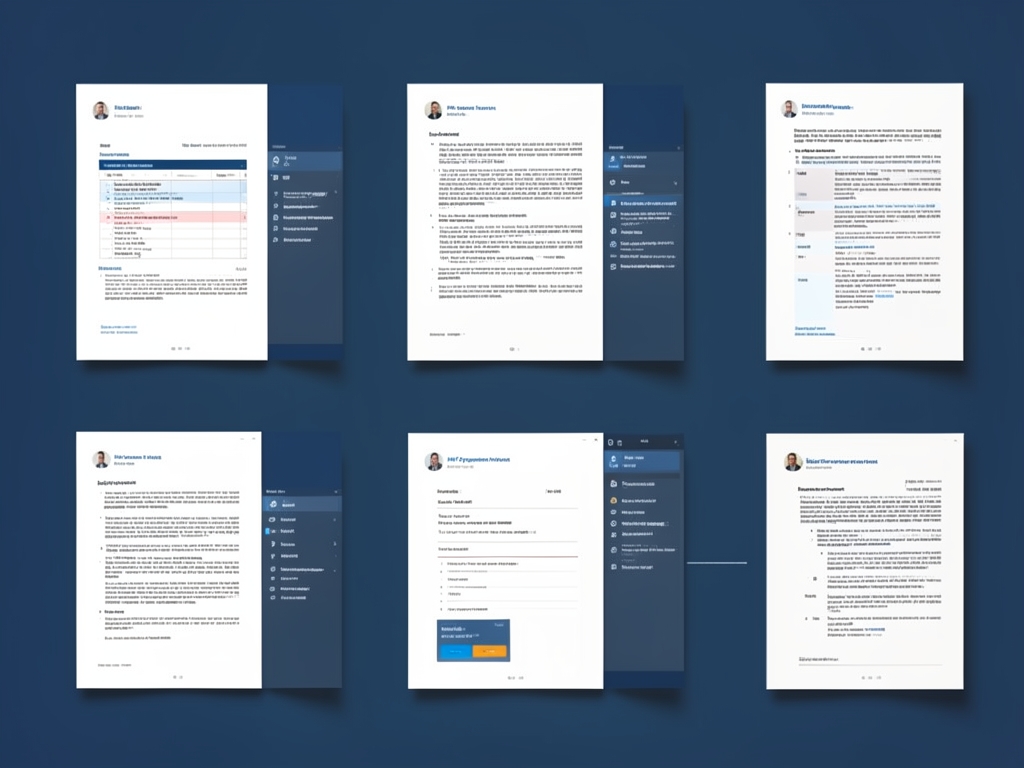
AI-generated illustration for article.
A grounded VBA example
The following VBA code demonstrates a grounded implementation of the workflow described above. It avoids risky picture‑compression calls and relies only on built‑in Word methods.
Copy this macro into an Excel module, adjust the paths and template name, then run it to generate your employee document packs.
Option Explicit

Sub GenerateEmployeePacks()
    Dim wb As Workbook
    Dim ws As Worksheet
    Dim lastRow As Long
    Dim i As Long
    Dim tmplPath As String
    Dim outDocPath As String
    Dim outPdfPath As String
    Dim photosFolder As String
    Dim wdApp As Object ' Word.Application
    Dim wdDoc As Object ' Word.Document
    Dim employeeName As String
    Dim photoFile As String

    '--- Configuration ---
    tmplPath = "C:\Templates\EmployeePack.docx"
    outDocPath = "C:\Output\DOCX"
    outPdfPath = "C:\Output\PDF"
    photosFolder = "C:\Photos\Employees"
    '----------------------

    Set wb = ThisWorkbook
    Set ws = wb.Sheets("Employees")
    lastRow = ws.Cells(ws.Rows.Count, "A").End(xlUp).Row

    Set wdApp = CreateObject("Word.Application")
    wdApp.Visible = False

    For i = 2 To lastRow ' assume header in row 1
        employeeName = ws.Cells(i, "B").Value ' column B = FullName
        photoFile = ws.Cells(i, "F").Value ' column F = PhotoFilename

        Set wdDoc = wdApp.Documents.Open(tmplPath, ReadOnly:=False)

        '--- Replace text placeholders ---
        Call FindReplace(wdDoc, "{{FullName}}", employeeName)
        Call FindReplace(wdDoc, "{{StartDate}}", ws.Cells(i, "C").Value)
        Call FindReplace(wdDoc, "{{Position}}", ws.Cells(i, "D").Value)
        Call FindReplace(wdDoc, "{{Email}}", ws.Cells(i, "E").Value)

        '--- Insert standard logo and signature ---
        Call InsertImage(wdDoc, "{{photo_logo}}", "C:\Images\company_logo.png")
        Call InsertImage(wdDoc, "{{photo_signature}}", "C:\Images\signature.png")

        '--- Insert employee photo ---
        If Len(photoFile) > 0 Then
            Call InsertImage(wdDoc, "{{EmployeePhoto}}", photosFolder & "\" & photoFile)
        End If

        '--- Save DOCX ---
        Dim docFileName As String
        docFileName = outDocPath & "\" & Replace(employeeName, " ", "_") & ".docx"
        wdDoc.SaveAs2 docFileName, 16 ' wdFormatXMLDocument

        '--- Export PDF ---
        Dim pdfFileName As String
        pdfFileName = outPdfPath & "\" & Replace(employeeName, " ", "_") & ".pdf"
        wdDoc.ExportAsFixedFormat OutputFileName:=pdfFileName, ExportFormat:=17 ' wdExportFormatPDF

        wdDoc.Close SaveChanges:=False
    Next i

    wdApp.Quit
    Set wdDoc = Nothing
    Set wdApp = Nothing
    MsgBox "Employee packs generated: " & (lastRow - 1) & " documents.", vbInformation
End Sub

Private Sub FindReplace(ByVal doc As Object, ByVal findText As String, ByVal replaceText As String)
    With doc.Content.Find
        .Text = findText
        .Replacement.Text = replaceText
        .Wrap = 1 ' wdFindContinue
        .Execute Replace:=2 ' wdReplaceAll
    End With
End Sub

Private Sub InsertImage(ByVal doc As Object, ByVal placeholder As String, ByVal imgPath As String)
    Dim rng As Object
    Set rng = doc.Content
    With rng.Find
        .Text = placeholder
        .Wrap = 1
        If .Execute Then
            doc.InlineShapes.AddPicture FileName:=imgPath, LinkToFile:=False, SaveWithDocument:=True, Range:=rng
        End If
    End With
End Sub
If you need to change the placeholder syntax or add extra image tags, modify the Find/Replace section and the image‑insertion loop accordingly.
Where VBA starts to strain
While VBA handles most batch scenarios well, there are limits you should be aware of:
Large image sets
Inserting many high‑resolution photos can increase memory usage and slow the macro. Keep image files at a reasonable size (e.g., 150 dpi for standard photos) and consider splitting very large batches.
Complex conditional logic
If your document needs extensive conditional sections beyond simple placeholder replacement, the macro can become hard to maintain. At that point a purpose‑built document generation tool may provide a clearer configuration interface.
Error handling & debugging
VBA offers limited built‑in logging. Without explicit error traps, a single missing image can abort the entire run. Adding simple On Error Resume Next blocks around the image insertion and writing the row number to a log file makes recovery manageable.
A calmer way to standardize the workflow
DocxForge Pro offers a purpose‑built alternative that retains the local‑only, batch‑friendly nature of the VBA approach while adding robustness and ease of configuration.
For repeatable business documents such as reports contracts certificates letters and packs DocxForge Pro can act as the local layer between spreadsheet data Word templates and final output. The layout stays in the Word template while the data comes from the spreadsheet workflow.
This fits teams that produce repeatable reports contracts certificates forms letters or document packs from structured data. This is useful when teams already rely on Word templates and do not want to redesign the output format from scratch. The article’s VBA example shows the spreadsheet-side automation while DocxForge Pro fits as the document-generation layer outside the code example itself.
Start Free 7-Day TrialBatch‑size selector
Choose how many records to process per run, preventing memory spikes when handling thousands of employee records.
Built‑in image handling
Automatically resolves logo, signature, and stamp images at the correct DPI, staging them before insertion so you avoid manual size adjustments.
Frequently asked questions
Common questions from HR teams about this batch generation method:
Is this workflow suitable for creating employee document packs from Excel and Word?
Yes. The method is designed for HR operations where each spreadsheet row maps to a complete set of Word and PDF files, including personalized photos and company branding.
What source data has to stay consistent before generation starts?
The Excel sheet must have a stable header row and unique identifiers for each employee. Photo filenames in the image folder must exactly match the value stored in the designated column, and the Word template must retain the same placeholder tags.
How do I adapt the template without breaking the workflow?
Add or rename placeholders in the Word file, then update the VBA macro’s Find/Replace dictionary to reflect the new tags. Keep the double‑brace syntax (e.g., {{NewField}}) and ensure the column header in Excel matches the macro’s key.
Topics and Tags
Browse related topic clusters and workflow tags connected to this article.
Continue Reading
Explore more articles related to this workflow, problem, or document automation topic.
How to Generate Offer Letters from Excel and Word Templates
Generate offer letters from Excel and Word templates
Read articleHow to Create Batch Certificates from Excel and Word Templates
Create certificates in batch from Excel and Word templates
Read articleHR Document Automation with Excel, Word, Images, and PDF
Automate HR documents with Excel, Word, images, and PDF
Read articleExcel → Word → PDF Workflow for HR Onboarding Packets
Build an onboarding packet workflow from Excel to Word and PDF
Read article