
How to Generate Case Files from Spreadsheet Data into Word and PDF
Legal teams often receive a spreadsheet of case details that must become individual Word letters and PDF packets. By linking Excel rows to a standard Word template, you can automatically fill client information, embed logos or signatures, and export each file in the required format. This eliminates repetitive copy‑paste, reduces human error, and keeps every document stored locally on the workstation.
Batch Word & PDF
From Excel to finished files
Quick answer
The fastest way to turn a list of case records into ready‑to‑send Word and PDF files is to let Excel drive a small VBA macro that opens a single Word template, replaces placeholders with row values, inserts any required images, saves the result as a DOCX and then exports the same document as a PDF.
The macro reads each spreadsheet row, builds a filename from the case identifier, fills merge fields like <
Why this matters
Legal administrators spend hours formatting each case packet by hand, which is time‑consuming and prone to transcription errors. Automating the transition from structured Excel data to finished documents returns that time to higher‑value work such as case analysis or client communication. Moreover, a repeatable process ensures that every file follows the same branding and layout standards, which is essential for professional presentation and internal consistency.
Consistency across files
When the same template and data source feed every document, field values stay consistent, spelling mistakes disappear, and required elements like logos or signature images appear in the exact same location each time.
Scalable batch production
A macro can process dozens or hundreds of rows without extra effort, turning a week‑long manual task into a matter of minutes, while keeping all files on the local machine for security.
What goes wrong
If you try to build each case file manually, the workflow quickly becomes fragile. Small changes to the template, missing image files, or a misplaced spreadsheet column can cause the whole batch to fail, requiring you to restart the process and correct errors by hand.
Manual copy‑paste
Staff opens the Word template for each case, copies data from Excel, pastes it into the document, manually inserts the logo, then uses Save As to create a Word file and runs Print to PDF. Any slip—typo, wrong image, or forgotten step—produces an inconsistent packet that must be reworked.
Automated VBA batch
A single macro reads each row, inserts the correct data into predefined placeholders, pulls the matching image from a folder, saves the document, and exports the PDF automatically. Errors are caught early (e.g., missing image file) and the macro moves on to the next case, leaving a complete, uniform set of files.
The contrast shows why a scripted approach is far more reliable and maintainable than the ad‑hoc manual method.
What the workflow looks like
Below is a practical step‑by‑step outline that legal teams can follow using only Excel, Word, and a simple VBA macro.
Prepare the spreadsheet
Create a sheet where each row represents one case. Include columns for the case identifier, client name, and the filenames of any images (logo, signature, stamp). Keep the column headers stable because the macro will reference them by name.
Gather the template and images
Place a Word template in the same folder as the workbook. Inside the template add clear placeholders such as <
Add the VBA macro
Insert the macro shown later into a standard module of the Excel workbook. Adjust the paths if you store the template or images in a different location, and verify that the bookmark names in the code match those in the template.
Run and verify
Execute the macro. It will open the template for each row, replace placeholders, insert the appropriate picture, save a DOCX file, and export a PDF to an Output folder. After the run, review a few random files to confirm layout, data accuracy, and image placement.
A visual example
Simple visual illustration.
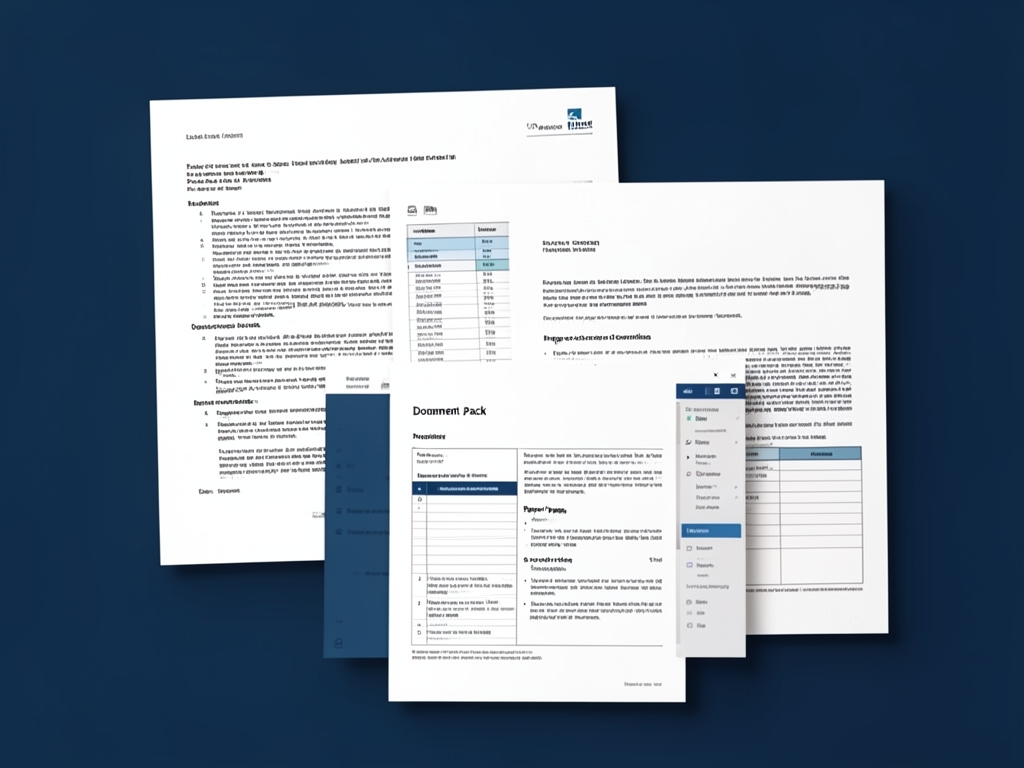
AI-generated illustration for article.
A grounded VBA example
The VBA macro below implements the workflow described above. It opens the Word template once per record, swaps merge fields, adds any tagged images, saves the document, and creates a PDF copy.
• Reads data from the 'Cases' sheet. • Builds file names from the case ID and client name. • Uses Word's Find/Replace to fill <
Sub GenerateCaseFiles()
    Dim xl As Workbook, ws As Worksheet
    Dim wdApp As Object, wdDoc As Object
    Dim i As Long, lastRow As Long
    Dim templatePath As String, outputFolder As String, imgFolder As String
    Dim caseId As String, clientName As String, logoPath As String

    Set xl = ThisWorkbook
    Set ws = xl.Sheets("Cases")
    templatePath = xl.Path & "\CaseTemplate.docx"
    outputFolder = xl.Path & "\Output"
    imgFolder = xl.Path & "\Images"

    If Dir(outputFolder, vbDirectory) = "" Then MkDir outputFolder

    Set wdApp = CreateObject("Word.Application")
    wdApp.Visible = False

    lastRow = ws.Cells(ws.Rows.Count, "A").End(xlUp).Row
    For i = 2 To lastRow
        caseId = ws.Cells(i, "A").Value
        clientName = ws.Cells(i, "B").Value
        logoPath = imgFolder & "\" & ws.Cells(i, "C").Value   'photo_logo filename

        Set wdDoc = wdApp.Documents.Open(templatePath, ReadOnly:=False)

        With wdDoc.Content.Find
            .ClearFormatting
            .Text = "<<CaseID>>"
            .Replacement.Text = caseId
            .Execute Replace:=2
            .Text = "<<ClientName>>"
            .Replacement.Text = clientName
            .Execute Replace:=2
        End With

        If Dir(logoPath) <> "" Then
            wdDoc.Bookmarks("photo_logo").Range.InlineShapes.AddPicture FileName:=logoPath, LinkToFile:=False, SaveWithDocument:=True
        End If

        Dim docPath As String, pdfPath As String
        docPath = outputFolder & "\" & caseId & "_" & clientName & ".docx"
        pdfPath = outputFolder & "\" & caseId & "_" & clientName & ".pdf"

        wdDoc.SaveAs2 docPath
        wdDoc.ExportAsFixedFormat OutputFileName:=pdfPath, ExportFormat:=17   'wdExportFormatPDF = 17

        wdDoc.Close SaveChanges:=False
    Next i

    wdApp.Quit
    MsgBox "Case files generated: " & (lastRow - 1) & " documents.", vbInformation
End Sub
If you need to handle additional image tags (e.g., photo_signature), duplicate the insertion block and point it at the corresponding bookmark and filename column.
Where VBA starts to strain
While the macro works well for many legal batch jobs, there are situations where plain VBA begins to strain.
Performance and maintenance limits
Processing thousands of rows can become noticeably slow because the macro opens and closes Word for each record. Each open/close cycle adds overhead, especially on machines with limited RAM. As the number of bookmarks grows, the code to locate and replace them becomes harder to read and maintain. Adding new conditional sections—such as optional clauses or extra signature blocks—requires touching both the Word template and the VBA routine, increasing the risk of mismatched placeholder names.
Error handling and debugging limits
The current macro stops on the first missing image or a typo in a bookmark name, leaving the batch incomplete. Without structured error handling, you must manually re‑run the macro after fixing each issue, which is time‑consuming. Adding simple On Error Resume Next logic around the picture insertion, together with logging of failed rows to a text file, gives you a clearer view of problem records and allows the rest of the batch to continue processing.
A calmer way to standardize the workflow
DocxForge Pro offers a purpose‑built interface that automates the same steps without writing code, while still giving you control over data mapping and image handling.
For repeatable business documents such as reports contracts certificates letters and packs DocxForge Pro can act as the local layer between spreadsheet data Word templates and final output. It can produce Word output PDF output or both depending on how the workflow is configured.
This fits teams that produce repeatable reports contracts certificates forms letters or document packs from structured data. This is helpful when teams need editable DOCX files and final PDFs from the same template workflow. The article’s VBA example shows the spreadsheet-side automation while DocxForge Pro fits as the document-generation layer outside the code example itself.
Start Free 7-Day TrialNo‑code setup
Upload your Excel file and Word template, map columns to placeholders through a visual wizard, and let the engine handle field replacement and image insertion automatically.
Built‑in batch controls
Define batch size, preview a sample document, and generate both DOCX and PDF files into organized folders with a single click, while the product manages Word instances and error handling behind the scenes.
Frequently asked questions
Here are answers to common questions about this Excel‑to‑Word‑to‑PDF workflow.
Can this workflow stay inside Microsoft Office tools?
Yes, for many workflows the data-prep and document-output steps can stay inside the existing toolset, but the fragile part is usually the repeatability of the final document stage.
Where does VBA help the most?
VBA is usually most useful for prep, normalization, field updates, file naming, or small batch helpers rather than for building a full document workflow from scratch.
When does the workflow become brittle?
The workflow usually becomes brittle when templates, images, output folders, or PDF export steps have to be repeated across many records without a stable generation layer.
Topics and Tags
Browse related topic clusters and workflow tags connected to this article.
Continue Reading
Explore more articles related to this workflow, problem, or document automation topic.
How to Build Offline Insurance Claim Document Packs
A step‑by‑step guide for insurance operations teams to build offline claim document packs using Excel, Word, and a safe VBA macro.
Read articleHow to Generate Supplier Forms and Procurement Packs
Generate supplier forms and procurement packs
Read articleHow to Create Equipment Checklists with Photos and PDF Output
Guide for operations teams to automate equipment inspection checklists that embed field photos and produce PDF files using local Excel and Word automation.
Read articleHow to Create Photo-Based Property Condition Reports
Create photo-based property condition reports
Read article