
How to Automate Tenant Notice Letters from Excel
Property managers often spend hours turning spreadsheets of tenant data into individual notice letters. By linking Excel to a Word template, you can generate a personalized DOCX or PDF for each lease in minutes. The following guide walks you through a reliable, locally‑executed workflow that keeps all files on your PC.
Batch generate letters
From Excel rows to ready‑to‑print PDFs
Quick answer
The fastest way to produce tenant notice letters is to let Excel drive a Word template through a small VBA macro. Each spreadsheet row supplies the tenant’s name, unit, notice date, and optionally a logo or signature image. The macro opens the template, fills bookmark fields, inserts the images, saves a DOCX, and exports a PDF – all without leaving the desktop. Running the macro once creates a complete set of letters for every active lease, stored in separate folders for easy review.
Take the data you already have in Excel, feed it to Word, and let the macro handle the repetitive copy‑and‑paste, image placement and file saving.
Why this matters
Consistent notice letters protect both landlords and tenants by clearly stating obligations, dates, and legal references. When letters are generated manually, typos, missing signatures, or outdated formatting can cause confusion and even legal risk. An automated, data‑driven approach guarantees that every document uses the same language, branding, and layout, reducing errors and freeing staff to focus on tenant relations rather than paperwork.
Reduced administrative overhead
A single click on the macro replaces dozens of manual copy‑pastes, cutting the time spent per notice from minutes to seconds. Over a year, that time saving adds up across multiple properties.
Brand consistency
Because the Word template controls fonts, colors, logos and signature stamps, every notice looks identical. Updating the template updates all future letters instantly, ensuring compliance with corporate branding guidelines.
What goes wrong
Many property teams start with a good template but quickly encounter hiccups when the process scales. Common problems include broken image links when file paths change, missing bookmarks caused by template edits, and Word dialogs that pause the macro. Without proper folder checks, the macro can crash on the first missing image, leaving the batch incomplete.
Manual process
Staff copy each tenant’s details from Excel, paste them into a Word file, adjust the logo, save the document, then repeat for the next tenant. Any missed step—such as forgetting a signature image—produces an incomplete notice that must be re‑worked later.
Automated VBA
A VBA macro reads every row, opens the template, fills all bookmarks, inserts the logo or signature if the file exists, saves both DOCX and PDF, and closes the document automatically. The batch runs unattended, and any missing image is logged instead of halting the whole run.
Understanding these failure points lets you design safeguards—like folder existence checks and image‑presence validation—before the macro runs, turning a fragile process into a reliable production pipeline.
What the workflow looks like
The end‑to‑end workflow consists of preparing the data, designing a reusable Word template, configuring a simple VBA macro, and running the batch. Because the whole chain runs locally, no confidential tenant information ever leaves your PC.
Prepare the Excel sheet
Create a worksheet (e.g., “Notices”) with columns for TenantName, UnitNumber, NoticeDate, and any extra fields you need. Ensure each row represents one notice and that there are no blank rows in the data range.
Create and name bookmarks in the Word template
Open a Word document that holds the notice layout. Insert bookmarks where dynamic values belong—TenantName, UnitNumber, NoticeDate, and placeholders for Logo, Signature, or Stamp. Keep the bookmark names identical to the column headings you will reference in VBA.
Store images in a dedicated folder
Place logos, signatures or stamps in a folder next to the workbook (e.g., a “Photos” folder). Use the special tag filenames such as photo_logo.png, photo_signature.png, or photo_stamp.png so the macro can locate them reliably.
Add the VBA macro to the workbook
Press Alt+F11, insert a new module, and paste the macro provided in the code block below. Adjust the paths, bookmark names, or column letters if your layout differs.
Run the macro and verify output
Execute the macro from the Excel ribbon or the VBA editor. The macro creates a “Generated” folder, saves a DOCX for each tenant, and also exports a PDF. Open a few files to confirm that data, images and formatting appear as expected.
A visual example
Simple visual illustration.
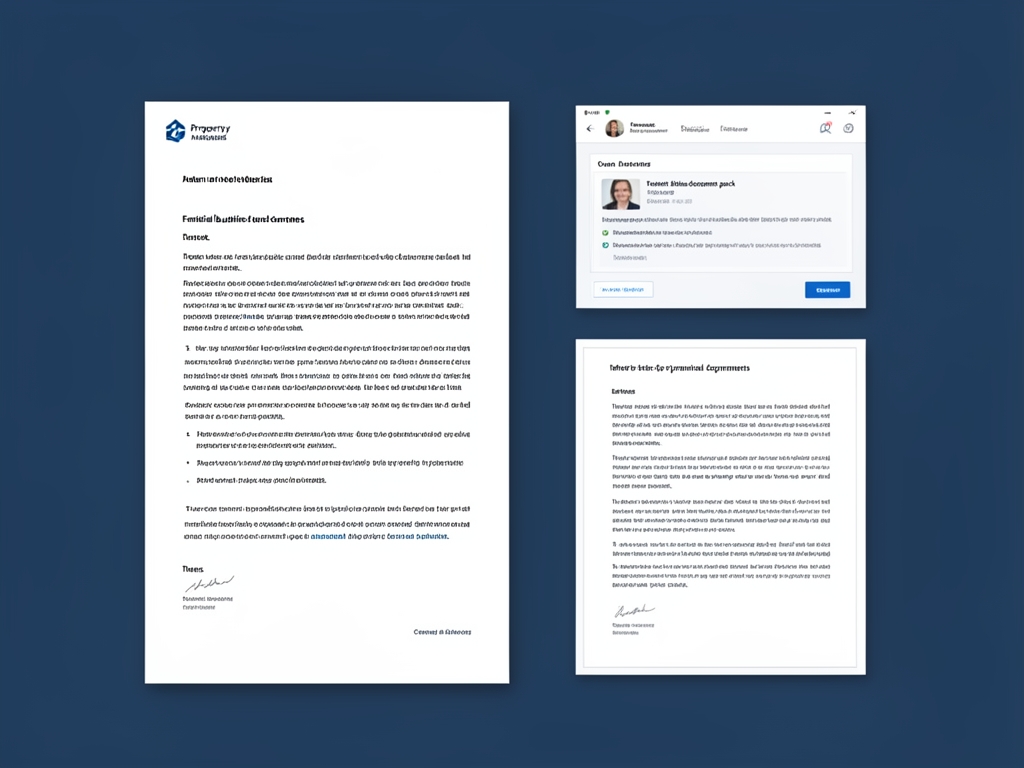
AI-generated illustration for article.
A grounded VBA example
Below is a concise VBA macro that ties the spreadsheet to the Word template, inserts optional images, and produces DOCX and PDF files for each tenant.
The code loops through every data row, fills the template, stages images if they exist, and exports the finished documents without user interaction.
Sub GenerateTenantNotices()
    Dim xl As Workbook, ws As Worksheet
    Dim wdApp As Object, wdDoc As Object
    Dim lastRow As Long, i As Long
    Dim templatePath As String, outFolder As String, picFolder As String
    Dim tenantName As String, unit As String, noticeDate As String
    Dim logoPath As String

    Set xl = ThisWorkbook
    Set ws = xl.Sheets("Notices")
    templatePath = xl.Path & "\NoticeTemplate.docx"
    outFolder = xl.Path & "\Generated"
    picFolder = xl.Path & "\Photos"

    If Dir(outFolder, vbDirectory) = "" Then MkDir outFolder

    Set wdApp = CreateObject("Word.Application")
    wdApp.Visible = False

    lastRow = ws.Cells(ws.Rows.Count, "A").End(xlUp).Row
    For i = 2 To lastRow
        tenantName = ws.Cells(i, "A").Value
        unit = ws.Cells(i, "B").Value
        noticeDate = ws.Cells(i, "C").Value

        Set wdDoc = wdApp.Documents.Open(templatePath, ReadOnly:=True)

        With wdDoc
            .Bookmarks("TenantName").Range.Text = tenantName
            .Bookmarks("UnitNumber").Range.Text = unit
            .Bookmarks("NoticeDate").Range.Text = noticeDate

            logoPath = picFolder & "\photo_logo.png"
            If Dir(logoPath) <> "" Then
                .Bookmarks("Logo").Range.InlineShapes.AddPicture FileName:=logoPath, LinkToFile:=False, SaveWithDocument:=True
            End If

            .Fields.Update
            Dim outDoc As String
            outDoc = outFolder & "\" & tenantName & "_" & unit & ".docx"
            .SaveAs2 outDoc, 16 'wdFormatXMLDocument
            .ExportAsFixedFormat OutputFileName:=Replace(outDoc, ".docx", ".pdf"), ExportFormat:=17 'wdExportFormatPDF
            .Close SaveChanges:=False
        End With
    Next i

    wdApp.Quit
    MsgBox "Generated " & (lastRow - 1) & " tenant notices."
End Sub
Adjust the bookmark names, file paths, and column references to match your own template before running the macro.
Where VBA starts to strain
While VBA is an excellent fast‑track for a handful of notices, the approach begins to show cracks as the number of records or the document complexity grows. Below are the most common stress points you’ll encounter when scaling the macro beyond a simple pilot.
Large data sets
Processing thousands of rows forces Word to open and close a document for each tenant, which dramatically slows the run and can hit Word’s open‑document limit. Splitting the spreadsheet into smaller batches or moving to a dedicated batch engine alleviates the bottleneck.
Complex layouts
When notices need conditional sections, dynamic tables, or advanced calculations, VBA code becomes tangled and hard to maintain. A purpose‑built document generator can apply rules declaratively, keeping the template logic separate from the data loop.
Error handling & logging
VBA macros often stop on the first missing image or broken bookmark, leaving the batch incomplete. Adding simple error‑trapping and a log file (e.g., writing to a text file with the problematic row number) makes the process more resilient and easier to troubleshoot.
A calmer way to standardize the workflow
DocxForge Pro provides a purpose‑built, offline batch engine that replaces the macro while preserving the same local‑only security model.
For repeatable business documents such as reports contracts certificates letters and packs DocxForge Pro can act as the local layer between spreadsheet data Word templates and final output.
This fits teams that produce repeatable reports contracts certificates forms letters or document packs from structured data. The article’s VBA example shows the spreadsheet-side automation while DocxForge Pro fits as the document-generation layer outside the code example itself.
Start Free 7-Day TrialBatch engine with image staging
Import the Excel file, map columns to placeholders, and let DocxForge stage logos, signatures and stamps automatically, handling DPI settings for you.
One‑click PDF export
Generate both DOCX and high‑resolution PDF files into separate folders without writing VBA, and keep a log of each run for audit purposes.
Frequently asked questions
Common questions about automating tenant notice letters
Is this workflow suitable for automating tenant notice letters from Excel?
Yes. The workflow is built specifically for property managers who keep tenant data in Excel and need a Word‑based notice that can also be saved as PDF. It works for any number of records as long as the template and column mapping are consistent.
What source data has to stay consistent before generation starts?
Your Excel sheet must have a stable column order and header names that match the Word bookmarks. Required columns typically include tenant name, unit number and notice date. Optional image files should follow the naming convention (e.g., photo_logo.png) and reside in the designated folder.
How do I adapt the template without breaking the workflow?
When you modify the Word template, keep the existing bookmark names unchanged. If you add new placeholders, create matching columns in the spreadsheet and extend the VBA macro (or DocxForge mapping) to fill them. After any change, run a quick test on a single row to verify that all fields and images appear correctly.
Topics and Tags
Browse related topic clusters and workflow tags connected to this article.
Continue Reading
Explore more articles related to this workflow, problem, or document automation topic.
How to Generate Training Attendance Sheets and Completion Letters
A step‑by‑step guide for training administrators to turn Excel rosters into polished attendance sheets and completion letters, using VBA in Microsoft Word and optional DocxForge Pro batching.
Read articleHow to Generate Patient Summary Letters from Spreadsheet Data
A step‑by‑step guide for healthcare administration teams to turn rows of patient data in Excel into polished summary letters using Word, with optional PDF export and image insertion.
Read articleHow to Automate School Certificates and Student Letters
Automate school certificates and student letters
Read articleHow to Generate Offer Letters from Excel and Word Templates
Generate offer letters from Excel and Word templates
Read article