
How to Create Equipment Checklists with Photos and PDF Output
Field crews often need to capture photos of assets and turn them into standardized checklists that can be shared as PDFs. This guide shows how to combine Excel data, Word templates, and a modest VBA macro to automate the whole process on a Windows PC.
Batch‑Ready
Create dozens of checklists from one spreadsheet
Quick answer
You can automate equipment checklists by storing each asset’s details and photo filename in an Excel row, using a Word template with image placeholders, and running a short VBA macro that pulls the data, inserts the pictures, and saves both a .docx and a PDF per row. The macro handles folder creation, verifies that each image file exists, and uses Word’s ExportAsFixedFormat to produce PDFs without leaving the desktop environment.
The macro reads every spreadsheet row, clones the checklist template, replaces merge fields, adds the corresponding photo, then writes the finished document and its PDF to separate output folders.
Why this matters
Standardizing equipment inspections reduces missed steps, ensures consistent documentation, and makes it easier to audit field work. When photos are embedded directly in the checklist, reviewers can verify condition without juggling separate files, and the PDF output provides a read‑only snapshot that can be archived or shared securely. Automating the whole pipeline also frees technicians from repetitive copy‑paste tasks, letting them focus on the actual inspection.
Consistent, auditable records
A single source of truth – the Excel sheet – drives both the narrative and the visual evidence. Because the macro inserts the exact image referenced in the row, every checklist matches the data it reports, and the generated PDFs lock that information in place for later review.
What goes wrong
Many teams try to piece together checklists manually, which leads to mismatched filenames, missing photos, and inconsistent formats. Without automation, a single typo in an image path can cause the whole document to skip the picture, and the final PDF often requires extra steps to flatten or resize images, introducing errors and extra time.
Manual approach
Technician writes a Word document, pastes the photo, saves as PDF, repeats for each piece of equipment. Files are scattered across folders, naming conventions drift, and any change to the template must be applied by hand to every file.
Automated macro
A VBA script reads the Excel list, inserts the correct photo, updates merge fields, and exports both DOCX and PDF in one go. Output folders are created automatically, filenames follow a predictable pattern, and missing images are flagged before the document is saved.
By moving from a manual, error‑prone process to a scripted workflow, teams gain reliability, faster turnaround, and documents that are ready for compliance checks without extra cleanup.
What the workflow looks like
The end‑to‑end workflow consists of preparing data, configuring the template, and running a macro that ties everything together. Below is a step‑by‑step outline that works on any Windows PC with Microsoft Office installed.
Collect and structure data in Excel
Create a sheet where each row represents one piece of equipment. Include columns for asset ID, description, location, and the exact filename of the photo stored in a shared folder. Keep the column names simple because the macro will reference them directly.
Place image files in a consistent folder
Copy all photos to a single folder, e.g., C:\Checklists\Photos. Ensure the filenames match the values in the Excel column (including extension). The macro will look for each file there before inserting it.
Design a Word checklist template
Insert merge fields like «AssetID», «Description», and a placeholder bookmark named PhotoHere where the picture should appear. Save the template as ChecklistTemplate.docx.
Add the VBA macro
Open the macro editor (Alt+F11) in Word or Excel, paste the provided VBA code, and adjust the workbook, worksheet, and folder paths if needed. The macro will loop through the rows, duplicate the template, replace fields, insert the photo, and export the files.
Run the macro and verify output
Execute the macro. It creates an OutputWord folder for .docx files and an OutputPDF folder for PDFs. Open a few generated documents to confirm that data and images appear correctly.
Archive or distribute the PDFs
The PDFs can be copied to a shared drive, attached to work orders, or uploaded to a compliance system. Because they are generated locally, no confidential data leaves the organization.
A visual example
Simple visual illustration.
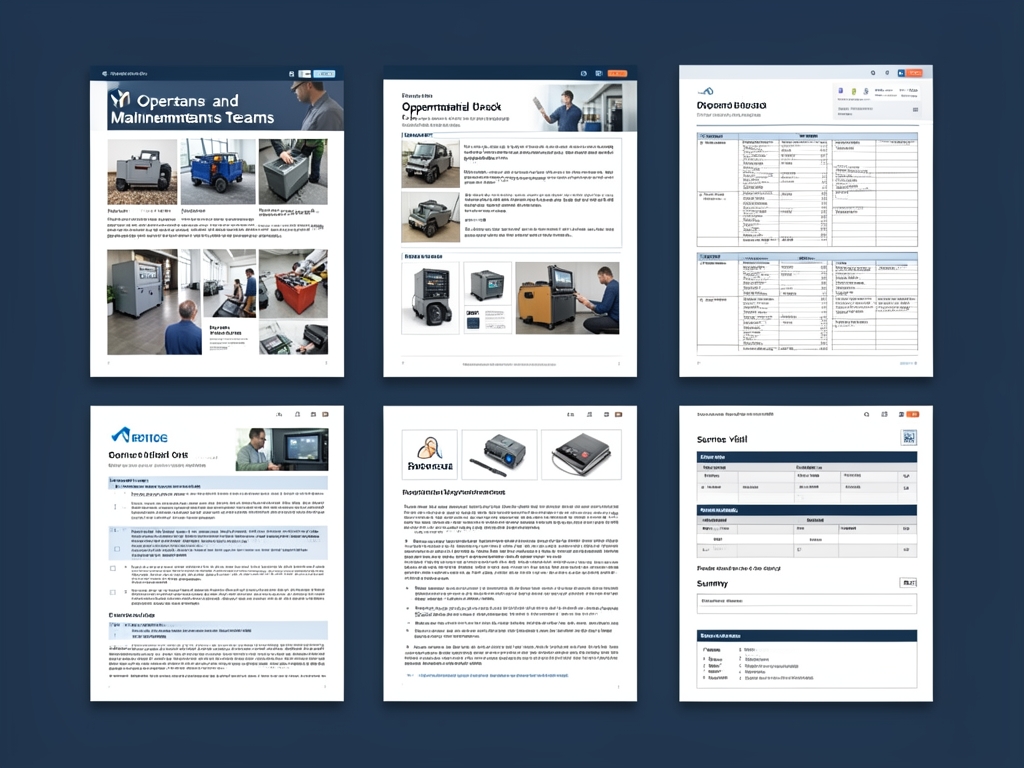
AI-generated illustration for article.
A grounded VBA example
The macro below follows the workflow and includes safety checks for missing images and folder creation.
Copy this code into a standard module in the Excel workbook that holds the checklist data.
Sub GenerateChecklists()
    Dim xlWB As Workbook, xlWS As Worksheet
    Dim wdApp As Object, wdDoc As Object, tmplPath As String
    Dim photoFolder As String, outWord As String, outPDF As String
    Dim lastRow As Long, i As Long
    Dim assetID As String, description As String, photoFile As String
    Dim imgPath As String

    Set xlWB = ThisWorkbook
    Set xlWS = xlWB.Sheets("ChecklistData") ' adjust name as needed

    tmplPath = xlWB.Path & "\ChecklistTemplate.docx"
    photoFolder = xlWB.Path & "\Photos\"
    outWord = xlWB.Path & "\OutputWord\"
    outPDF = xlWB.Path & "\OutputPDF\"

    ' Ensure output folders exist
    If Dir(outWord, vbDirectory) = "" Then MkDir outWord
    If Dir(outPDF, vbDirectory) = "" Then MkDir outPDF

    Set wdApp = CreateObject("Word.Application")
    wdApp.Visible = False

    lastRow = xlWS.Cells(xlWS.Rows.Count, "A").End(xlUp).Row

    For i = 2 To lastRow ' assume first row is headers
        assetID = xlWS.Cells(i, "A").Value
        description = xlWS.Cells(i, "B").Value
        photoFile = xlWS.Cells(i, "C").Value

        imgPath = photoFolder & photoFile
        If Dir(imgPath) = "" Then
            Debug.Print "Missing image for " & assetID & ": " & imgPath
            GoTo NextRow
        End If

        Set wdDoc = wdApp.Documents.Open(tmplPath, ReadOnly:=True)
        With wdDoc
            .Bookmarks("AssetID").Range.Text = assetID
            .Bookmarks("Description").Range.Text = description

            If .Bookmarks.Exists("PhotoHere") Then
                .Bookmarks("PhotoHere").Range.InlineShapes.AddPicture _
                    Filename:=imgPath, LinkToFile:=False, SaveWithDocument:=True
            End If

            .SaveAs2 outWord & assetID & ".docx"
            .ExportAsFixedFormat OutputFileName:=outPDF & assetID & ".pdf", _
                ExportFormat:=17 ' wdExportFormatPDF
            .Close SaveChanges:=False
        End With
NextRow:
        ' Ensure the document is closed even if we skipped the Save/Export steps
        If Not wdDoc Is Nothing Then
            wdDoc.Close SaveChanges:=False
            Set wdDoc = Nothing
        End If
    Next i

    wdApp.Quit
    Set wdDoc = Nothing
    Set wdApp = Nothing
    MsgBox "Checklist generation complete.", vbInformation
End Sub
After updating the paths, run the GenerateChecklists sub, and the macro will produce both Word and PDF files for every row.
Where VBA starts to strain
VBA works well for modest volumes, but the approach has practical limits that become noticeable as the project scales.
Performance and maintenance constraints
The macro opens and closes a Word document for every row, which can be slow when thousands of checklists are needed. Error handling is limited; a missing image stops the current iteration, and the script must be edited to add more complex logic such as conditional sections or multi‑page layouts. Maintaining the code across multiple templates also becomes cumbersome, and the reliance on local file paths means the solution is fragile when folder structures change.
A calmer way to standardize the workflow
DocxForge Pro provides a purpose‑built, no‑code engine that handles the same data‑driven checklist generation while addressing VBA’s pain points.
For repeatable business documents such as reports contracts certificates letters and packs DocxForge Pro can act as the local layer between spreadsheet data Word templates and final output. It can produce Word output PDF output or both depending on how the workflow is configured.
This fits teams that produce repeatable reports contracts certificates forms letters or document packs from structured data. This is helpful when teams need editable DOCX files and final PDFs from the same template workflow. The article’s VBA example shows the spreadsheet-side automation while DocxForge Pro fits as the document-generation layer outside the code example itself.
Start Free 7-Day TrialBatch processing with built‑in image handling
Upload the Excel file and the Word template, point to a photos folder, and let DocxForge stage, resize, and embed images automatically. The engine creates both DOCX and PDF outputs in dedicated folders without writing custom loops.
Scalable and maintainable
Because the workflow lives in a visual configuration, adding new merge fields or changing the layout requires no code changes. Large runs finish faster, and the tool validates missing images before generation starts, reducing runtime errors.
Frequently asked questions
Common questions about building equipment checklists with photos and PDF output.
Is this workflow suitable for creating equipment checklists with photos and PDF output?
Yes. The process is designed for any field‑service scenario where each record has structured data and an associated image. As long as you can list the items in Excel and store the photos in a reachable folder, the macro—or DocxForge Pro—can produce consistent checklists and PDFs.
What source data has to stay consistent before generation starts?
Each spreadsheet row should contain a stable identifier (e.g., AssetID), the text fields you want to merge, and the exact filename of the photo (including extension). Column headings must remain unchanged because the VBA code references them by position, and the photo filenames must match the files in the designated folder.
How do I adapt the template without breaking the workflow?
Add or rename bookmarks in the Word template to match the merge fields used by the macro (e.g., AssetID, Description, PhotoHere). Do not delete existing bookmarks; the code looks them up by name. After changing layout, run a quick test on a single row to verify that all placeholders are still populated before processing the full batch.
Can this process scale across many records and templates?
The pure‑VBA approach works for hundreds of records but slows when thousands of documents are generated because it opens and closes Word for each row. For larger batches, consider DocxForge Pro’s batch engine, which processes all rows in a single Word session, handles image resizing automatically, and provides detailed validation reports before any document is written.
Topics and Tags
Browse related topic clusters and workflow tags connected to this article.
Continue Reading
Explore more articles related to this workflow, problem, or document automation topic.
How to Build Offline Insurance Claim Document Packs
A step‑by‑step guide for insurance operations teams to build offline claim document packs using Excel, Word, and a safe VBA macro.
Read articleHow to Create Photo-Based Property Condition Reports
Create photo-based property condition reports
Read articleHow to Automate Incident Reports with Photos and Signatures
A practical guide for safety and operations teams to automate incident report creation, embedding field photos and employee signatures using a local Excel‑to‑Word‑to‑PDF workflow.
Read articleHow to Automate Home Inspection Reports with Excel, Word, and PDF
Learn how to streamline home inspection report creation by linking Excel data, Word templates, and PDF output with a practical VBA‑driven workflow.
Read article