
Excel → Word → PDF Workflow for Insurance Claim Packets
Insurance operations teams often juggle spreadsheets, Word templates, and PDFs to assemble claim packets. A repeatable Excel‑to‑Word‑to‑PDF workflow removes manual copy‑pasting and reduces errors. By automating data merge, image placement, and file export, you can focus on claim analysis instead of document assembly.
Local, secure, batch‑ready
Runs on your Windows PC with Word Desktop
Quick answer
The fastest way to turn a list of insured claims into complete claim packets is to keep the data in a structured Excel sheet, map each column to a placeholder in a Word template, let a VBA macro populate the template row by row, insert any required photos or signatures, and finally export each finished document as both DOCX and PDF. This eliminates the repetitive copy‑paste steps that typically slow down claims processing teams.
A small VBA routine reads every row, creates a new Word document from your template, fills in the fields, adds any images, saves the result as .docx, then immediately creates a PDF version. Run the macro once per batch and you get a tidy folder of ready‑to‑send claim packets.
Why this matters
Insurance claims require precise, repeatable documentation. When every claim packet must contain the same set of fields, logos, signatures and stamps, any deviation can cause downstream processing delays or compliance questions. Automating the document assembly ensures each packet matches the required format, reduces manual labor, and creates an audit trail of when and how each file was generated.
Consistency across high volumes
A VBA‑driven batch process guarantees that every claim packet uses the exact same layout, fonts, and image resolutions. When you process dozens or hundreds of claims per day, this consistency prevents the small errors—misspelled names, missing logos, wrong dates—that can cascade into larger operational issues.
Local control and data security
All data stays on the user’s workstation. The macro reads the Excel sheet, writes Word files, and creates PDFs without ever sending information to a cloud service. For regulated insurers, keeping personally identifiable information (PII) on‑premise satisfies privacy policies and reduces exposure to data breaches.
What goes wrong
When teams rely on manual copy‑pasting or ad‑hoc macros, the process quickly becomes fragile. Small changes in the spreadsheet structure or the Word template can break the workflow, leading to missing fields, misplaced images, or corrupted output files. The lack of folder checks often leaves files scattered across the desktop, making post‑run cleanup tedious.
Before automation
Operators open the Excel sheet, copy each cell into the Word template, manually insert a logo or signature image, then use Save As to create a PDF. If a column is renamed or an image filename changes, the operator must stop, locate the missing piece, and redo the step. Errors accumulate, and the final packet often requires a second review.
After automation
A single VBA macro reads the whole sheet, fills every placeholder, inserts images based on a predictable naming convention, and saves both DOCX and PDF files into designated output folders. If a required image is missing, the macro logs the issue and moves on, preventing a complete run failure.
Automating the pipeline eliminates the fragile manual steps, keeps output organized, and provides a repeatable pattern that can be audited and refined over time.
What the workflow looks like
The end‑to‑end workflow consists of five clear phases that can be set up once and then reused for every claim batch.
1. Prepare the Excel source
Create a table where each row represents one claim packet. Include columns for Claim ID, Insured Name, Policy Number, Date of Loss, and any image tags such as photo_logo, photo_signature, or photo_stamp. Keep the column headers stable because the VBA macro will reference them by name.
2. Design the Word template
Insert clearly marked placeholders (e.g., <
3. Set up folders for images and output
Create three sub‑folders next to the workbook: Images (holds all logos, signatures, stamps), WORD (will receive the generated .docx files), and PDF (will receive the exported PDFs). The macro will verify that each folder exists and create it if necessary.
4. Run the VBA macro
From the Excel workbook, launch the macro. It will loop through every populated row, open a fresh copy of the Word template, replace placeholders with cell values, insert images by matching the tag name to a file in the Images folder, save the document as .docx, then call ExportAsFixedFormat to produce a PDF. Errors such as missing images are logged to a simple text file.
5. Review and distribute
After the run completes, the WORD and PDF folders contain matching pairs of files named consistently (e.g., Claim_12345.docx and Claim_12345.pdf). Teams can now attach the PDFs to claim submissions or archive the DOCX files for internal audit.
A visual example
Simple visual illustration.
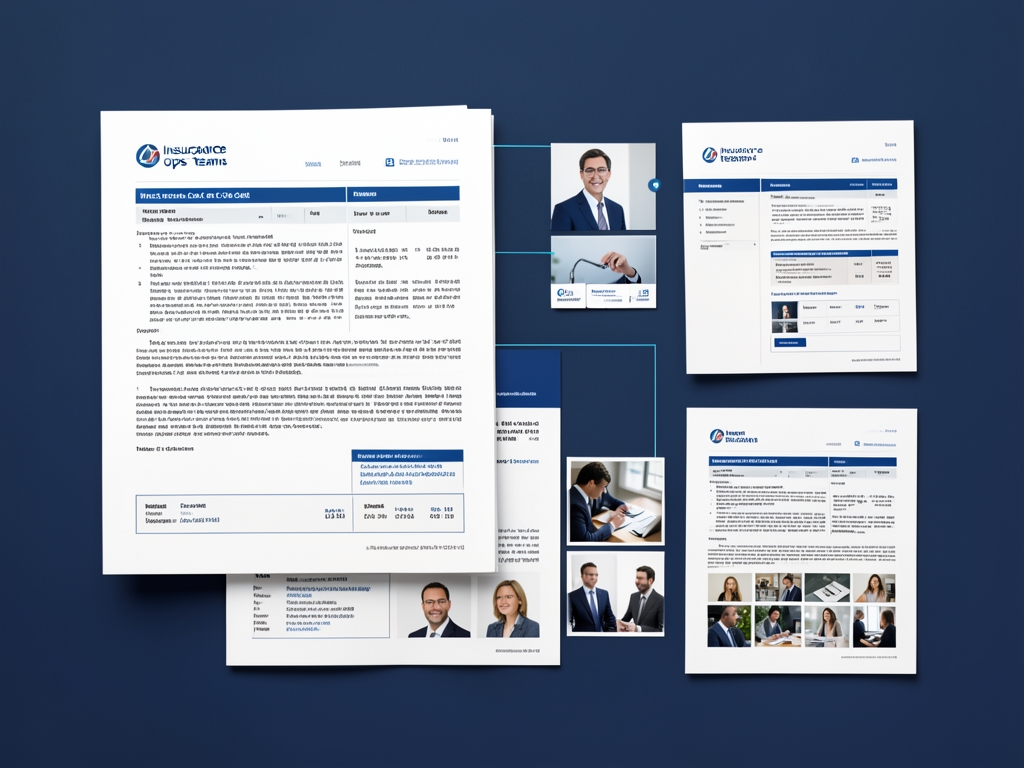
AI-generated illustration for article.
A grounded VBA example
Below is a practical VBA macro that ties the Excel data, Word template, and image assets together. It includes folder checks, placeholder replacement, image insertion, and PDF export.
Copy this code into a standard module in your Excel workbook and adjust the worksheet and path constants to match your environment.
Sub GenerateClaimPackets()
    Dim ws As Worksheet
    Dim lastRow As Long, i As Long
    Dim wdApp As Object, wdDoc As Object
    Dim templatePath As String, imgFolder As String
    Dim outWordFolder As String, outPdfFolder As String, logPath As String
    Dim claimID As String, colIdx As Long
    Dim placeholders As Variant, ph As Variant
    Dim cellValue As String, imgTag As Variant, imgPath As String
    Dim docxPath As String, pdfPath As String

    '--- Configuration ---------------------------------------------------
    Set ws = ThisWorkbook.Worksheets("Claims")
    templatePath = ThisWorkbook.Path & "\Template\ClaimTemplate.docx"
    imgFolder = ThisWorkbook.Path & "\Images"
    outWordFolder = ThisWorkbook.Path & "\WORD"
    outPdfFolder = ThisWorkbook.Path & "\PDF"
    logPath = ThisWorkbook.Path & "\generation_log.txt"
    '--------------------------------------------------------------------

    ' Ensure output folders exist
    If Dir(outWordFolder, vbDirectory) = "" Then MkDir outWordFolder
    If Dir(outPdfFolder, vbDirectory) = "" Then MkDir outPdfFolder

    Open logPath For Append As #1

    Set wdApp = CreateObject("Word.Application")
    wdApp.Visible = False

    lastRow = ws.Cells(ws.Rows.Count, "A").End(xlUp).Row

    placeholders = Array("<<ClaimID>>", "<<InsuredName>>", "<<PolicyNumber>>", "<<DateOfLoss>>")

    For i = 2 To lastRow
        claimID = Trim(ws.Cells(i, "A").Value)
        If claimID = "" Then GoTo NextRow

        Set wdDoc = wdApp.Documents.Open(templatePath, ReadOnly:=True)
        wdDoc.Activate

        ' Replace text placeholders using header names
        For Each ph In placeholders
            Dim headerName As String
            headerName = Replace(Replace(ph, "<<", ""), ">>", "")
            colIdx = 0
            On Error Resume Next
            colIdx = ws.Rows(1).Find(What:=headerName, LookIn:=xlValues, LookAt:=xlWhole).Column
            On Error GoTo 0
            If colIdx > 0 Then
                cellValue = ws.Cells(i, colIdx).Value
                With wdDoc.Content.Find
                    .Text = ph
                    .Replacement.Text = cellValue
                    .Wrap = 1 ' wdFindContinue
                    .Execute Replace:=2 ' wdReplaceAll
                End With
            Else
                Print #1, "Row " & i & ": Header '" & headerName & "' not found."
            End If
        Next ph

        ' Insert images for known tags
        For Each imgTag In Array("<<photo_logo>>", "<<photo_signature>>", "<<photo_stamp>>")
            imgPath = imgFolder & "\" & Replace(Replace(imgTag, "<<", ""), ">>", "") & ".png"
            If Dir(imgPath) <> "" Then
                With wdDoc.Content.Find
                    .Text = imgTag
                    .Replacement.Text = ""
                    .Wrap = 1
                    .Execute Replace:=2
                End With
                wdDoc.InlineShapes.AddPicture FileName:=imgPath, LinkToFile:=False, SaveWithDocument:=True
            Else
                Print #1, "Row " & i & ": Image file missing for tag " & imgTag
            End If
        Next imgTag

        docxPath = outWordFolder & "\Claim_" & claimID & ".docx"
        wdDoc.SaveAs2 docxPath, 16 ' wdFormatXMLDocument

        pdfPath = outPdfFolder & "\Claim_" & claimID & ".pdf"
        wdDoc.ExportAsFixedFormat OutputFileName:=pdfPath, ExportFormat:=17 ' wdExportFormatPDF

        wdDoc.Close False
NextRow:
    Next i

    wdApp.Quit
    Close #1
    MsgBox "Claim packet generation completed.", vbInformation
End Sub
Run GenerateClaimPackets from the Macros dialog after confirming that your Excel table, Word template, and Images folder are ready.
Where VBA starts to strain
While VBA handles most batch‑generation scenarios well, certain edge cases can strain the approach.
Large image sets and memory pressure
If a single claim packet requires dozens of high‑resolution images, the Word instance may consume significant memory, leading to slowdowns or occasional crashes. In such cases, consider pre‑resizing images to the 150 DPI standard before the run, or split the batch into smaller groups.
Complex conditional content
VBA can replace simple placeholders, but handling extensive conditional sections (e.g., show/hide whole paragraphs based on claim type) quickly becomes messy. For highly dynamic documents, a dedicated document‑generation engine may provide cleaner templating features.
A calmer way to standardize the workflow
DocxForge Pro offers a ready‑made, no‑code alternative that embeds the same Excel‑to‑Word‑to‑PDF logic while adding helpful safeguards.
For repeatable business documents such as reports contracts certificates letters and packs DocxForge Pro can act as the local layer between spreadsheet data Word templates and final output. It can produce Word output PDF output or both depending on how the workflow is configured.
This fits teams that produce repeatable reports contracts certificates forms letters or document packs from structured data. This is helpful when teams need editable DOCX files and final PDFs from the same template workflow. The article’s VBA example shows the spreadsheet-side automation while DocxForge Pro fits as the document-generation layer outside the code example itself.
Start Free 7-Day TrialBatch size control
Select how many rows to process per run, preventing memory spikes when many high‑resolution images are involved.
Built‑in image staging
The tool automatically copies and down‑samples images to the 150 DPI rule for standard pictures and 300 DPI for special tags, removing the need for manual preparation.
Zero‑code template mapping
Map Excel columns to Word placeholders through a simple UI, eliminating brittle find‑replace code and making template updates frictionless.
Frequently asked questions
Common questions about setting up and scaling the Excel‑to‑Word‑to‑PDF claim packet workflow.
Can this workflow stay inside Microsoft Office tools?
Yes, for many workflows the data-prep and document-output steps can stay inside the existing toolset, but the fragile part is usually the repeatability of the final document stage.
Where does VBA help the most?
VBA is usually most useful for prep, normalization, field updates, file naming, or small batch helpers rather than for building a full document workflow from scratch.
When does the workflow become brittle?
The workflow usually becomes brittle when templates, images, output folders, or PDF export steps have to be repeated across many records without a stable generation layer.
Topics and Tags
Browse related topic clusters and workflow tags connected to this article.
Continue Reading
Explore more articles related to this workflow, problem, or document automation topic.
HR Document Automation with Excel, Word, Images, and PDF
Automate HR documents with Excel, Word, images, and PDF
Read articleHow to Generate Product Catalogs from Excel with Word and PDF
Generate product catalogs from Excel with Word and PDF
Read articleHow to Automate Home Inspection Reports with Excel, Word, and PDF
Learn how to streamline home inspection report creation by linking Excel data, Word templates, and PDF output with a practical VBA‑driven workflow.
Read articleExcel → Word → PDF Workflow for Compliance Evidence Packs
Build a compliance evidence pack workflow using Excel, Word, and PDF
Read article