
How to Prepare Audit Checklists and Signed PDFs from Excel
Audit teams often spend hours turning spreadsheet data into checklist documents and signed PDFs. By linking Excel rows to a Word template, you can generate both a formatted checklist and a PDF ready for electronic signature in one batch run. The approach keeps source data in one place and eliminates manual copy‑paste.
Batch‑ready documents
From one spreadsheet row to a complete audit package
Quick answer
The fastest way to turn an audit tracking spreadsheet into a set of checklist Word files and signed PDFs is to drive a macro that reads each row, fills a Word template, swaps placeholder tags for the appropriate logo, signature, or stamp images, saves the document as .docx, and then exports a PDF version. The macro also creates separate output folders so the files stay organized.
The macro loops through each record, copies the template, replaces merge fields with the row values, inserts any required images, writes the filled document to a "WORD" folder, and then uses Word’s ExportAsFixedFormat method to produce a matching PDF in a "PDF" folder.
Why this matters
Audit checklists must be accurate, consistently formatted, and quickly accessible for reviewers. When the same data is used to generate both the working Word version and the final signed PDF, any discrepancy can cause rework, raise compliance questions, and delay reporting. Automating the process removes the manual steps that are most error‑prone.
Consistency across formats
A single source of truth in Excel ensures that the wording, numbering, and data points appear identically in the Word checklist and its PDF counterpart. Eliminating manual transcription removes mismatches that could be flagged during an audit.
Time savings for compliance teams
Generating dozens or hundreds of checklists manually takes minutes per file. A batch macro finishes the same job in seconds, freeing staff to focus on reviewing findings rather than formatting documents.
What goes wrong
When teams rely on manual copy‑paste and separate export steps, they often encounter missing data, misplaced images, and naming inconsistencies. The process becomes brittle as the number of records grows, leading to delayed reporting and extra quality‑control effort.
Manual copy‑paste workflow
Users copy rows into a Word template one by one, insert logos or signatures manually, save the file, then use the Save As dialog to create a PDF. Each step is prone to human error, and file naming is inconsistent.
Automated VBA‑driven workflow
A macro reads every spreadsheet row, populates a pre‑tagged template, inserts the correct images automatically, saves the document with a predictable name, and exports a matching PDF. All files land in dedicated folders, removing ambiguity.
The manual approach works for a handful of records but quickly becomes unsustainable as audit volumes increase.
What the workflow looks like
A reliable batch workflow starts with clean source data, a properly tagged template, and a macro that ties the two together. The steps below outline a repeatable process that keeps each audit record isolated yet uniformly formatted.
Prepare the Excel source sheet
Create a table where each row represents one audit item. Include columns for checklist text, reviewer name, due date, and file names for any required images (logo, signature, stamp). Keep column headers consistent and avoid merged cells.
Create and tag the Word template
Design a checklist layout in Word and insert merge fields like «ChecklistItem», «Reviewer», and «DueDate». Place image placeholders such as {photo_logo}, {photo_signature}, and {photo_stamp} where the corresponding pictures should appear.
Run the VBA macro to generate documents
Execute the macro from Excel. It opens the template for each row, replaces merge fields with row values, checks that each image file exists, inserts the picture, saves the filled document as a .docx in a "WORD" folder, and then calls ExportAsFixedFormat to write a PDF to a "PDF" folder.
Verify output and apply signatures
After the batch run, review the WORD and PDF folders to confirm that every file was created and that images appear correctly. The PDFs can now be sent for electronic signing or stored as part of the audit record.
A visual example
Simple visual illustration.
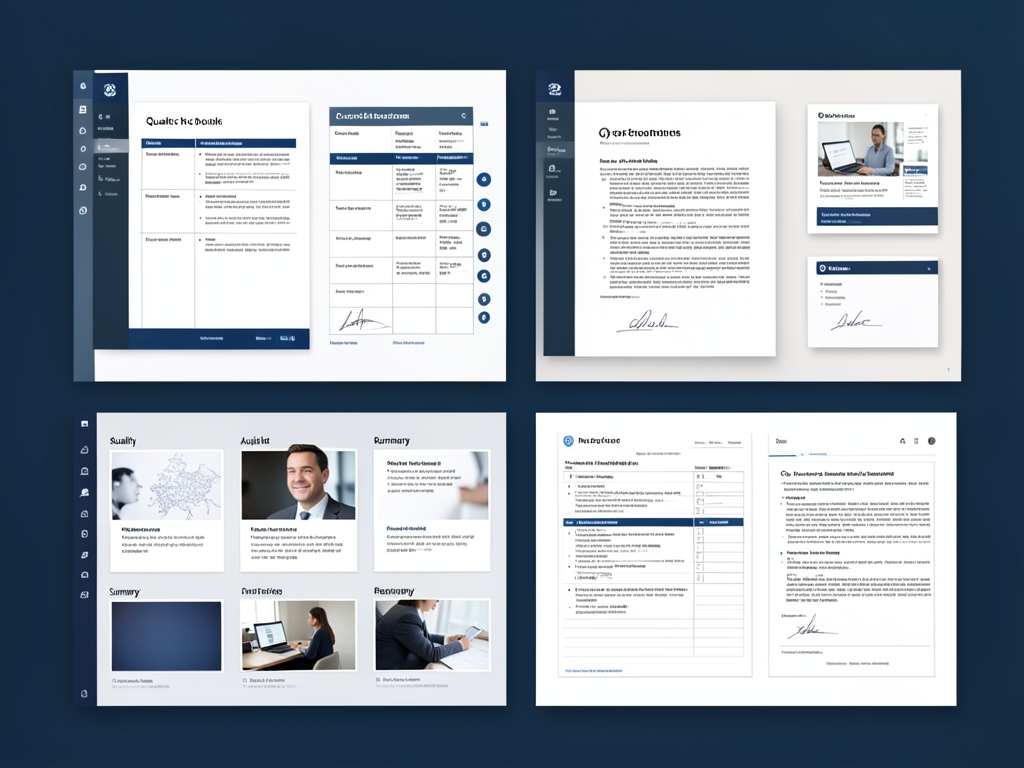
AI-generated illustration for article.
A grounded VBA example
The macro below handles all steps from data reading to Word and PDF generation, including basic error handling for missing images.
It loops through the Excel table, opens a copy of the template, replaces placeholders, inserts images, saves both DOCX and PDF, and finally closes the Word instance.
Option Explicit
Sub GenerateAuditChecklists()
    Const wdFormatXMLDocument As Long = 16
    Const wdExportFormatPDF As Long = 17

    Dim wsData As Worksheet
    Dim wdApp As Object ' Word.Application
    Dim docTemplate As Object
    Dim docNew As Object
    Dim lastRow As Long, i As Long
    Dim tplPath As String, outWord As String, outPDF As String
    Dim imgFolder As String, imgPath As String
    Dim fldWord As String, fldPDF As String

    Set wsData = ThisWorkbook.Sheets("AuditData")
    tplPath = ThisWorkbook.Path & "\Templates\AuditTemplate.docx"
    imgFolder = ThisWorkbook.Path & "\Images"
    fldWord = ThisWorkbook.Path & "\OUTPUT\WORD"
    fldPDF = ThisWorkbook.Path & "\OUTPUT\PDF"

    If Dir(fldWord, vbDirectory) = "" Then MkDir fldWord
    If Dir(fldPDF, vbDirectory) = "" Then MkDir fldPDF

    Set wdApp = CreateObject("Word.Application")
    wdApp.Visible = False

    lastRow = wsData.Cells(wsData.Rows.Count, "A").End(xlUp).Row
    For i = 2 To lastRow
        Set docTemplate = wdApp.Documents.Open(tplPath, ReadOnly:=True)
        Set docNew = wdApp.Documents.Add
        docTemplate.Content.Copy
        docNew.Content.Paste

        docNew.Content.Find.Execute FindText:="«ChecklistItem»", ReplaceWith:=wsData.Cells(i, "B").Value, Replace:=2
        docNew.Content.Find.Execute FindText:="«Reviewer»", ReplaceWith:=wsData.Cells(i, "C").Value, Replace:=2
        docNew.Content.Find.Execute FindText:="«DueDate»", ReplaceWith:=wsData.Cells(i, "D").Value, Replace:=2

        ' Insert logo
        imgPath = imgFolder & "\" & wsData.Cells(i, "E").Value
        If Dir(imgPath) <> "" Then
            docNew.Content.Find.Execute FindText:="{photo_logo}", Replace:=0
            docNew.InlineShapes.AddPicture FileName:=imgPath, LinkToFile:=False, SaveWithDocument:=True
        End If
        ' Insert signature
        imgPath = imgFolder & "\" & wsData.Cells(i, "F").Value
        If Dir(imgPath) <> "" Then
            docNew.Content.Find.Execute FindText:="{photo_signature}", Replace:=0
            docNew.InlineShapes.AddPicture FileName:=imgPath, LinkToFile:=False, SaveWithDocument:=True
        End If
        ' Insert stamp
        imgPath = imgFolder & "\" & wsData.Cells(i, "G").Value
        If Dir(imgPath) <> "" Then
            docNew.Content.Find.Execute FindText:="{photo_stamp}", Replace:=0
            docNew.InlineShapes.AddPicture FileName:=imgPath, LinkToFile:=False, SaveWithDocument:=True
        End If

        outWord = fldWord & "\Checklist_" & i & ".docx"
        outPDF = fldPDF & "\Checklist_" & i & ".pdf"

        docNew.SaveAs2 Filename:=outWord, FileFormat:=wdFormatXMLDocument
        docNew.ExportAsFixedFormat OutputFileName:=outPDF, ExportFormat:=wdExportFormatPDF

        docNew.Close SaveChanges:=False
        docTemplate.Close SaveChanges:=False
    Next i

    wdApp.Quit
    Set wdApp = Nothing
    MsgBox "Audit checklists generated: " & (lastRow - 1) & " documents.", vbInformation
End Sub
Adjust the folder paths and placeholder tags to match your environment before running.
Where VBA starts to strain
While VBA is powerful for local automation, it does have practical limits that become noticeable in larger or more complex scenarios.
Scalability ceiling
Processing thousands of rows can cause Word to consume large amounts of memory, leading to slowdowns or occasional crashes. Even with batch splitting, you may need to monitor Word's memory usage and consider off‑loading to a server‑based service for very large data sets.
Error handling complexity
VBA provides basic error trapping, but detailed logging and recovery from individual record failures require extra code. Without a robust logging framework, a single missing image can halt the entire run, forcing you to restart from the beginning.
Maintenance overhead
Custom VBA must be revisited whenever the template layout changes, column headings are renamed, or new regulatory fields are added, which consumes developer time and can introduce regressions.
A calmer way to standardize the workflow
DocxForge Pro offers a purpose‑built interface that handles the same Excel‑to‑Word‑to‑PDF pipeline without writing custom code, delivering extra reliability and built‑in reporting.
For repeatable business documents such as reports contracts certificates letters and packs DocxForge Pro can act as the local layer between spreadsheet data Word templates and final output. It can produce Word output PDF output or both depending on how the workflow is configured.
This fits teams that produce repeatable reports contracts certificates forms letters or document packs from structured data. This is helpful when teams need editable DOCX files and final PDFs from the same template workflow. The article’s VBA example shows the spreadsheet-side automation while DocxForge Pro fits as the document-generation layer outside the code example itself.
Start Free 7-Day TrialBatch‑size control
Select how many records to process per run, preventing memory overload and giving you predictable performance.
Automatic image resolution
The tool stages images, applies the correct DPI rules for logos, signatures, and stamps, and inserts them without manual path checks.
Frequently asked questions
Common questions about this workflow are answered below.
Is this workflow suitable for preparing audit checklists and signed PDFs from Excel?
Yes. The approach is designed for audit teams that keep checklist data in a spreadsheet and need a formatted Word document plus a signed‑ready PDF for each record. It works with any standard Excel table and a Word template that contains the required merge fields and image tags.
What source data has to stay consistent before generation starts?
The Excel sheet should have stable column headers and one row per output document. All required image filenames (logo, signature, stamp) must be present in the designated images folder, and the naming convention should match the placeholder tags used in the Word template.
How do I adapt the template without breaking the workflow?
When you modify the Word template, keep the merge‑field names and image tags unchanged. Adding new fields is fine as long as you also add corresponding columns to the Excel table and update the VBA code (or DocxForge field map) to replace the new placeholders.
Topics and Tags
Browse related topic clusters and workflow tags connected to this article.
Continue Reading
Explore more articles related to this workflow, problem, or document automation topic.
Excel → Word → PDF Workflow for Compliance Evidence Packs
Build a compliance evidence pack workflow using Excel, Word, and PDF
Read articleHow to Build Offline Insurance Claim Document Packs
A step‑by‑step guide for insurance operations teams to build offline claim document packs using Excel, Word, and a safe VBA macro.
Read articleHow to Create Equipment Checklists with Photos and PDF Output
Guide for operations teams to automate equipment inspection checklists that embed field photos and produce PDF files using local Excel and Word automation.
Read articleHow to Create Photo-Based Property Condition Reports
Create photo-based property condition reports
Read article