
How to Generate Product Catalogs from Excel with Word and PDF
Catalog and merchandising teams often spend hours turning product data into printable PDFs. By linking Excel, Word templates, and a simple VBA macro, you can automate the entire pipeline. The result is a set of consistent, brand‑aligned catalogs ready for distribution, all without leaving your desktop.
Automated catalog creation
From Excel rows to PDF in minutes
Quick answer
You can automate catalog generation by using an Excel sheet as the data source, a Word template containing merge fields and image placeholders, and a VBA macro that loops through each row, inserts the correct picture, fills the fields, and saves both a DOCX and a PDF. The macro handles folder creation, path validation, and ensures each output file is named based on a unique product identifier.
The macro reads each spreadsheet row, copies the Word template, replaces placeholders like {{ProductName}} and {{Photo}} with the row’s values, adds the corresponding image from a shared folder, then exports the finished document as a Word file and as a PDF. All files are placed in separate WORD and PDF output folders for easy review.
Why this matters
Manual catalog assembly is error‑prone and scales poorly as the product range expands. Automating the workflow frees up designers to focus on layout and branding while the data‑driven process guarantees consistency across every page.
Consistency across thousands of products
When each row drives a single document, field values and images are inserted exactly as defined. Typos, missing pictures, and mismatched branding disappear, giving your retail partners a reliable representation of your catalogue. Consistent styling also means marketing guidelines are adhered to without manual re‑checking, which saves the brand‑compliance team hours of audit work each month.
Speed that matches product releases
A batch run that would take a person days can be completed in minutes on a typical Windows PC. Faster turnaround means you can publish seasonal updates or new product launches without bottlenecks, keeping your sales channel inventory fresh and reducing the need for overtime during peak roll‑out periods.
Lower error rate and audit readiness
Automating data insertion eliminates the copy‑paste mistakes that often slip through manual processes. Because every field is sourced from a single source of truth, auditors can trace a catalog entry back to its spreadsheet row, simplifying compliance checks and reducing the risk of costly recall or re‑print errors.
What goes wrong
Without a structured process, teams often resort to manual copy‑paste, ad‑hoc image placement, and individual PDF exports. These shortcuts create mismatched data, broken links, and inconsistent visual standards.
Typical manual approach
A user opens the Excel file, copies each row into a Word document, manually inserts the product photo, adjusts sizing, then saves the file as PDF. The steps repeat for every product, leading to wasted time and frequent errors.
Automated macro approach
A single VBA macro reads every row, pulls the matching image, inserts it at the correct placeholder, updates all merge fields, and exports both Word and PDF files automatically. No repetitive clicking, and the output follows the same layout rules each time.
The contrast shows that a repeatable macro eliminates the manual overhead and ensures every catalog page meets the same quality standards.
What the workflow looks like
The end‑to‑end workflow consists of five clear stages that turn raw spreadsheet data into polished PDF catalogs.
Prepare the Excel source
Create a table where each row represents a product. Include columns for the product name, SKU, description, price, and the exact filename of the image (or a relative path). Keep the header names consistent with the placeholders you will use in Word.
Design the Word template
Insert merge fields such as {{ProductName}}, {{Description}}, {{Price}} and image bookmarks like {{Photo}} where each product picture belongs. Apply your brand styles, table formats, and page layout once; the macro will reuse this template for every record.
Collect images in a folder
Place all product photos in a single folder. Use filenames that match the value in the Excel ‘ImageFile’ column, or store the full path if the images are scattered. Ensure the images meet the 150 DPI standard for regular pictures and 300 DPI for special tags.
Run the VBA macro
Launch the macro from the Excel workbook. It opens the Word template, loops through each row, validates the image path, inserts the picture, fills the merge fields, saves the document as DOCX, then calls ExportAsFixedFormat to create a PDF. Output folders are created automatically if they do not exist.
Review and distribute
After the batch finishes, inspect the WORD and PDF folders. The files are named using the SKU or another unique identifier, making it simple to locate any product. Distribute the PDFs to retailers or upload them to your e‑commerce platform.
A visual example
Simple visual illustration.
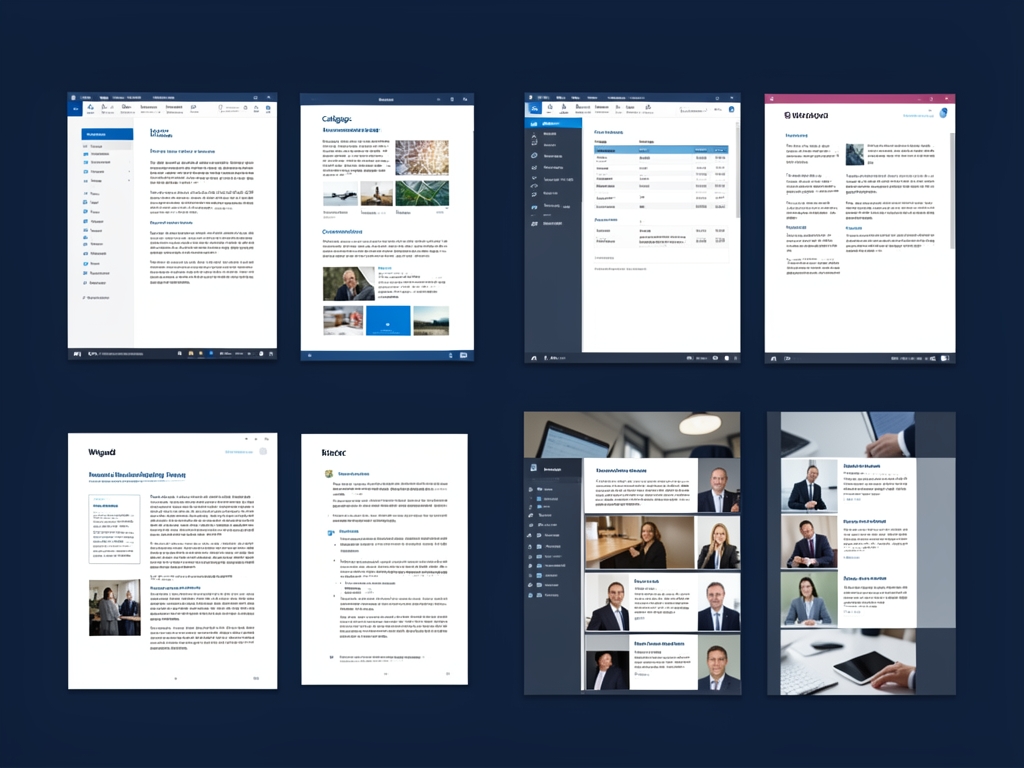
AI-generated illustration for article.
A grounded VBA example
Below is a ready‑to‑use VBA macro that implements the workflow described above.
The code opens the Word template, iterates over each data row, checks that the image file exists, inserts it at the {{Photo}} bookmark, replaces text placeholders, and finally exports both DOCX and PDF versions into organized folders.
Sub GenerateCatalogs()
    Dim wb As Workbook, ws As Worksheet
    Dim wdApp As Object, wdDoc As Object
    Dim tmplPath As String, imgFolder As String
    Dim outWordFolder As String, outPdfFolder As String
    Dim lastRow As Long, i As Long
    Dim prodName As String, imgFile As String, sku As String

    '--- Settings -------------------------------------------------
    tmplPath = ThisWorkbook.Path & "\CatalogTemplate.docx"
    imgFolder = ThisWorkbook.Path & "\Images"
    outWordFolder = ThisWorkbook.Path & "\Output\WORD"
    outPdfFolder = ThisWorkbook.Path & "\Output\PDF"

    '--- Ensure output folders exist --------------------------------
    If Dir(outWordFolder, vbDirectory) = "" Then MkDir outWordFolder
    If Dir(outPdfFolder, vbDirectory) = "" Then MkDir outPdfFolder

    Set wb = ThisWorkbook
    Set ws = wb.Sheets("Products")   'assume sheet name

    Set wdApp = CreateObject("Word.Application")
    wdApp.Visible = False

    lastRow = ws.Cells(ws.Rows.Count, "A").End(xlUp).Row

    For i = 2 To lastRow   'skip header
        prodName = ws.Cells(i, "A").Value
        sku = ws.Cells(i, "B").Value
        imgFile = ws.Cells(i, "C").Value   'image filename

        'Open a fresh copy of the template
        Set wdDoc = wdApp.Documents.Open(tmplPath, ReadOnly:=False)

        '--- Replace text placeholders --------------------------------
        With wdDoc.Content.Find
            .Text = "{{ProductName}}"
            .Replacement.Text = prodName
            .Execute Replace:=2
            .Text = "{{SKU}}"
            .Replacement.Text = sku
            .Execute Replace:=2
        End With

        '--- Insert product image ------------------------------------
        Dim imgPath As String
        imgPath = imgFolder & "\" & imgFile
        If Dir(imgPath) <> "" Then
            Dim bm As Object
            Set bm = wdDoc.Bookmarks("Photo")
            bm.Range.InlineShapes.AddPicture FileName:=imgPath, LinkToFile:=False, SaveWithDocument:=True
        End If

        '--- Save DOCX -----------------------------------------------
        Dim docxPath As String
        docxPath = outWordFolder & "\" & sku & ".docx"
        wdDoc.SaveAs2 docxPath, FileFormat:=16   'wdFormatXMLDocument

        '--- Export PDF -----------------------------------------------
        Dim pdfPath As String
        pdfPath = outPdfFolder & "\" & sku & ".pdf"
        wdDoc.ExportAsFixedFormat OutputFileName:=pdfPath, ExportFormat:=17   'wdExportFormatPDF

        wdDoc.Close SaveChanges:=False
    Next i

    wdApp.Quit
    MsgBox "Catalog generation complete.", vbInformation
End Sub
Adjust the placeholder names and folder paths to match your project, then run the macro from Excel’s Developer tab.
Where VBA starts to strain
VBA works well for small to medium batches but hits practical limits as data volume or complexity grows.
Performance and maintenance constraints
Each document open/close cycle adds overhead, so generating hundreds of catalogs can become slow and memory‑intensive. The single‑threaded nature of VBA means the macro cannot take advantage of modern multi‑core CPUs, and large image files exacerbate the slowdown. Managing multiple template versions or complex conditional content requires frequent macro adjustments, which can be error‑prone and increase maintenance burden.
Maintainability and debugging challenges
VBA error handling is limited; when a missing image or broken bookmark occurs the macro stops without a clear recovery path. Tracing the exact row that caused a failure often requires stepping through the code manually. As the number of product attributes grows, the Find/Replace logic becomes harder to read, making future enhancements risky without a robust testing framework.
A calmer way to standardize the workflow
DocxForge Pro provides a calmer, repeatable way to standardize the entire catalog generation pipeline without custom code.
For repeatable business documents such as reports contracts certificates letters and packs DocxForge Pro can act as the local layer between spreadsheet data Word templates and final output. It can produce Word output PDF output or both depending on how the workflow is configured.
This fits teams that produce repeatable reports contracts certificates forms letters or document packs from structured data. This is helpful when teams need editable DOCX files and final PDFs from the same template workflow. The article’s VBA example shows the spreadsheet-side automation while DocxForge Pro fits as the document-generation layer outside the code example itself.
Start Free 7-Day TrialBatch‑oriented engine
The product runs locally, reads the same Excel source, and injects images based on the defined tags. It handles folder creation, image optimisation, and simultaneous DOCX + PDF output in a single pass.
Zero‑cloud, secure processing
All files stay on the user’s machine. No telemetry leaves the workstation, ensuring proprietary product data and images never travel over the internet.
Frequently asked questions
Common questions about the catalog generation workflow:
Is this workflow suitable for generating product catalogs from Excel with Word and PDF?
Yes. The approach is built around a structured Excel sheet, a Word template, and a macro that creates one catalog document per row. It works for any number of products as long as the source data follows the required column layout.
What source data has to stay consistent before generation starts?
Each row must contain stable values for every placeholder used in the Word template, especially the image filename or full path. Column headers should match the merge‑field names, and the image folder must remain unchanged during the run.
How do I adapt the template without breaking the workflow?
Add or rename merge fields and bookmarks in the Word template, then update the macro’s Find/Replace strings and the bookmark name used for image insertion. Keeping a version‑controlled copy of the template helps you track changes and avoid mismatches.
Topics and Tags
Browse related topic clusters and workflow tags connected to this article.
Continue Reading
Explore more articles related to this workflow, problem, or document automation topic.
HR Document Automation with Excel, Word, Images, and PDF
Automate HR documents with Excel, Word, images, and PDF
Read articleHow to Automate Home Inspection Reports with Excel, Word, and PDF
Learn how to streamline home inspection report creation by linking Excel data, Word templates, and PDF output with a practical VBA‑driven workflow.
Read articleExcel → Word → PDF Workflow for Insurance Claim Packets
Create insurance claim packets from spreadsheet data into Word and PDF
Read articleExcel → Word → PDF Workflow for Compliance Evidence Packs
Build a compliance evidence pack workflow using Excel, Word, and PDF
Read article