
How to Generate Customer Letters in Batches from a Spreadsheet
When you need to send hundreds of personalized letters—order confirmations, account updates, or service reminders—manual copy‑and‑paste quickly becomes a bottleneck. By linking a structured Excel sheet to a Word template, you can generate each letter automatically, insert the right logo or signature, and export a PDF in one seamless run. The result is consistent, professional correspondence without the repetitive typing.
Batch‑ready letters
From Excel rows to Word files
Quick answer
A VBA macro can read each row of an Excel worksheet, open a Word template, replace merge fields with the row’s data, insert any required images, and then save the document as both a DOCX and a PDF. By looping through all rows, the process produces a complete set of personalized letters without manual intervention, keeping naming conventions and folder structures consistent.
The macro automates the repeatable steps: load data, fill placeholders, handle images, and export files. Once set up, you run it once and let it create every letter in the batch.
Why this matters
Manual letter creation is error‑prone and consumes valuable staff time, especially when each correspondence must include customer‑specific details and branding elements. Automating the workflow eliminates typographical mistakes, ensures every document follows the same layout, and frees up the team to focus on higher‑value tasks such as customer support. Additionally, batch generation guarantees that output files are stored in a predictable folder hierarchy, supporting audit trails and easy retrieval. Because many regulated industries require documented correspondence, having a single source of truth makes audits straightforward and reduces compliance risk. The process also scales gracefully—adding a new column for an extra field only requires updating the template, not rewriting code, so you can grow the volume of letters without extra development effort.
Reduce repetitive work
Instead of copying data row by row, the macro does the heavy lifting, cutting hours of manual effort into minutes.
Maintain brand consistency
All letters use the same template, logo placement, and signature image, so every customer receives a polished, uniform document.
What goes wrong
When teams rely on copy‑and‑paste or ad‑hoc scripts, several issues frequently appear:
Typical manual approach
Users open the template, paste data from Excel, manually insert images, rename the file, and repeat for each record. Missed fields, mismatched file names, and forgotten image inserts are common, leading to inconsistent output and wasted time.
Automated VBA batch
The macro pulls data directly from the spreadsheet, replaces placeholders, inserts images based on predefined tags, and saves files with systematic names. Errors are reduced to missing source files or path problems, which are easy to diagnose.
By moving from a manual, step‑by‑step process to a scripted batch, you eliminate the most common sources of human error and gain a reproducible workflow.
What the workflow looks like
The end‑to‑end batch workflow consists of three phases: preparation, execution, and post‑processing. Each phase contains clear, actionable steps that keep the process reliable and repeatable.
Prepare the data sheet
Create an Excel table where each row represents one letter. Include columns for all placeholders in the Word template (e.g., CustomerName, Address, DueDate) and optional image tags such as photo_logo, photo_signature, or photo_stamp. Keep the sheet in the same folder as the macro for easy reference.
Set up the Word template
Insert merge fields wrapped in double curly braces (e.g., {{CustomerName}}) wherever dynamic text belongs. Place special image tags where a logo, signature, or stamp should appear. Save the template as a .dotx file in a dedicated Templates folder.
Configure output folders
Create two subfolders named WORD and PDF inside an Output directory. The macro will verify that these folders exist and create them if necessary, ensuring that generated documents are neatly organized.
Run the VBA macro
Launch the macro from Excel. It iterates over each data row, opens the Word template, replaces text placeholders, inserts images based on tag values, saves a DOCX in the WORD folder, and then exports a PDF to the PDF folder using ExportAsFixedFormat. Progress is reported in the Immediate window.
Verify and archive
After the run, review a sample of the generated letters to confirm field replacement and image placement. Archive the Excel source and the Output folder together for future reference or audit.
A visual example
Simple visual illustration.
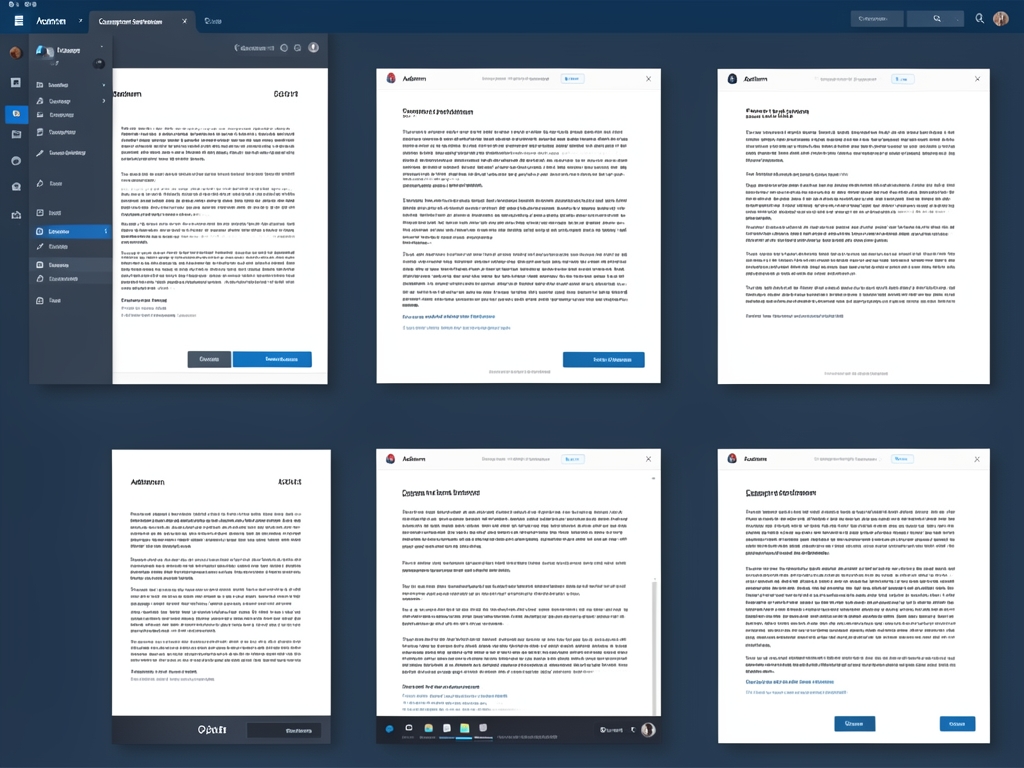
AI-generated illustration for article.
A grounded VBA example
The following VBA macro lives in the Excel workbook and drives the entire batch process. It uses early binding to the Word object model, checks that required folders exist, and handles image insertion safely.
Copy the code into a standard module, adjust the template and folder paths, then run GenerateLettersBatch.
Option Explicit

Sub GenerateLettersBatch()
    Dim ws As Worksheet
    Dim tplPath As String
    Dim outWord As String
    Dim outPDF As String
    Dim imgFolder As String
    Dim rowIdx As Long, lastRow As Long
    Dim wdApp As Word.Application
    Dim wdDoc As Word.Document
    Dim cellValue As String

    '--- Configuration -------------------------------------------------------
    Set ws = ThisWorkbook.Sheets("Data")
    tplPath = ThisWorkbook.Path & "\Templates\LetterTemplate.dotx"
    outWord = ThisWorkbook.Path & "\Output\WORD"
    outPDF = ThisWorkbook.Path & "\Output\PDF"
    imgFolder = ThisWorkbook.Path & "\Images"
    '-----------------------------------------------------------------------

    ' Ensure output folders exist
    If Dir(outWord, vbDirectory) = "" Then MkDir outWord
    If Dir(outPDF, vbDirectory) = "" Then MkDir outPDF

    Set wdApp = New Word.Application
    wdApp.Visible = False

    lastRow = ws.Cells(ws.Rows.Count, "A").End(xlUp).Row
    For rowIdx = 2 To lastRow 'Assume header in row 1
        ' Open template for each row
        Set wdDoc = wdApp.Documents.Add(Template:=tplPath, NewTemplate:=False, DocumentType:=wdNewBlankDocument)

        '--- Replace text placeholders --------------------------------------
        Dim ph As Range
        For Each ph In ws.Rows(1).Cells
            cellValue = ws.Cells(rowIdx, ph.Column).Value
            If Len(cellValue) > 0 Then
                wdDoc.Content.Find.Execute FindText:="{{" & ph.Value & "}}", ReplaceWith:=cellValue, Replace:=wdReplaceAll
            End If
        Next ph
        '--- Insert images for special tags -------------------------------
        Dim imgTag As Variant
        For Each imgTag In Array("photo_logo", "photo_signature", "photo_stamp")
            Dim foundHeader As Range
            Set foundHeader = ws.Rows(1).Find(What:=imgTag, LookIn:=xlValues, LookAt:=xlWhole)
            If Not foundHeader Is Nothing Then
                cellValue = ws.Cells(rowIdx, foundHeader.Column).Value
                If Len(cellValue) > 0 Then
                    Dim imgPath As String
                    imgPath = imgFolder & "\" & cellValue
                    If Dir(imgPath) <> "" Then
                        'Remove placeholder text
                        wdDoc.Content.Find.Execute FindText:="{{" & imgTag & "}}", ReplaceWith:="", Replace:=wdReplaceOne
                        'Insert picture at the location of the removed placeholder
                        wdDoc.Content.Find.Execute FindText:="", Forward:=True
                        wdDoc.Range(wdDoc.Application.Selection.Range.Start, wdDoc.Application.Selection.Range.Start).InlineShapes.AddPicture _
                            FileName:=imgPath, LinkToFile:=False, SaveWithDocument:=True
                    End If
                End If
            End If
        Next imgTag
        '--- Save DOCX -----------------------------------------------------
        Dim docName As String
        docName = outWord & "\Letter_" & ws.Cells(rowIdx, "A").Value & ".docx"
        wdDoc.SaveAs2 Filename:=docName, FileFormat:=wdFormatXMLDocument
        '--- Export PDF ----------------------------------------------------
        Dim pdfName As String
        pdfName = outPDF & "\Letter_" & ws.Cells(rowIdx, "A").Value & ".pdf"
        wdDoc.ExportAsFixedFormat OutputFileName:=pdfName, ExportFormat:=wdExportFormatPDF
        wdDoc.Close SaveChanges:=False
    Next rowIdx

    wdApp.Quit
    Set wdDoc = Nothing
    Set wdApp = Nothing
    MsgBox "Batch generation complete.", vbInformation
End Sub
The macro reports missing images and skips rows where required data is incomplete, allowing you to address issues without stopping the whole batch.
Where VBA starts to strain
While VBA works well for most medium‑scale batch jobs, there are practical limits to keep in mind. The macro’s single‑threaded nature means that processing thousands of rows can become noticeably slower, especially because Word is opened and closed for each record. Complex layout logic—such as conditional sections, dynamic tables, or page‑break rules—quickly turns VBA scripts into tangled If…Else structures that are hard to maintain. Robust error handling is also limited; missing images or malformed data can halt the run unless you add explicit checks. Finally, file‑lock contention can arise when multiple users try to run the macro against the same template or output folders at the same time.
Performance with very large sheets
Processing thousands of rows can become slow because the macro opens and closes Word for each record. Grouping rows or increasing the batch size selector can mitigate the slowdown, but extreme volumes may benefit from a dedicated document‑generation tool.
Complex layout logic
If the template requires conditional sections, tables, or dynamic page breaks based on data, VBA can become cumbersome. Maintaining many If…Else branches reduces readability and increases maintenance effort.
Error handling and debugging
VBA provides limited diagnostics; without explicit checks for missing files or bad data the macro may stop mid‑batch, requiring manual restarts.
A calmer way to standardize the workflow
DocxForge Pro offers a purpose‑built interface that streamlines the same workflow without writing code. It lets you map Excel columns to Word placeholders, handle image tags automatically, and run the batch with a single button, while still giving you control over output folders and file naming.
If the goal is to turn a repeatable manual process into a structured local workflow DocxForge Pro is built for Excel-to-Word-and-PDF document generation. It is designed for structured batch document generation rather than one-off manual output.
Start Free 7-Day TrialZero‑code setup
Import your Excel sheet, select the Word template, and let the UI handle field mapping and image tagging.
Built‑in batch management
Choose batch size, preview a sample document, and let the engine generate DOCX and PDF files reliably.
Frequently asked questions
Common questions about batch letter generation:
Can this workflow stay inside Microsoft Office tools?
Yes, for many workflows the data-prep and document-output steps can stay inside the existing toolset, but the fragile part is usually the repeatability of the final document stage.
Where does VBA help the most?
VBA is usually most useful for prep, normalization, field updates, file naming, or small batch helpers rather than for building a full document workflow from scratch.
When does the workflow become brittle?
The workflow usually becomes brittle when templates, images, output folders, or PDF export steps have to be repeated across many records without a stable generation layer.
Topics and Tags
Browse related topic clusters and workflow tags connected to this article.
Continue Reading
Explore more articles related to this workflow, problem, or document automation topic.
How to Generate Membership Forms and Letters in Batches
A step‑by‑step guide for membership organisations to generate personalised forms and letters in bulk using Excel data and Word templates.
Read articleGoogle Sheets → Google Docs → PDF Workflow for Internal Memos
Learn how to move data from Google Sheets into Google Docs, generate a PDF memo, and keep the process repeatable for internal communications.
Read articleShared Drive Templates vs Managed Output Folders in Batch Generation
A side‑by‑side analysis of using shared‑drive Word templates versus dedicated output folders for reliable batch document generation.
Read articleHow to Organize Output File Names in Batch Document Generation
Learn how to automatically generate consistent, searchable file names for each document produced in a batch Word/Excel workflow, reducing manual renaming and keeping output folders tidy.
Read article