
When Does It Make Sense to Replace Manual Document Assembly?
Manual document creation can feel manageable until the volume climbs and errors start to appear. Understanding the cost signals helps you choose the right moment to invest in automation. This article walks through the signals, the workflow, and a practical VBA helper.
Instant ROI
Savings show up after the first batch run
Quick answer
If you find yourself spending more than a few minutes per document copying data, swapping images, and fixing formatting errors, the hidden cost of manual assembly quickly outweighs the effort of setting up an automated process. When the volume grows to dozens or hundreds of records per week, the time saved per run adds up dramatically, and the risk of human error spikes.
In plain terms, the break‑even point is often reached after 10–15 documents per day. Beyond that, automation reduces repetitive typing, guarantees consistent styling, and frees staff to focus on value‑added activities.
Why this matters
Manual document assembly may seem cheap for occasional use, but hidden costs accumulate as the organization scales. Each extra keystroke, every manual image placement, and every formatting tweak introduces opportunities for mistakes that can damage brand consistency and compliance. When the turnaround time per document stretches beyond reasonable limits, the cumulative delay impacts project schedules and client satisfaction.
Time cost grows non‑linearly
As the number of records rises, the minutes spent per file rarely stay constant. Workers spend extra time locating the right template version, re‑entering data that already exists in the spreadsheet, and fixing layout drift that accumulates over dozens of iterations.
Error risk escalates
Human hands inevitably miss a field or paste the wrong image, especially under pressure. A single misplaced signature or logo can require a full re‑run, eroding trust and increasing the hidden cost of manual assembly.
What goes wrong
In a typical manual workflow, staff open a blank Word file, copy‑paste data from Excel, insert images by browsing folders, adjust styles, and finally save the document as PDF. Each of these steps is performed in isolation, meaning errors rarely propagate until the final review.
Current manual process
Operator A opens the template, manually types the client name, pastes the address, selects the correct logo file, adjusts the picture size, repeats the same actions for every recipient. After 30 minutes of repetitive work, a missed digit or a mis‑aligned image requires reopening the file, correcting, and re‑saving, which multiplies effort and frustration.
Automated batch process
The automation reads the same Excel row, fills the bookmarked fields, inserts the appropriate logo from a predefined folder, applies the standard picture scaling rules, and exports both .docx and .pdf in one click. Consistency is enforced by the template, and any missing image triggers a logged warning instead of a silent error.
The contrast shows how manual repetition not only wastes time but also introduces variability that can compromise the professionalism of client‑facing documents.
What the workflow looks like
A robust, repeatable document generation workflow starts with clean, structured data in Excel and a well‑defined Word template that contains placeholders for text and images. The process then iterates over each spreadsheet row, merges the data, handles image resolution, and finally writes the output to designated folders for Word and PDF files.
Prepare the Excel source
Create a table where each row represents one final document. Include columns for client name, address, contract dates, and filenames of logo, signature, or stamp images. Ensure the paths are either absolute or relative to a known images folder.
Design the Word template
Insert bookmarks or content controls matching the column headers, e.g., <
Set up the image folder
Place all reusable graphics in a single directory. Name files consistently (e.g., logo_acme.png). The macro will look for the filename supplied in the Excel sheet and insert it at the matching placeholder.
Run the VBA merge macro
The macro opens the template, loops through each row, replaces bookmarks with cell values, checks if a referenced image exists, inserts it with the correct DPI handling, and saves the result as both .docx and .pdf in separate output folders.
Validate and archive
After the run, review the generated PDFs for missing images or broken fields. The macro logs any issues to a simple text file, enabling quick follow‑up before the documents are sent to clients.
A visual example
Simple visual illustration.
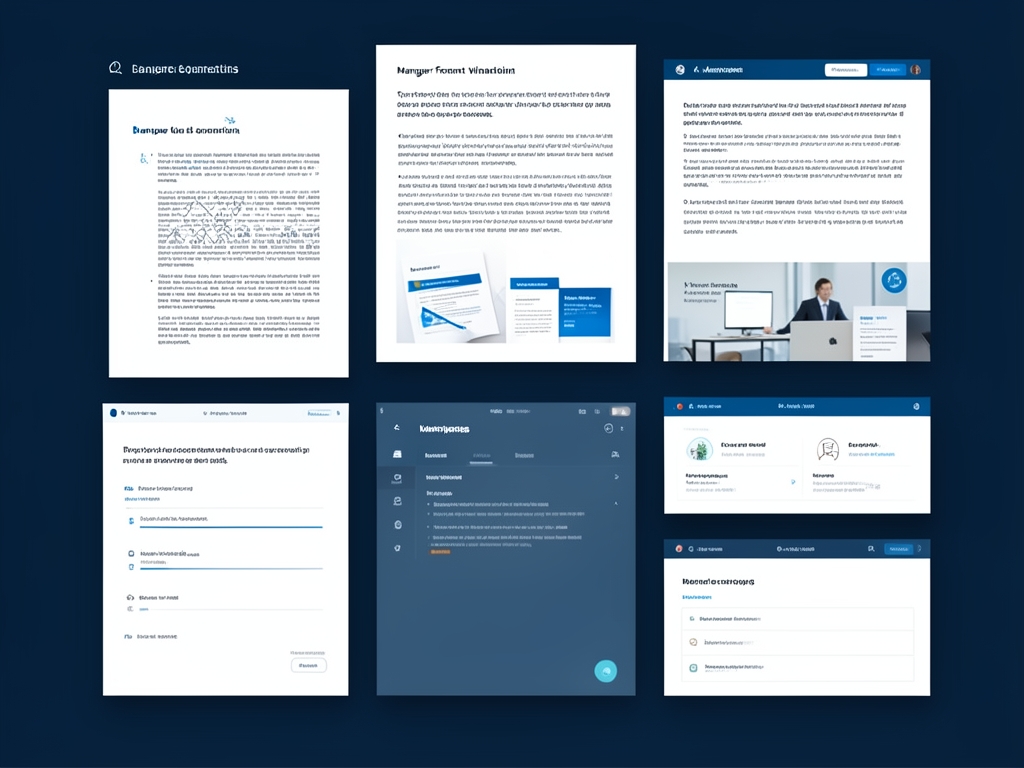
AI-generated illustration for article.
A grounded VBA example
The following VBA macro demonstrates a practical, locally‑run solution that ties Excel data to a Word template, inserts images, and exports PDFs without external services.
The code opens the Excel workbook, reads each data row, opens the Word template, replaces bookmarks, checks for image files, inserts them, and finally saves both Word and PDF versions into organized output folders.
Option Explicit

Sub GenerateDocsFromExcel()
    Dim xlApp As Object
    Dim xlWb As Object
    Dim xlWs As Object
    Dim lastRow As Long
    Dim i As Long
    Dim wdApp As Object
    Dim wdDoc As Object
    Dim templatePath As String
    Dim outWordFolder As String
    Dim outPdfFolder As String
    Dim imgFolder As String
    Dim imgPath As String
    Dim clientName As String

    '--- Configuration ------------------------------------------------------
    templatePath = ThisDocument.Path & "\Template.docx"
    outWordFolder = ThisDocument.Path & "\OUTPUT_WORD"
    outPdfFolder = ThisDocument.Path & "\OUTPUT_PDF"
    imgFolder = ThisDocument.Path & "\Images"
    '-----------------------------------------------------------------------

    ' Ensure output folders exist
    If Dir(outWordFolder, vbDirectory) = "" Then MkDir outWordFolder
    If Dir(outPdfFolder, vbDirectory) = "" Then MkDir outPdfFolder

    ' Open Excel workbook (assumes the workbook is in the same folder)
    Set xlApp = CreateObject("Excel.Application")
    xlApp.Visible = False
    Set xlWb = xlApp.Workbooks.Open(ThisDocument.Path & "\SourceData.xlsx")
    Set xlWs = xlWb.Sheets(1)

    lastRow = xlWs.Cells(xlWs.Rows.Count, "A").End(-4162).Row ' xlUp

    For i = 2 To lastRow ' assume header row
        clientName = Trim(xlWs.Cells(i, 1).Value)
        imgPath = Trim(xlWs.Cells(i, 5).Value) ' image filename column

        Set wdApp = CreateObject("Word.Application")
        wdApp.Visible = False
        Set wdDoc = wdApp.Documents.Open(templatePath, ReadOnly:=True)

        ' Replace text bookmarks
        Call ReplaceBookmark(wdDoc, "ClientName", clientName)
        Call ReplaceBookmark(wdDoc, "Address", xlWs.Cells(i, 2).Value)
        Call ReplaceBookmark(wdDoc, "ContractDate", xlWs.Cells(i, 3).Value)

        ' Insert image if file exists
        If imgPath <> "" Then
            Dim fullImgPath As String
            fullImgPath = imgFolder & "\" & imgPath
            If Dir(fullImgPath) <> "" Then
                Call InsertImageAtBookmark(wdDoc, "photo_logo", fullImgPath)
            End If
        End If

        ' Save Word version
        Dim wordOut As String
        wordOut = outWordFolder & "\" & clientName & ".docx"
        wdDoc.SaveAs2 wordOut, 16 ' wdFormatXMLDocument

        ' Export PDF version
        Dim pdfOut As String
        pdfOut = outPdfFolder & "\" & clientName & ".pdf"
        wdDoc.ExportAsFixedFormat OutputFileName:=pdfOut, ExportFormat:=17 ' wdExportFormatPDF

        wdDoc.Close False
        wdApp.Quit
    Next i

    xlWb.Close False
    xlApp.Quit
    MsgBox "Document generation complete.", vbInformation
End Sub

Sub ReplaceBookmark(ByVal doc As Object, ByVal bmName As String, ByVal textVal As String)
    On Error Resume Next
    doc.Bookmarks(bmName).Range.Text = textVal
    On Error GoTo 0
End Sub

Sub InsertImageAtBookmark(ByVal doc As Object, ByVal bmName As String, ByVal imgPath As String)
    Dim bmRange As Object
    On Error Resume Next
    Set bmRange = doc.Bookmarks(bmName).Range
    If Not bmRange Is Nothing Then
        bmRange.InlineShapes.AddPicture FileName:=imgPath, LinkToFile:=False, SaveWithDocument:=True
    End If
    On Error GoTo 0
End Sub
Adjust the sheet name, column indexes, and folder paths to match your environment. Run the macro from Word's developer tab or assign it to a button for repeated use.
Where VBA starts to strain
While VBA can handle many batch scenarios, it has practical limits that become apparent as the workflow grows in complexity or volume. Beyond a certain scale, maintenance overhead and performance degradation start outweighing its convenience.
Performance and maintenance
A single macro that processes hundreds of rows may become slow, especially when inserting high‑resolution images. Error handling becomes harder to maintain as you add conditional logic for different document types. When the document count tops a few thousand, the script can hit memory limits or take several minutes per run, at which point a dedicated automation platform offers smoother scaling and easier version management. Additionally, the lack of built‑in parallel processing means each document is handled sequentially, which can double processing time on multi‑core machines. For organizations that need audit trails or version control, VBA offers no native change‑log, forcing developers to implement ad‑hoc solutions that further complicate the codebase.
A calmer way to standardize the workflow
DocxForge Pro provides a purpose‑built, local automation engine that eliminates the fragility of hand‑crafted VBA while keeping everything on your PC.
If repeated document work is creating avoidable labor cost DocxForge Pro fits as a practical local layer between structured spreadsheet data Word templates and final output.
This is most useful when document preparation takes time every week because the same layout and output steps keep repeating. The article’s VBA example shows the spreadsheet-side automation while DocxForge Pro fits as the document-generation layer outside the code example itself.
Start Free 7-Day TrialBatch‑ready out of the box
Generate Word and PDF files from Excel rows, with built‑in image handling for logos, signatures and stamps, and automatic folder organization for output.
Zero‑cloud, full control
All processing runs locally, so confidential source data never leaves the machine. The tool also logs missing images and other issues without requiring custom code.
Frequently asked questions
Common questions about moving from manual assembly to automated generation.
When does manual document work start costing too much time?
If you spend more than a few minutes per file on data entry, image placement, and formatting, the cumulative time quickly exceeds the modest effort needed to set up an automated merge. Typically, once you generate 10–15 documents a day, the break‑even point is reached.
Which part of the workflow usually creates the biggest labor cost?
Image handling is often the biggest drain. Searching for the correct logo or signature, resizing it, and ensuring consistent placement takes more time—and incurs more errors—than inserting plain text. Automating image insertion and scaling provides the greatest return.
Does PDF output change the ROI calculation?
Exporting to PDF adds a small overhead, but the benefit of delivering a finished, read‑only file usually outweighs the extra seconds per run. Because DocxForge Pro uses Word’s native ExportAsFixedFormat, the PDF step remains fast and does not affect the overall payback timeline.
How do I estimate payback for batch generation?
Calculate the average minutes spent per manual document, multiply by the number of documents you produce each month, and compare that total to the one‑time setup effort for the automation (including any training). When the monthly saved minutes exceed the setup cost, you have achieved payback.
Topics and Tags
Browse related topic clusters and workflow tags connected to this article.
Continue Reading
Explore more articles related to this workflow, problem, or document automation topic.
How to Measure Throughput Gains in Document Generation Projects
Measure throughput gains from document generation improvements
Read articleThe Cost of Renaming, Sorting, and Filing Generated Documents by Hand
Estimate the cost of manual renaming and filing after document generation
Read articleWhen Is a Dedicated Document Tool Cheaper Than More Admin Hours?
Decide when a document automation tool is cheaper than added admin time
Read articleHow to Calculate the Cost of Mail Merge Workarounds
Estimate the real cost of mail merge workarounds
Read article