
How to Use Word Templates Instead of Rebuilding Reports Every Time
When you generate the same report month after month, copying data and formatting becomes a hidden cost. Word templates let you define the layout once, insert placeholders, and reuse the file for any data set. By coupling the template with Excel, you can produce a finished DOCX or PDF with a single click, eliminating manual copy‑paste and reducing errors.
Template‑Driven Reports
Build once, run many
Quick answer
Instead of recreating the same report structure for every period, create a Word template that contains bookmarks or content controls for the variable parts. Export your Excel data, map each column to a bookmark, and let Word fill the placeholders automatically. The same macro can also export the finished document to PDF, giving you both editable and read‑only versions without any manual reformatting.
Save a Word file as a template, tag the spots where data changes, then run a VBA macro that reads each Excel row, writes the values into the bookmarks, and saves the result as a new file. The process repeats for every row, so you never have to rebuild the report layout again.
Why this matters
Repeating the same formatting steps is a hidden productivity drain and a frequent source of inconsistencies. Templates lock down styling, fonts, and layout, so the only thing that changes is the data.
Time saved is real
If you spend an hour manually adjusting a report each month, a template reduces that to a few seconds. Over a year the saved time adds up, freeing you to focus on analysis instead of layout.
Fewer errors, more confidence
Manual copy‑paste can miss a cell, duplicate a figure, or apply the wrong number format. A template driven by code always pulls the same cell into the same bookmark, guaranteeing consistency across every output.
Scalable for growing teams
When new analysts join, they inherit a ready‑made template instead of recreating formatting rules from scratch. This reduces onboarding time, enforces corporate branding, and ensures every stakeholder receives identically structured reports.
What goes wrong
Many teams start by copying a finished report and editing it for each new dataset. That approach looks simple at first but quickly becomes fragile.
Manual copy‑paste workflow
Each month a user opens the previous report, pastes new numbers, adjusts tables, and re‑applies styles. Small mistakes slip in, headings become mismatched, and the file size balloons with hidden formatting. The process relies on memory and manual steps, making it hard to audit or scale.
Template‑driven automation
A single Word template holds the layout. VBA reads the source Excel sheet, writes data directly into bookmarked placeholders, and saves a fresh document. No manual formatting is required, the output files are uniform, and adding a new record is just another row in the spreadsheet.
Because the manual method ties the report’s quality to human attention, it breaks as soon as the volume grows. A template removes that dependency, turning a fragile process into a reliable, repeatable workflow.
What the workflow looks like
Below is a practical workflow that starts with a structured Excel sheet and ends with a set of ready‑to‑use Word and PDF reports.
Prepare the data sheet
Create an Excel worksheet where each row represents one report. Include columns that match the bookmarks you will place in the Word template – for example, ReportDate, ClientName, TotalSales, and any image filename you need.
Design the Word template
Open a new Word document, add static headings, tables, and formatting, then insert bookmarks (or content controls) where dynamic data belongs. Name each bookmark exactly like the column header in Excel for easy mapping.
Add image placeholders (optional)
If the report needs a logo, signature, or stamp, place a bookmark named photo_logo, photo_signature, or photo_stamp. The VBA macro will look for matching image files in a dedicated folder and insert them at those points.
Run the VBA macro from Excel
The macro opens the template, loops through every data row, writes values into the corresponding bookmarks, inserts any found images, and saves the output as a DOCX and a PDF. All files are written to organized Output folders.
Review and distribute
After the macro finishes, open a few generated files to confirm the data landed correctly. Because the process is repeatable, you can schedule it monthly or trigger it from a button without re‑creating the layout each time.
A visual example
Simple visual illustration.
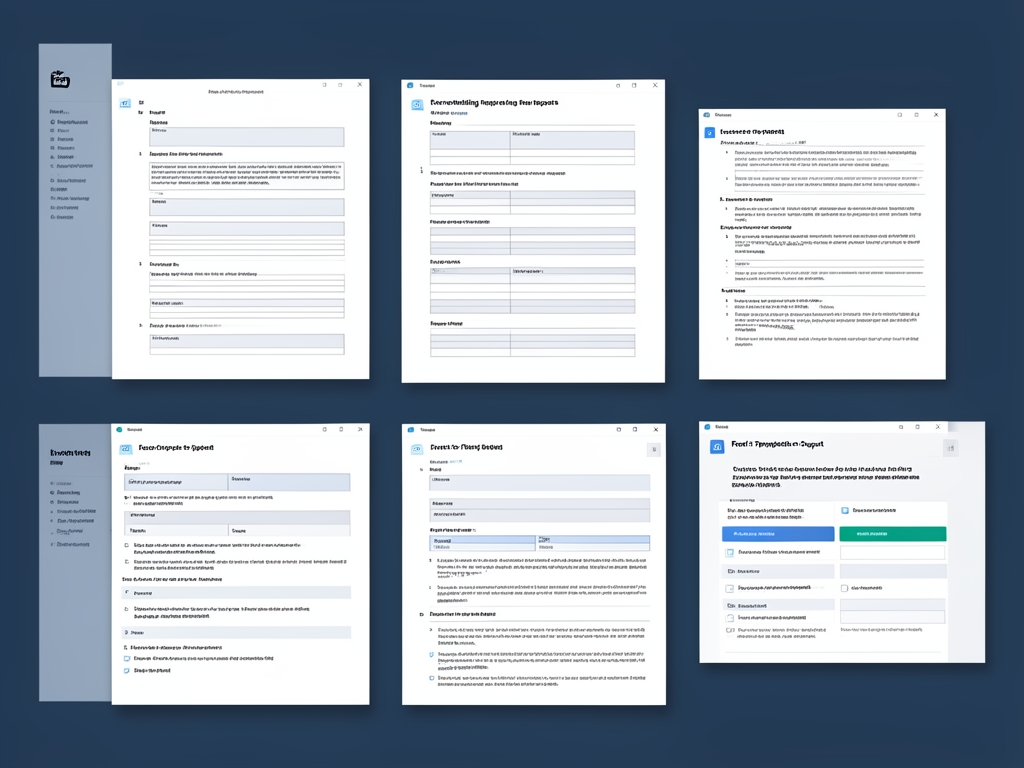
AI-generated illustration for article.
A grounded VBA example
The following VBA macro demonstrates a complete, repeatable solution that reads Excel rows, populates a Word template, inserts optional images, and saves both DOCX and PDF versions.
It opens the template once per row, writes each column value into a matching bookmark, adds a logo if the file exists, ensures output folders are present, and exports the finished document to both Word and PDF formats.
Sub GenerateReports()
    Dim ws As Worksheet
    Dim tmplPath As String
    Dim imgFolder As String
    Dim outDocPath As String
    Dim outPdfPath As String
    Dim rowIdx As Long
    Dim wb As Workbook
    Dim wdApp As Object
    Dim wdDoc As Object
    Dim bm As Object
    Dim fso As Object

    Set wb = ThisWorkbook
    Set ws = wb.Sheets("Data")
    tmplPath = wb.Path & "\Template.docx"
    imgFolder = wb.Path & "\Images"

    On Error Resume Next
    Set wdApp = GetObject(, "Word.Application")
    If wdApp Is Nothing Then
        Set wdApp = CreateObject("Word.Application")
    End If
    wdApp.Visible = False
    On Error GoTo 0

    For rowIdx = 2 To ws.Cells(ws.Rows.Count, "A").End(xlUp).Row
        If ws.Cells(rowIdx, "A").Value = "" Then Exit For

        Set wdDoc = wdApp.Documents.Open(tmplPath, ReadOnly:=False)

        ' Populate bookmarks with matching column headers
        For Each bm In wdDoc.Bookmarks
            On Error Resume Next
            bm.Range.Text = ws.Cells(rowIdx, bm.Name).Value
            On Error GoTo 0
        Next bm

        ' Insert logo if the file exists
        Dim logoPath As String
        logoPath = imgFolder & "\logo.png"
        If Dir(logoPath) <> "" Then
            wdDoc.Bookmarks("photo_logo").Range.InlineShapes.AddPicture _
                FileName:=logoPath, LinkToFile:=False, SaveWithDocument:=True
        End If

        outDocPath = wb.Path & "\Output\DOCX\" & ws.Cells(rowIdx, "A").Value & ".docx"
        outPdfPath = wb.Path & "\Output\PDF\" & ws.Cells(rowIdx, "A").Value & ".pdf"

        ' Ensure output folders exist
        Set fso = CreateObject("Scripting.FileSystemObject")
        If Not fso.FolderExists(wb.Path & "\Output\DOCX") Then fso.CreateFolder wb.Path & "\Output\DOCX"
        If Not fso.FolderExists(wb.Path & "\Output\PDF") Then fso.CreateFolder wb.Path & "\Output\PDF"

        wdDoc.SaveAs2 Filename:=outDocPath, FileFormat:=16 ' wdFormatXMLDocument
        wdDoc.ExportAsFixedFormat OutputFileName:=outPdfPath, ExportFormat:=17 ' wdExportFormatPDF
        wdDoc.Close SaveChanges:=False
    Next rowIdx

    wdApp.Quit
    MsgBox "Report generation complete.", vbInformation
End Sub
Adjust the bookmark names, column references, and image folder path to match your own template and data layout.
Where VBA starts to strain
VBA works well for most small‑to‑medium‑size batch jobs, but there are practical limits you should be aware of.
Scalability
When you need to generate thousands of documents in a single run, VBA can become slow because it opens and closes Word for each row. Grouping rows into batches or using a background Word instance can mitigate the slowdown.
Error handling
VBA does not automatically recover from missing data or broken image paths. Adding explicit checks (Dir, On Error) is essential; otherwise the macro will stop mid‑run, leaving you with a partial set of reports.
Maintenance overhead
As the template evolves—new sections, renamed bookmarks, or additional images—the VBA code must be kept in sync. Without a clear mapping strategy, mismatches cause silent failures, so regular review of both template and macro is advisable.
A calmer way to standardize the workflow
If you frequently generate large batches or need tighter control over image handling, DocxForge Pro offers a purpose‑built, local solution that removes many of VBA’s pain points.
If your workflow depends on Word templates DocxForge Pro can serve as the local bridge between structured spreadsheet data reusable templates and final DOCX/PDF output.
Start Free 7-Day TrialBatch‑aware processing
DocxForge runs the entire job in one engine pass, handling thousands of rows without opening Word repeatedly, which boosts speed and reduces memory pressure.
Robust image management
The tool stages and optimizes images automatically, resolves special tags like photo_logo, and guarantees correct DPI handling without custom code.
Frequently asked questions
Common questions about template‑based report generation
Can one Excel row generate one document automatically?
Yes. Design your sheet so each row contains all the values a single report needs. The VBA macro reads the row, maps each column to a bookmark, and saves a separate DOCX/PDF file for that row.
What do I need before I run this workflow?
You need Microsoft Excel and Word installed on the same Windows PC, a Word template with appropriately named bookmarks, a folder that holds any images you want to insert, and the VBA macro saved in the Excel workbook that contains the source data.
Can the same process also create PDF output?
Absolutely. The macro calls Word’s ExportAsFixedFormat method after saving the DOCX, producing a PDF in the parallel Output\PDF folder. Both files stay on your local machine; no cloud service is involved.
How do images or special tags fit into the workflow?
Place a bookmark named photo_logo, photo_signature, or photo_stamp in the template where the image should appear. Store the matching image file (e.g., logo.png) in the designated Images folder. The macro checks for the file with Dir; if it exists, it inserts the picture via InlineShapes.AddPicture.
Topics and Tags
Browse related topic clusters and workflow tags connected to this article.
Continue Reading
Explore more articles related to this workflow, problem, or document automation topic.
Local Folder Photos vs Embedded Spreadsheet Images for Document Workflows
Compare local folder photos with embedded spreadsheet images
Read articleOne Big Master Template vs Multiple Focused Templates: Which Is Easier to Maintain?
A pragmatic comparison of a single master Word template versus a collection of focused templates, with a concrete VBA helper for maintaining a scalable document generation workflow.
Read articleMail Merge with Images vs Template-Based Generation with Photo Folders
Compare mail merge with images against template-based generation using photo folders
Read articleHow to Add Logo, Signature, and Stamp Tags to Word Templates
Guide to inserting logo, signature, and stamp images into Word templates using image tags and a repeatable VBA‑driven workflow.
Read article