
Google Sheets PDF Scripts vs Word-Based Report Generation
Teams often start with Google Sheets scripts because they run in the cloud and need no local software. Yet, when reports require precise layout, branding images, or batch PDF creation, a Word‑centric approach can be more reliable. This article walks through the trade‑offs, shows how each method works, and provides concrete VBA and Apps Script snippets to help you pick the right tool for your organization.
Local control, cloud convenience
Choose the workflow that matches your data and branding needs
Quick answer
Google Sheets scripts let you turn a sheet into a PDF with a few lines of Apps Script, which is convenient for small teams that already work in Google Workspace. However, the script runs in the cloud, has limited control over image resolution and complex layouts, and cannot reuse existing Word templates. A VBA‑driven Word workflow runs locally on a Windows PC, can pull data from Excel, insert high‑resolution logo, signature, or stamp images, and export a faithful PDF using Word's native engine. If you need batch processing, precise branding, or offline generation, the Word‑based method usually provides more predictability and quality.
Use Google Sheets for quick, low‑volume PDFs; switch to Word with VBA when you need advanced layout, image handling, or reliable batch output.
Why this matters
Choosing the right tool impacts both the time spent building reports and the consistency of the final documents. A cloud‑only script may look simple, but hidden limits around image DPI, page breaks, and PDF fidelity can cause re‑work. Conversely, a local Word automation leverages the full power of Microsoft Word’s layout engine, giving you tighter control over fonts, tables, and embedded graphics while keeping all files on the user’s machine.
Brand consistency
Word templates let you lock down styles, headings, and image placeholders (photo_logo, photo_signature, photo_stamp). This reduces the chance that a later sheet change will break the look of the report.
Scalable batch runs
A VBA macro can loop through thousands of Excel rows, generate a Word file, insert the matching images, and export a PDF—all without manual intervention. The same level of batch control is harder to achieve reliably with Google Apps Script alone.
What goes wrong
When teams rely solely on Google Sheets PDF scripts, they often encounter layout drift, missing images, and unpredictable pagination. The cloud exporter treats the sheet as a flat canvas, so merged cells, conditional formatting, or high‑resolution logos can be flattened or omitted. Switching to a Word‑based VBA flow eliminates many of these surprises, but it introduces its own challenges such as ensuring the correct Word version is installed and that image paths resolve on each user’s PC.
Google Sheets‑only approach
A simple script calls SpreadsheetApp.getActiveSpreadsheet().exportAsPDF(). The PDF looks acceptable for text‑only tables, but logo images appear low‑resolution, page breaks shift when data rows grow, and any custom font used in the sheet is replaced by a default web font. Debugging these issues often requires tweaking the sheet layout rather than the script.
Word + VBA approach
A VBA macro reads the same data from Excel, opens a pre‑styled Word template, replaces bookmarks, inserts images with the correct DPI, and calls ExportAsFixedFormat. The resulting PDF matches the brand‑approved layout, retains vector text, and places images exactly where the template expects them. The main overhead is setting up the macro and ensuring the required folders exist.
What the workflow looks like
Both approaches share a common data‑first mindset: a structured table (Google Sheet or Excel) drives the content of each report. The steps diverge once the data leaves the spreadsheet.
Prepare a clean data source
Each row should contain all fields needed for the report – title, dates, amounts, and image filenames. Use consistent column names so the script or macro can reference them reliably.
Create a template
For Google Sheets, design the sheet layout you want to export. For Word, build a DOCX with bookmarks like <
Write the automation
In Apps Script, loop through rows, populate a temporary sheet or range, and call SpreadsheetApp.getActiveSpreadsheet().exportAsPDF(). In VBA, loop through Excel rows, open the Word template, replace bookmarks, insert images from a known folder, then use ExportAsFixedFormat to create the PDF.
Organize output files
Save PDFs (and optionally the intermediate DOCX files) into dedicated folders – e.g., \Output\PDF and \Output\WORD – so the process can run repeatedly without overwriting previous runs.
Validate and iterate
After a test run, open a few PDFs to check image quality, pagination, and field substitution. Adjust the template or script logic, then re‑run the batch until the output meets the brand standards.
A visual example
Simple visual illustration.
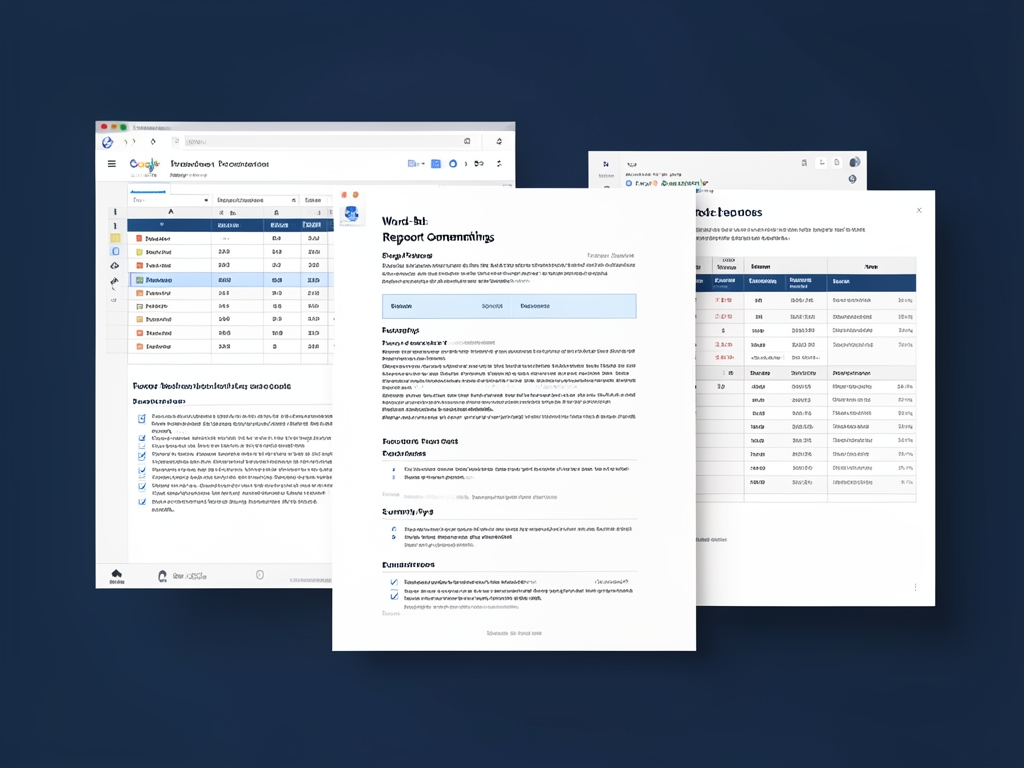
AI-generated illustration for article.
A grounded VBA example
The following VBA macro demonstrates a practical, end‑to‑end Word‑based report generator. It reads each row from the active Excel sheet, opens a Word template, replaces merge fields, inserts high‑resolution images, and exports a PDF.
Run this macro from Excel after customizing the paths and placeholder names to match your template.
Sub GenerateReports()
    Dim wb As Workbook
    Dim ws As Worksheet
    Dim wdApp As Object ' Word.Application
    Dim wdDoc As Object ' Word.Document
    Dim lastRow As Long
    Dim i As Long
    Dim tmplPath As String
    Dim outFolder As String
    Dim imgFolder As String
    Dim pdfPath As String

    Set wb = ThisWorkbook
    Set ws = wb.Sheets("Data")
    lastRow = ws.Cells(ws.Rows.Count, "A").End(xlUp).Row

    tmplPath = "C:\Templates\ReportTemplate.docx"
    outFolder = "C:\Reports\PDF"
    imgFolder = "C:\Reports\Images"

    ' Ensure output folder exists
    If Dir(outFolder, vbDirectory) = "" Then MkDir outFolder

    Set wdApp = CreateObject("Word.Application")
    wdApp.Visible = False

    For i = 2 To lastRow ' Assuming header row
        Set wdDoc = wdApp.Documents.Open(tmplPath, ReadOnly:=False)
        ' Replace text placeholders
        wdDoc.Bookmarks("ClientName").Range.Text = ws.Cells(i, "B").Value
        wdDoc.Bookmarks("ReportDate").Range.Text = ws.Cells(i, "C").Value
        ' Insert images if files exist
        Dim logoPath As String
        logoPath = imgFolder & "\" & ws.Cells(i, "D").Value
        If Dir(logoPath) <> "" Then
            wdDoc.Bookmarks("photo_logo").Range.InlineShapes.AddPicture FileName:=logoPath, LinkToFile:=False, SaveWithDocument:=True
        End If
        Dim sigPath As String
        sigPath = imgFolder & "\" & ws.Cells(i, "E").Value
        If Dir(sigPath) <> "" Then
            wdDoc.Bookmarks("photo_signature").Range.InlineShapes.AddPicture FileName:=sigPath, LinkToFile:=False, SaveWithDocument:=True
        End If
        ' Export to PDF
        pdfPath = outFolder & "\" & ws.Cells(i, "B").Value & "_Report.pdf"
        wdDoc.ExportAsFixedFormat OutputFileName:=pdfPath, ExportFormat:=17 ' wdExportFormatPDF
        wdDoc.Close SaveChanges:=False
    Next i

    wdApp.Quit
    Set wdDoc = Nothing
    Set wdApp = Nothing
    MsgBox "Report generation complete.", vbInformation
End Sub
Make sure the image folder exists and that the Word template contains the expected bookmarks before executing.
A small Google-side helper
A lightweight Apps Script helper can prepare a CSV of the data and trigger the Google Sheets PDF export for each record. This script focuses on the Google‑side preparation; it does not attempt to replicate Word‑level layout.
Deploy this script as a bound project in the spreadsheet and run the generatePDFs function.
function generatePDFs() {
  var ss = SpreadsheetApp.getActiveSpreadsheet();
  var sheet = ss.getSheetByName('Data');
  var data = sheet.getDataRange().getValues();
  var outputFolder = DriveApp.getFolderById('YOUR_OUTPUT_FOLDER_ID'); // Replace with your folder ID

  for (var i = 1; i < data.length; i++) { // Skip header row
    var row = data[i];
    var tempSheet = ss.insertSheet('Temp_' + i);
    // Copy header and current row to temp sheet for clean PDF layout
    tempSheet.getRange('A1').setValue('Client');
    tempSheet.getRange('B1').setValue('Date');
    tempSheet.getRange('C1').setValue('Amount');
    tempSheet.getRange('A2').setValue(row[1]); // Client name column B
    tempSheet.getRange('B2').setValue(row[2]); // Date column C
    tempSheet.getRange('C2').setValue(row[3]); // Amount column D

    // Export as PDF
    var pdfBlob = tempSheet.getAs('application/pdf').setName(row[1] + '_Report.pdf');
    outputFolder.createFile(pdfBlob);
    // Clean up temporary sheet
    ss.deleteSheet(tempSheet);
  }
  SpreadsheetApp.flush();
  Logger.log('PDF generation complete.');
}
The script creates a temporary sheet for each row, exports it as PDF, and stores the PDFs in a dedicated Drive folder.
Where VBA starts to strain
While VBA grants fine‑grained control over Word document creation, it also brings a set of operational constraints that become noticeable once the process scales or the team diversifies across platforms.
Dependency on Word Desktop
The macro requires Microsoft Word installed on the same Windows machine as Excel. Users on macOS, Linux, or headless servers cannot run the process, which limits cross‑platform adoption. Additionally, differing Word versions can cause subtle layout differences if the template uses newer features that older installations do not support.
Performance and scalability
Each iteration launches a new Word instance, loads the template, and inserts images. On large data sets this can become a bottleneck, consuming significant memory and CPU, especially when high‑resolution graphics are involved. Batch runs of thousands of rows often need throttling or a reusable Word application object to avoid repeated startup overhead.
Security and macro trust
Running VBA macros requires users to enable macro execution, which many corporate policies block by default. The macro also accesses the file system to read images and write PDFs, triggering security prompts or requiring elevated permissions. Proper code signing and documentation are essential to gain IT approval.
Path and environment fragility
The sample code hard‑codes absolute paths for templates, output folders, and image locations. In real deployments these paths vary by user, network share, or operating system. Adding logic to resolve relative paths, use environment variables, or fall back to user‑selected folders makes the solution robust and reduces failure rates.
A calmer way to standardize the workflow
DocxForge Pro bridges the gap by providing a local, batch‑ready engine that combines the best of both worlds: Excel‑driven data, Word‑style templates, and instant PDF output without manual macro maintenance.
If PDF output is part of the workflow DocxForge Pro can generate the Word file first and handle PDF export inside the same local desktop process. Even when intake starts in Google Sheets the final document generation can still stay local in Excel Word and PDF.
This is useful when you need repeatable PDF output without moving files into a cloud workflow. This matters when the intake side is spreadsheet-based in Google but final controlled document output still needs Word and PDF. In a hybrid workflow the code examples can cover intake or preparation while DocxForge Pro remains the local document-generation layer for final Word/PDF output.
Start Free 7-Day TrialZero‑cloud processing
All files stay on the user’s PC, satisfying security policies that forbid cloud uploads of working documents.
Built‑in image handling
Special tags like photo_logo, photo_signature, and photo_stamp are automatically resolved, staged, and optimized at 300 DPI for crisp PDFs.
Frequently asked questions
Common questions about choosing and maintaining a PDF reporting workflow
When is VBA enough, and when does it become hard to maintain?
VBA works well when the team shares a standard Windows workstation, the template does not change often, and the number of rows is moderate (hundreds). Maintenance becomes difficult as templates evolve, new image tags are added, or the workflow must run on macOS or cloud‑only environments, at which point a dedicated tool or a cloud script may be preferable.
What changes when the workflow also needs PDF output or images?
Google Sheets scripts export the sheet as a flat PDF, which can flatten images and lose DPI. VBA can insert high‑resolution images into a Word template before calling ExportAsFixedFormat, preserving quality and allowing precise placement. Adding images therefore favors the Word‑based approach.
Which option is easier to repeat and hand off?
A Google Apps Script lives in the spreadsheet and can be run by anyone with edit access, making it easy to hand off within a Google‑centric team. VBA requires the macro to be stored in the Excel workbook, and the user must have Word installed and trust the macro settings, which adds a small onboarding step.
What is the main trade‑off between the compared approaches?
Google Sheets offers quick, cloud‑based PDF generation with minimal setup but limited layout control. Word + VBA provides precise branding, high‑resolution images, and batch processing at the cost of a Windows‑only dependency and the need to maintain macro code.
Topics and Tags
Browse related topic clusters and workflow tags connected to this article.
Continue Reading
Explore more articles related to this workflow, problem, or document automation topic.
How to Create Google Sheets PDF Reports with Apps Script
Create PDF reports from Google Sheets with Apps Script
Read articleWord Templates vs HTML-to-PDF Pipelines for Business Documents
Compare Word templates with HTML-to-PDF pipelines
Read articlePDF Export in Word vs Browser-Based PDF Tools: Which Gives Better Control?
A practical comparison of Word’s built‑in PDF export versus browser‑based PDF tools, focusing on control, consistency, and maintainable workflows for teams that need repeatable document generation.
Read articleHow to Batch Convert Excel Data into Editable DOCX and Final PDF
Convert Excel-driven content into both DOCX and PDF in batches
Read article