
Excel → Word → PDF Workflow for Laboratory Reports
Laboratory teams often start with raw test data in Excel, then need to produce polished Word reports that include charts and signature images before delivering a final PDF to regulators. A repeatable, local workflow eliminates manual copy‑paste, reduces transcription errors, and keeps all source files on the analyst’s workstation.
Automated
DOCX + PDF from a single sheet
Quick answer
The most reliable way to turn rows of lab results into finished reports is to drive Word from Excel with VBA: read each record, open a standard Word template, replace merge fields, insert any required photos, save the document as DOCX and then export a PDF. The macro handles folder creation, path validation, and batch processing so you can run the whole set with a single click.
1. Store all test results in a structured sheet – one row per sample. 2. Create a Word template with placeholders like {SampleID}, {Result}, and {Photo}. 3. Run the VBA macro. It walks through each row, fills the placeholders, adds the image file if present, saves a .docx copy, and generates a PDF. The output folders are created automatically, so the process is repeatable without manual renaming.
Why this matters
Laboratory reporting sits at the intersection of scientific rigor and regulatory compliance. A single transcription error can invalidate an entire batch, delay product release, and expose the organization to audit findings. By automating the hand‑off from the data‑rich Excel workbook to a formatted Word document and finally a locked‑down PDF, teams eliminate manual copy‑paste, enforce a single source of truth, and embed required signatures directly into the final file. The result is a reproducible, auditable record that can be archived with confidence and retrieved quickly during inspections. In addition, the time saved on repetitive formatting allows analysts to concentrate on data interpretation and method development.
Consistency and compliance
A single source of truth – the spreadsheet – feeds every document, so values cannot drift between the data log and the final report. Placeholders guarantee that required fields such as sample ID, test date, and analyst signature appear in the exact same location on each page, meeting internal SOPs and external audit expectations. This uniformity also simplifies downstream data aggregation for quality metrics.
Traceability and audit trail
Because each PDF is generated from a deterministic macro run, the filename and embedded metadata can include the SampleID, generation timestamp, and macro version. Auditors can therefore trace any result back to the original Excel row and verify that no manual alterations occurred after the PDF was created.
What goes wrong
When teams cobble together the workflow manually, several pain points appear:
Manual copy‑paste approach
Analysts open the Excel file, copy cells, paste into a Word document, adjust fonts, insert images, and then use Save As > PDF. Each step depends on human attention, leading to missed fields, mismatched images, and inconsistent naming conventions. Scaling to dozens of samples becomes time‑consuming and error‑prone.
Macro‑driven batch process
A VBA script reads each row, fills a predefined template, inserts images only when the file exists, and exports both DOCX and PDF automatically. Folder structures are created on the fly, filenames are derived from stable identifiers, and the whole batch runs unattended, drastically cutting manual effort.
The automated path eliminates the fragile hand‑off steps, ensures every report contains the same compliant layout, and provides a clear audit trail of which data produced which document.
What the workflow looks like
Below is a step‑by‑step outline of the recommended Excel → Word → PDF pipeline for laboratory reporting:
Prepare the Excel source sheet
Create a worksheet named “Data” where each row represents one sample. Required columns include SampleID, TestDate, Result, Analyst, and an optional ImageFile column that holds the filename of a photo (e.g., a signed stamp). Keep the header row on row 1.
Design the Word template
In Word, place clearly marked merge fields such as {SampleID}, {TestDate}, {Result}, and {Analyst}. Add a placeholder tag {Photo} where a lab‑signature image should appear. Save the file as LabReportTemplate.docx in the same folder as the Excel workbook.
Collect images in a dedicated folder
Create an ‘Images’ folder next to the workbook. Store all signature or logo files there, using the exact filenames referenced in the ImageFile column. The macro will check for each file before attempting insertion.
Run the VBA macro from Excel
Press the macro button or run GenerateLabReports. The code opens the Word template for each row, substitutes placeholders, inserts the picture if present, saves a personalized .docx, and then calls ExportAsFixedFormat to produce a PDF.
Review the output folders
Two folders – Output\Word and Output\PDF – are created automatically. Verify that each SampleID has a matching DOCX and PDF. Because filenames are derived from the stable SampleID column, sorting and archiving become trivial.
Archive or distribute the PDFs
The PDFs can now be attached to electronic lab notebooks, sent to regulators, or stored in a validated records system. Since the process runs locally, no source data leaves the secure workstation.
A visual example
Simple visual illustration.
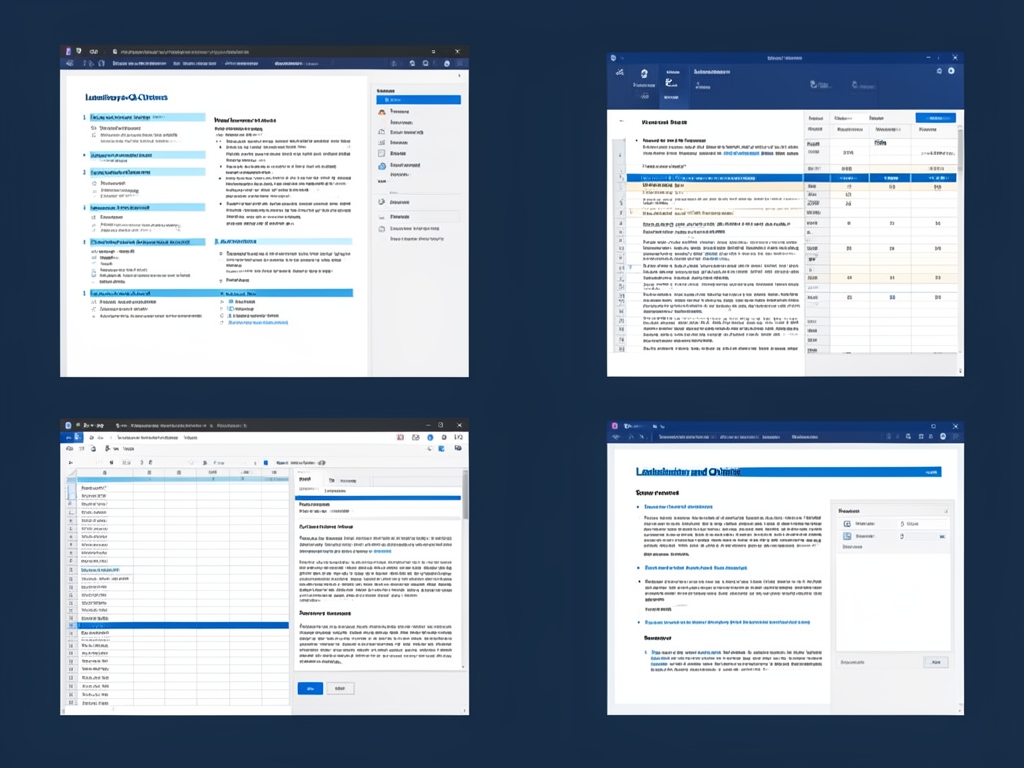
AI-generated illustration for article.
A grounded VBA example
The macro below implements the workflow described above. It works from Excel, uses late binding to control Word, validates image paths, creates output folders, and exports both DOCX and PDF files.
1. Open the Word template once per record. 2. Loop through a predefined placeholder array to replace text fields. 3. Check whether an image file exists; if so, insert it at the {Photo} tag. 4. Save the populated document with a filename based on SampleID. 5. Export a PDF version to a sibling folder. 6. Close the document and repeat for the next row.
Sub GenerateLabReports()
    Dim wb As Workbook, ws As Worksheet
    Dim lastRow As Long, i As Long
    Dim wordApp As Object, doc As Object
    Dim templatePath As String, outputWordFolder As String, outputPdfFolder As String, imgFolder As String
    Dim placeholder As Variant, fieldValue As String
    Dim picPath As String

    Set wb = ThisWorkbook
    Set ws = wb.Sheets("Data")
    lastRow = ws.Cells(ws.Rows.Count, "A").End(xlUp).Row

    templatePath = wb.Path & "\LabReportTemplate.docx"
    outputWordFolder = wb.Path & "\Output\Word\"
    outputPdfFolder = wb.Path & "\Output\PDF\"
    imgFolder = wb.Path & "\Images\"

    If Dir(outputWordFolder, vbDirectory) = "" Then MkDir outputWordFolder
    If Dir(outputPdfFolder, vbDirectory) = "" Then MkDir outputPdfFolder
    If Dir(imgFolder, vbDirectory) = "" Then MkDir imgFolder

    Set wordApp = CreateObject("Word.Application")
    wordApp.Visible = False

    For i = 2 To lastRow
        Set doc = wordApp.Documents.Open(templatePath, ReadOnly:=False)
        '--- Replace text placeholders ---
        For Each placeholder In Array("{SampleID}", "{TestDate}", "{Result}", "{Analyst}")
            fieldValue = ws.Cells(i, Application.Match(placeholder, Array("{SampleID}", "{TestDate}", "{Result}", "{Analyst}"), 0)).Value
            doc.Content.Find.Execute FindText:=placeholder, ReplaceWith:=fieldValue, Replace:=2
        Next placeholder
        '--- Insert photo if file exists ---
        picPath = imgFolder & ws.Cells(i, "E").Value   'Column E holds image filename
        If Dir(picPath) <> "" Then
            doc.Content.Find.Execute FindText:="{Photo}", ReplaceWith:="", Replace:=2
            doc.InlineShapes.AddPicture FileName:=picPath, LinkToFile:=False, SaveWithDocument:=True, Range:=doc.Content
        End If
        '--- Save Word file ---
        Dim wordFile As String
        wordFile = outputWordFolder & ws.Cells(i, "A").Value & ".docx"
        doc.SaveAs2 FileName:=wordFile, FileFormat:=16   'wdFormatXMLDocument
        '--- Export PDF ---
        doc.ExportAsFixedFormat OutputFileName:=outputPdfFolder & ws.Cells(i, "A").Value & ".pdf", ExportFormat:=17   'wdExportFormatPDF
        doc.Close SaveChanges:=False
    Next i

    wordApp.Quit
    Set wordApp = Nothing
    MsgBox "Lab reports generated: " & (lastRow - 1) & " documents.", vbInformation
End Sub
After the run completes, a message box reports how many reports were generated. Adjust the column references or placeholder list if your template differs.
Where VBA starts to strain
VBA is a powerful glue for Office, but it was not designed for massive, enterprise‑scale document factories. When lab teams push the macro into high‑volume territory, several practical constraints emerge that can affect reliability and maintainability.
Scalability and memory management
Very large batches (thousands of rows) can exhaust Word’s memory if documents are left open or not properly released. The macro mitigates this by closing each document after export, but you may still need to split extremely large jobs into smaller chunks. Adding explicit release of COM objects (Set doc = Nothing) after each iteration further reduces the risk of memory leaks.
Error handling and logging
A single bad row—missing image, malformed date, or corrupted cell—can halt the entire run. Wrapping the per‑row processing in a structured error handler (On Error GoTo RowError) allows the macro to log the offending SampleID to a text file, skip the record, and continue processing. This approach preserves batch throughput while giving you a clear audit of any data issues that need manual review.
A calmer way to standardize the workflow
If you need richer image processing, version control for templates, or a UI that lets non‑technical staff configure batch sizes, DocxForge Pro provides a purpose‑built solution that builds on the same local‑only principles.
For repeatable business documents such as reports contracts certificates letters and packs DocxForge Pro can act as the local layer between spreadsheet data Word templates and final output. It can produce Word output PDF output or both depending on how the workflow is configured.
This fits teams that produce repeatable reports contracts certificates forms letters or document packs from structured data. This is helpful when teams need editable DOCX files and final PDFs from the same template workflow. The article’s VBA example shows the spreadsheet-side automation while DocxForge Pro fits as the document-generation layer outside the code example itself.
Start Free 7-Day TrialBatch‑size selector and image cache
Choose how many records are processed per run and let the engine stage images ahead of time, guaranteeing consistent DPI handling without extra VBA code.
Separate WORD and PDF output folders
The tool automatically creates and populates dedicated folders, keeping source files on‑premises and making downstream archiving straightforward.
Frequently asked questions
Common questions about the Excel → Word → PDF lab‑report pipeline:
Is this workflow suitable for Excel → Word → PDF Workflow for Laboratory Reports?
Yes. The macro is designed for lab environments where each spreadsheet row describes a single sample. It respects the need for exact data fidelity, inserts signatures or logos, and produces both a fully editable DOCX and a locked‑down PDF for distribution.
What source data has to stay consistent before generation starts?
The column headings must match the placeholder names used in the Word template (e.g., {SampleID}, {Result}). The ImageFile column should contain only the filename, not the full path, because the macro builds the path from the dedicated Images folder. Keeping these conventions unchanged ensures the macro can locate every value and image without manual edits.
How do I adapt the template without breaking the workflow?
Add or remove placeholders in the Word file, then update the placeholder array inside the VBA code to reflect the new set. As long as each placeholder has a corresponding column in the Excel sheet and the macro’s Find‑Replace loop is updated, the rest of the process remains unchanged.
Topics and Tags
Browse related topic clusters and workflow tags connected to this article.
Continue Reading
Explore more articles related to this workflow, problem, or document automation topic.
How to Automate Lab Test Reports with Excel, Word, and PDF
Automate lab test reports with Excel, Word, and PDF
Read articleHow to Automate Home Inspection Reports with Excel, Word, and PDF
Learn how to streamline home inspection report creation by linking Excel data, Word templates, and PDF output with a practical VBA‑driven workflow.
Read articleExcel → Word → PDF Workflow for Compliance Evidence Packs
Build a compliance evidence pack workflow using Excel, Word, and PDF
Read articleExcel → Word → PDF Workflow for Home Inspection Reports
A step‑by‑step guide for home‑inspection teams to turn Excel data into Word reports and PDF files, with a practical VBA macro and tips for scaling the process.
Read article