
Excel-to-Word vs Google Docs Templates: What Scales Better?
When a team needs to turn a spreadsheet of client data into polished contracts, proposals, or certificates, the choice of tool matters. Excel‑to‑Word macros run locally on a Windows PC, keep files off the cloud, and let you batch‑process images. Google Sheets paired with Docs templates offers a cloud‑based alternative that is easy to share but relies on internet connectivity. Understanding performance, scaling limits, and maintenance effort helps you pick the right path for a growing organization.
Current suite demo
Contractor + Factory • local Word/PDF output
Quick answer
If you need to generate hundreds of personalized documents from tabular data, an Excel‑to‑Word VBA macro gives you tight control, offline processing, and direct image handling. It works entirely on the user’s machine, avoids any cloud‑side storage, and can output both DOCX and PDF files in one pass. Google Docs templates are convenient for collaboration, but they depend on Google’s servers, can hit rate limits, and require separate steps to export PDFs. For pure scaling on a Windows desktop, VBA generally outperforms the Google approach.
Excel‑to‑Word VBA is a local, batch‑oriented solution; Google Docs templates are a cloud‑based, collaborative alternative with different scaling characteristics.
Why this matters
Choosing the right automation platform affects cost, data security, and how quickly a team can iterate on its documents. A VBA‑driven workflow keeps all source files on the corporate PC, which satisfies strict confidentiality policies and removes reliance on internet bandwidth. Google’s side‑by‑side model shines when multiple stakeholders must edit the template simultaneously, but it introduces latency and potential export bottlenecks. Understanding these trade‑offs lets decision‑makers align the toolset with their governance, performance, and collaboration needs.
Compliance and control
Because the VBA solution runs locally, no document ever leaves the user’s device, meeting strict data‑residency requirements. The Google approach stores intermediate files on Google Drive, which may be acceptable for some teams but adds a layer of policy review and shared‑access management.
What goes wrong
Both approaches start strong but show cracks as the volume of rows or the complexity of images grows. VBA scripts can stumble when folder permissions change, when image filenames don’t match tags, or when Word’s stability limits batch size. Google Docs templates, while easy to share, often hit script execution quotas, encounter slow document rendering, and lack native high‑resolution image handling, leading to blurry logos or mis‑aligned signatures.
VBA strain points
Large batches may cause Word to hang or run out of memory. Image paths that change break the insert routine, requiring manual fixes. Errors are silent unless explicitly trapped, so runs can produce incomplete PDFs.
Google Docs limits
Apps Script quotas restrict the number of document copies per day. High‑resolution PNGs are down‑sampled, and the API cannot set DPI, which leads to lower‑quality PDFs. Collaboration edits can overwrite placeholders during a run.
Both methods need careful planning: VBA for controlled, high‑volume batches; Google Docs for collaborative, lower‑scale scenarios.
What the workflow looks like
A robust document‑generation pipeline follows a predictable sequence, no matter whether you use VBA or Google Apps Script. First, the source data is normalized; next, a template is opened; placeholders are replaced; optional images are injected; finally, the result is saved as DOCX and/or PDF and moved to a dedicated output folder.
Prepare the source spreadsheet
Create a table where each row represents one output document. Include columns for the client name, a unique identifier for the filename, and any special tags such as photo_logo or photo_signature that will map to image files.
Set up the Word (or Docs) template
Insert clearly marked placeholders like <
Run the automation script
The VBA macro (or GAS function) loops over each data row, opens the template, replaces text placeholders, searches for image tags, inserts the matching PNG/JPEG from the images folder, and then saves the document. VBA also calls ExportAsFixedFormat to create a PDF version in a parallel folder.
Validate and archive the results
After the run, verify that the expected number of DOCX and PDF files exist, that images appear at the correct resolution, and that any failed rows are logged. Move the output folders to a shared drive or archive location for downstream distribution.
A visual example
Simple visual illustration.
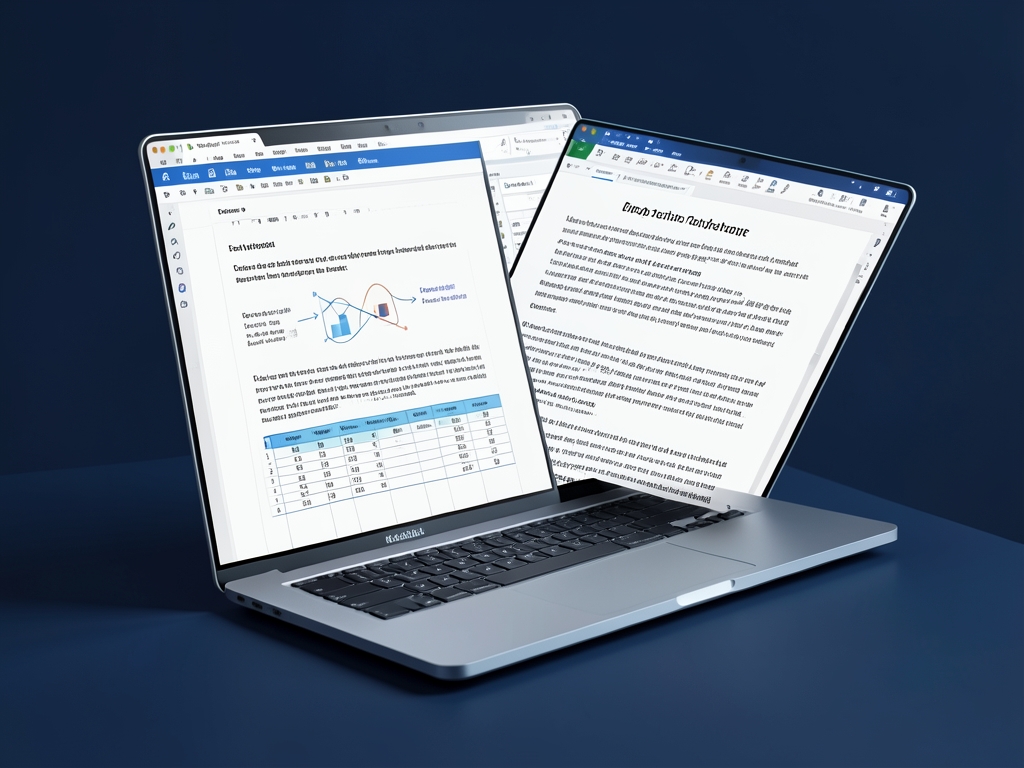
AI-generated illustration for article.
A grounded VBA example
The VBA macro below demonstrates a complete end‑to‑end flow: read rows from an Excel sheet, open a Word template, replace text, insert a logo image when the tag photo_logo is present, save a DOCX, and export a matching PDF.
Run this macro from the Excel workbook that contains the source data. Adjust the folder paths and column indices to match your environment.
Sub GenerateDocs()
    Dim xl As Workbook, ws As Worksheet
    Dim wdApp As Object, wdDoc As Object
    Dim row As Long, lastRow As Long
    Dim outPath As String, pdfPath As String, imgFolder As String
    Set xl = ThisWorkbook
    Set ws = xl.Sheets("Data")
    Set wdApp = CreateObject("Word.Application")
    wdApp.Visible = False
    outPath = xl.Path & "\Output\Word\"
    pdfPath = xl.Path & "\Output\PDF\"
    imgFolder = xl.Path & "\Images\"
    If Dir(outPath, vbDirectory) = "" Then MkDir outPath
    If Dir(pdfPath, vbDirectory) = "" Then MkDir pdfPath
    lastRow = ws.Cells(ws.Rows.Count, "A").End(xlUp).Row
    For row = 2 To lastRow
        Dim tmplPath As String
        tmplPath = xl.Path & "\Template\DocTemplate.docx"
        Set wdDoc = wdApp.Documents.Open(tmplPath, ReadOnly:=False)
        ' Replace text placeholders
        Call ReplaceText(wdDoc, "<<ClientName>>", ws.Cells(row, "B").Value)
        Call ReplaceText(wdDoc, "<<ProjectID>>", ws.Cells(row, "C").Value)
        ' Insert logo if tag exists
        If InStr(wdDoc.Content.Text, "photo_logo") > 0 Then
            Dim logoPath As String
            logoPath = imgFolder & "logo.png"
            If Dir(logoPath) <> "" Then
                Call InsertImageAtTag(wdDoc, "photo_logo", logoPath, 150)
            End If
        End If
        Dim outFile As String
        outFile = outPath & ws.Cells(row, "D").Value & ".docx"
        wdDoc.SaveAs2 outFile
        ' Export PDF version
        Dim pdfFile As String
        pdfFile = pdfPath & ws.Cells(row, "D").Value & ".pdf"
        wdDoc.ExportAsFixedFormat OutputFileName:=pdfFile, ExportFormat:=17
        wdDoc.Close False
    Next row
    wdApp.Quit
    MsgBox "Generated " & (lastRow - 1) & " documents."
End Sub

Function ReplaceText(doc As Object, findText As String, replaceText As String)
    With doc.Content.Find
        .Text = findText
        .Replacement.Text = replaceText
        .Wrap = 1
        .Execute Replace:=2
    End With
End Function

Sub InsertImageAtTag(doc As Object, tag As String, imgPath As String, dpi As Long)
    Dim rng As Object
    Set rng = doc.Content
    With rng.Find
        .Text = tag
        .Replacement.Text = ""
        .Execute
        If .Found Then
            rng.Collapse 0
            doc.InlineShapes.AddPicture FileName:=imgPath, LinkToFile:=False, SaveWithDocument:=True, Range:=rng
        End If
    End With
End Sub
The code includes simple error handling for missing images and creates the output folders if they do not already exist.
A small Google-side helper
For teams that prefer Google Sheets and Docs, the Apps Script below copies a Docs template for each row, swaps text placeholders, inserts a logo from a Drive folder, and stores the finished document in an output folder.
Add this script to the bound Apps Script project of the Google Sheet that holds your data. Replace the placeholder IDs with your actual file and folder IDs.
function generateDocs() {
  const ss = SpreadsheetApp.getActiveSpreadsheet();
  const dataSheet = ss.getSheetByName('Data');
  const templateId = 'YOUR_TEMPLATE_DOC_ID';
  const imgFolder = DriveApp.getFolderById('YOUR_IMAGE_FOLDER_ID');
  const outFolder = DriveApp.getFolderById('YOUR_OUTPUT_FOLDER_ID');
  const rows = dataSheet.getDataRange().getValues();
  for (let i = 1; i < rows.length; i++) {
    const row = rows[i];
    const clientName = row[1]; // assuming column B
    const fileName = row[2]; // assuming column C
    const copy = DriveApp.getFileById(templateId).makeCopy(fileName, outFolder);
    const doc = DocumentApp.openById(copy.getId());
    const body = doc.getBody();
    body.replaceText('{{ClientName}}', clientName);
    const logoTag = '{{photo_logo}}';
    if (body.getText().includes(logoTag)) {
      const logoIter = imgFolder.getFilesByName('logo.png');
      if (logoIter.hasNext()) {
        const logoBlob = logoIter.next().getBlob();
        body.replaceText(logoTag, '');
        body.insertImage(0, logoBlob);
      }
    }
    doc.saveAndClose();
  }
}
The script respects Apps Script quotas by processing rows sequentially and logs any missing image files for later review.
Where VBA starts to strain
While VBA offers powerful offline batch processing, real‑world usage hits concrete limits that you must plan for before scaling to hundreds or thousands of documents.
Batch‑size and memory pressure
Word tends to consume more RAM each time a document is opened and not fully released. Creating a few hundred files in a single run can cause the application to become sluggish or crash. A pragmatic approach is to process rows in chunks (e.g., 80‑120 records), close and quit the Word instance between chunks, and optionally call VBA's DoEvents or set the Word object to Nothing to force garbage collection. Monitoring Task Manager during a pilot run gives a concrete ceiling for your hardware.
Error handling and logging
In large batches a single missing image or a malformed cell can stop the whole macro. Adding On Error Resume Next around the image insertion, checking Dir() beforehand, and writing the row number to a log worksheet lets you recover incomplete runs without manual hunting. After each batch, write a summary of succeeded and failed records to a CSV so downstream teams know which files need re‑processing.
A calmer way to standardize the workflow
If you want a repeatable Windows workflow without maintaining VBA as the main production layer, DocxForge Pro gives you two live paths: Contractor for controlled case work from Excel and/or structured case data, and Factory for Excel batch production with local Word and optional PDF output.
DocxForge Pro is a local Windows document automation suite for Excel or structured case data, Word templates, text tags, photo tags, and Word or optional PDF output.
Use Contractor when you want controlled review and per-case generation, including case data loaded from Excel. Use Factory when you want faster Excel batch production, naming rules, photo handling, and larger output runs.
Start Free 7-Day TrialStandardized template handling
DocxForge Pro keeps the layout in your Word template while matching text tags, placing photo tags, and supporting special image tags such as {{photo_logo}}, {{photo_signature}}, and {{photo_stamp}} inside the same local workflow.
Frequently asked questions
Common questions about choosing and maintaining these automation approaches
When is VBA enough, and when does it become hard to maintain?
VBA is ideal for small to medium batches (up to a few thousand rows) where the team can manage a single Windows workstation and control the folder structure. Maintenance becomes harder when the script needs frequent updates for new placeholders, when multiple users require the same macro, or when corporate IT restricts macro execution. At that point a dedicated tool with a UI and versioned templates reduces the overhead.
What changes when the workflow also needs PDF output or images?
Adding PDF export in VBA means invoking Word’s ExportAsFixedFormat, which adds processing time and requires the Word desktop client. Image handling introduces path‑resolution logic and may need DPI adjustments for logos versus body pictures. In Google Docs, PDFs are generated via Drive’s export endpoint, but image resolution is capped by the Docs engine, so you may need to pre‑scale logos to the 300 DPI PNG format recommended by the product facts.
Which option is easier to repeat and hand off?
Google Sheets + Docs shines for collaborative environments because the template lives in the cloud, and anyone with edit rights can run the script without installing software. However, handing off a VBA macro requires copying the Excel file, ensuring the Word template path is correct, and configuring macro security settings on each machine. For a purely internal, Windows‑only team, VBA is still the quicker repeatable option once the initial setup is documented.
Topics and Tags
Browse related topic clusters and workflow tags connected to this article.
Continue Reading
Explore more articles related to this workflow, problem, or document automation topic.
Google Sheets → Google Docs → PDF Workflow for Internal Memos
Learn how to move data from Google Sheets into Google Docs, generate a PDF memo, and keep the process repeatable for internal communications.
Read articleHow to Build a Hybrid Workflow: Google Sheets Intake, Word/PDF Output
Learn how to combine a Google Sheets intake form with a local Windows‑based Word/PDF generation workflow using VBA and a lightweight Apps Script helper. The guide walks through the common pitfalls, step‑by‑step automation, and when to consider a more robust product solution.
Read articleHow to Use Google Sheets and Google Docs for Simple Document Generation
Use Google Sheets and Google Docs for simple document generation
Read articleGoogle Forms → Google Sheets → Word/PDF Workflow for Field Intake
This article walks field‑data teams through a practical pipeline that moves responses from Google Forms into Google Sheets, then pulls those rows into a local Word‑PDF generation macro, highlighting common pitfalls and offering both VBA and Apps Script helpers.
Read article